Why ColorDrop fails
First separate a color that never leaves the Color button from a fill that starts but goes wrong. For the first problem, check the drag gesture. For escaped paint, check the actual outline, ColorDrop Threshold and the layer supplying the boundary. A pale rim points toward Threshold or edge transparency; a fill following different artwork points toward the active or Reference layer. Match the symptom before changing settings.
ColorDrop symptom guide
| Visible result | What to check | First action |
|---|---|---|
| Color never starts dragging | A stationary hold on Active Color switches to the previous color | Drag from the color circle immediately; keep holding only after reaching the fill area |
| Color floods outside the shape | Open boundary or excessive Threshold | Undo the escaped fill, then inspect the escape point at high zoom |
| Pale rim remains inside the line | Threshold may be too low, or the edge partly transparent | Hold the drop and slide right gradually; stop if it crosses the boundary |
| Fill follows different artwork | Wrong active or Reference layer | Check the active layer highlight and the Reference label on the intended linework |
| Only part of the shape changes | Boundary, layer content or an active selection differs from expectation | Check for a selection, then compare on a duplicate with a flat opaque color |
Texture can make the result look patchy even when the fill boundary is correct. Partial transparency or blend interactions can do the same. On a duplicate, compare one flat opaque color with interfering overlay layers temporarily hidden, and inspect the paint layer separately from its blended composite. If the boundary remains contained while only the appearance changes, diagnose the texture, transparency, or blend setup rather than raising Threshold. If paint actually crosses the intended edge, use the gap and Threshold checks below.
If only part of the shape fills, check whether a selection is active. Selections restrict filling to the selected area; tap the Selection button again to cancel it before comparing a fill across the whole shape.
Close gaps before raising threshold
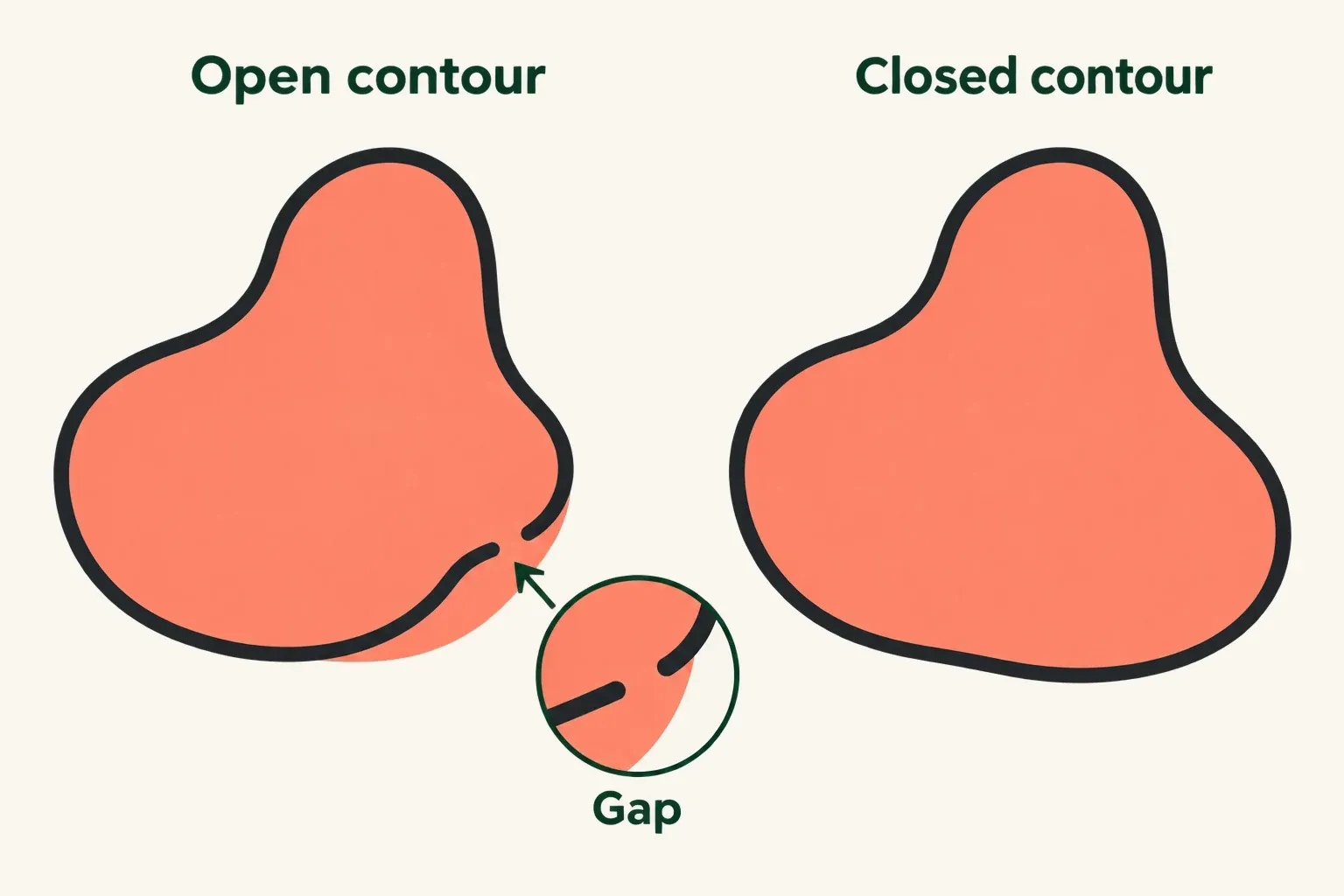
Work on a duplicate of the clean pre-fill canvas. If a new fill escapes, undo that fill before repairing the outline, so undo does not remove the repair. Zoom into the escape point and inspect the line at high magnification. Even a small gap in the boundary can let ColorDrop spill through. Close that gap, then try the fill again. Raising threshold cannot close an open contour. A textured line can contain low-opacity gaps that are hard to see at normal zoom.
Inspect the layer actually supplying the boundary: the active layer for a same-layer fill, or the intended Reference linework for a separate-layer fill. If that source is clipped, note its current state and temporarily turn off Clipping Mask in its Layer Options on the duplicate. Clipping uses the layer below to control what is visible, so inspect the source contour itself with other layers temporarily hidden, rather than relying on the combined image. Look for an actual break or partly transparent edge. Restore clipping and visibility afterward. This comparison helps inspect the source; clipping alone does not establish the cause of a ColorDrop problem.
Set ColorDrop Threshold
Start at the Active Color circle in the top-right corner and drag immediately into the enclosed area. Do not pause on the circle first: pressing and holding Active Color switches between the current and previous color. The hold needed for Threshold happens after the color reaches the canvas.
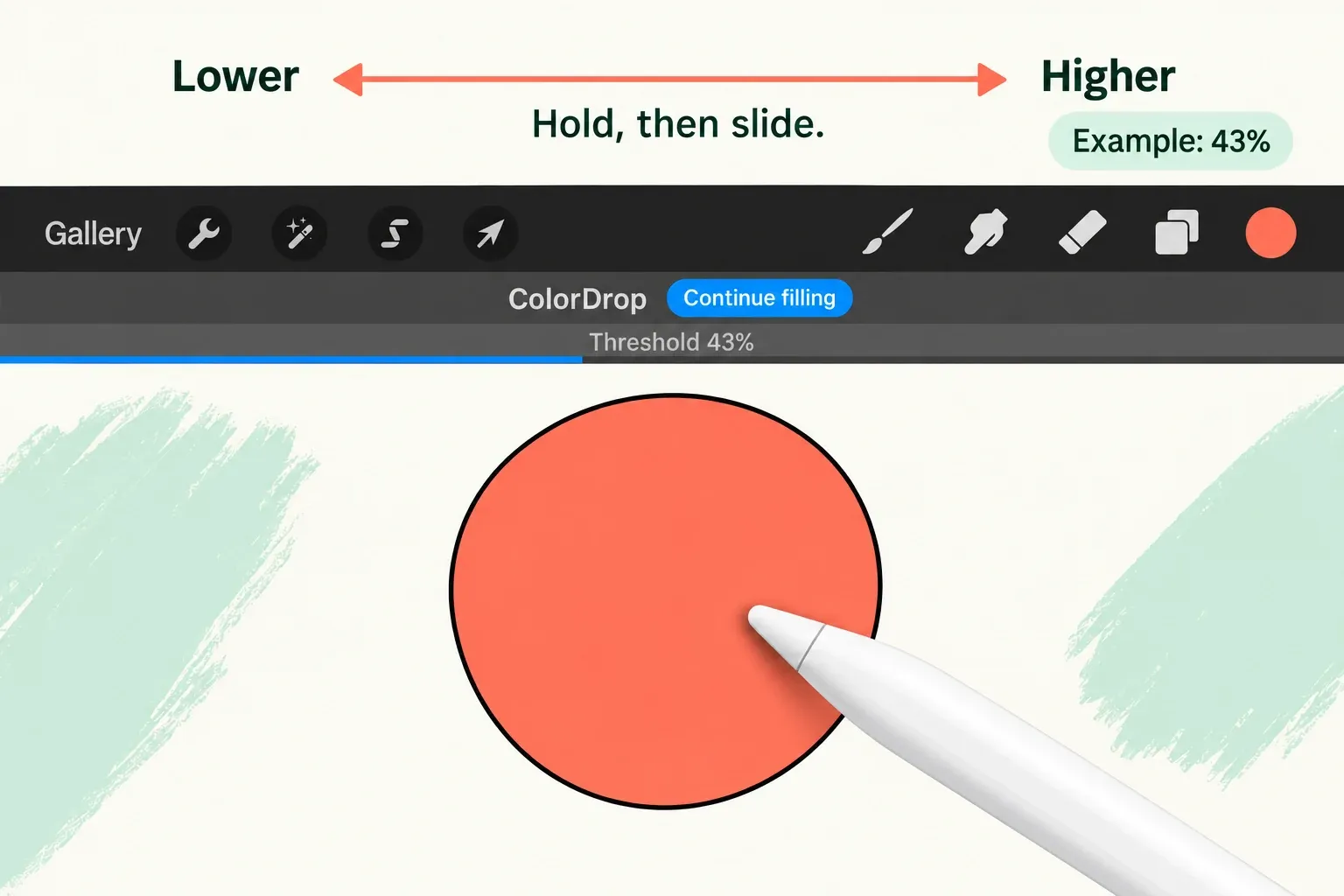
- Keep your finger or Pencil in contact after reaching the area. Wait for ColorDrop Threshold to activate; a blue bar above the artwork shows the percentage.
- Without lifting, slide left to lower Threshold or right to raise it. Raise it gradually for a pale rim; lower it if paint crosses the linework. A higher value spreads more aggressively, so stop if improving the rim also makes the fill escape.
- Lift to commit the fill. If it escaped, undo the fill before repairing the contour or checking another boundary source.
Use a Reference layer for separate linework
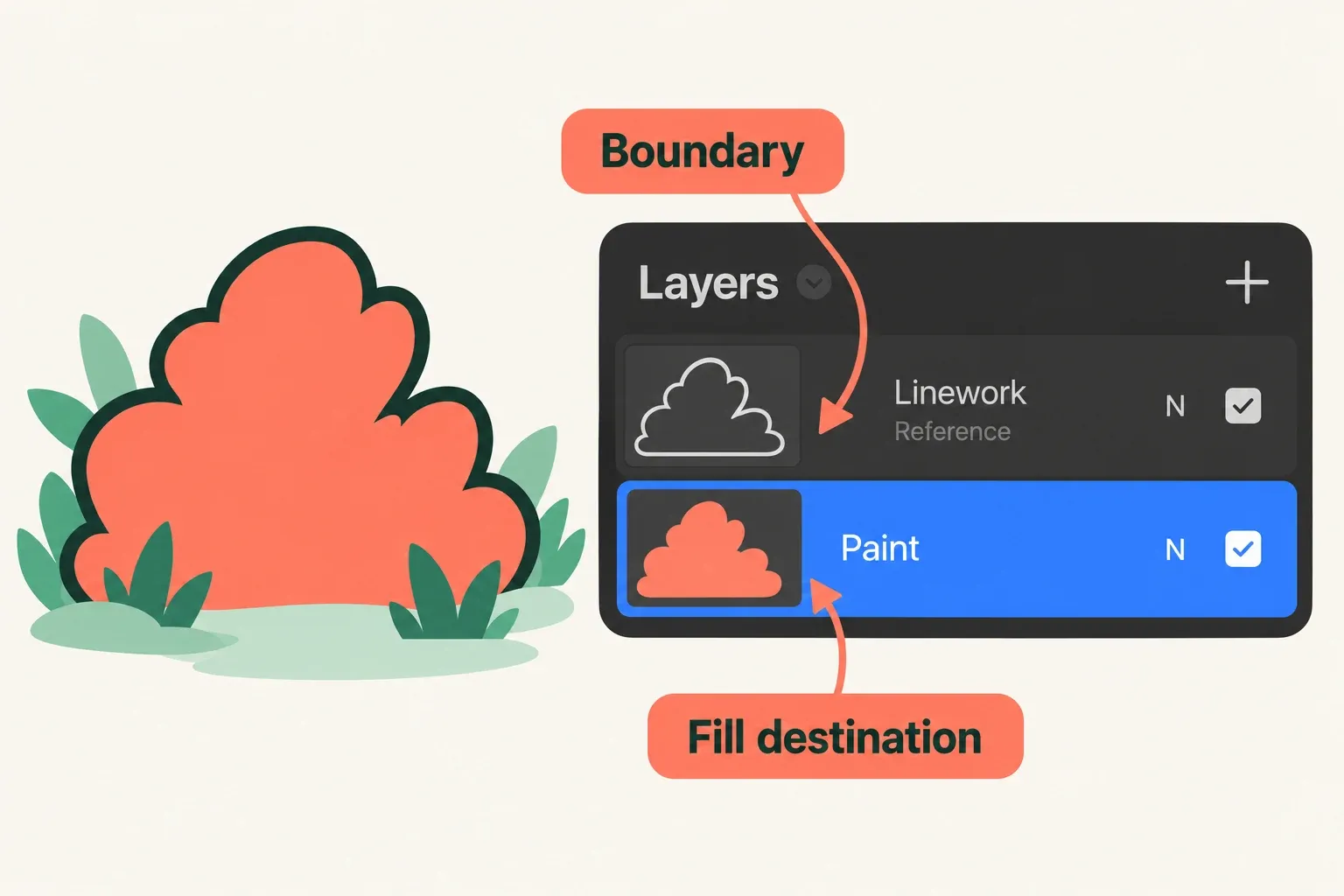
Open Layers, tap the intended line-art layer once to select it, then tap it again to open Layer Options and choose Reference. Check for the Reference label beneath that layer's name. Select a separate paint layer to receive the fill. Procreate reads the Reference layer's boundaries while placing the color on the active layer. Keeping the paint layer below the linework is a useful arrangement, but Reference does not require that position.
If the fill follows an old sketch or another object, undo the wrong fill. Remove Reference from the wrong layer, set it on the intended line art, select the paint layer again and repeat the drop. Check both roles: the boundary source and the active destination.
The floating window opened through Actions → Canvas → Reference is the Reference Companion. Opening that window or importing a photo for visual reference does not mark your linework as a ColorDrop Reference layer. For fill boundaries, use the Reference setting in Layer Options.
Try Continue Filling
After the first ColorDrop, tap Continue Filling in the top bar, then tap other enclosed areas to fill them with the same Active Color. Tap a menu-bar icon to exit. Further fills still depend on closed boundaries and the current Threshold; Continue Filling does not correct an unsuitable setting.
When to stop changing settings
If the checks above do not explain the failure, make one simple comparison on a duplicated canvas before changing the whole drawing:
- Note which layer has Reference enabled and temporarily turn that setting off. Cancel any active selection. Create a temporary unlocked layer, select it and keep it unclipped.
- Draw a hard, opaque, fully closed shape on that temporary layer. Use a contrasting fill on the same layer, following the held-drop gesture above, and adjust Threshold while keeping contact.
- Compare that result with the original problem. If the simple shape fills, return to the original source contour, Reference and target-layer checks. Restore the recorded Reference, clipping and visibility settings after the comparison.
If ColorDrop still will not start or fill that simple closed shape with those conditions checked, keep the original artwork intact and contact Procreate support. Include your iPad model, Procreate and iPadOS versions, active layer, Reference and selection states, and the exact stage where the gesture fails. A short recording showing the gesture and Layers panel gives the team more to examine. An unexplained result here is a reason to ask for help; it does not establish a particular bug.
Does Procreate remember ColorDrop Threshold?
Yes. The current Handbook states that ColorDrop remembers the chosen Threshold until it is changed. If fills suddenly behave differently across documents, check the displayed percentage during the next ColorDrop gesture.
This is an independent guide. It is not affiliated with or endorsed by Procreate.
When the fill is correct but later recoloring is difficult, compare separate-layer clipping, Alpha Lock and layer masks before changing the layer structure.