Choose where to make the edit
Use a Clipping Mask when new paint should remain on a separate layer, Alpha Lock when you want to alter existing pixels directly, and a Layer Mask when you want to hide or reveal artwork without erasing it. The visible edge may look similar, but the location and reversibility of the edit are different.
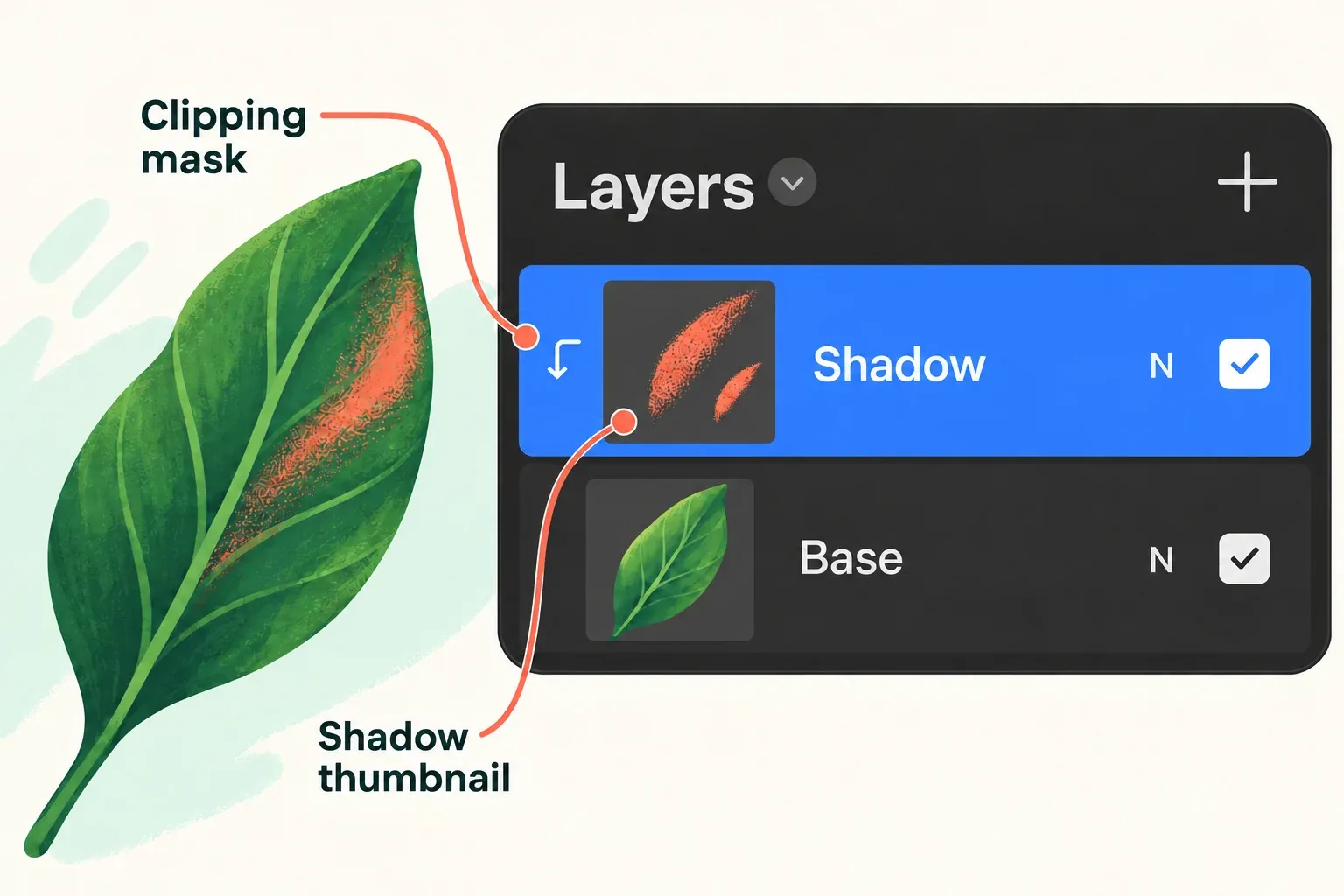
Clipping Mask vs Alpha Lock vs Layer Mask
| Method | Where the edit lives | Best for | Main tradeoff |
|---|---|---|---|
| Clipping Mask | Separate layer above a base | Shading, texture, color variants | Uses additional layers and depends on stack order |
| Alpha Lock | Existing pixels on the same layer | Fast recoloring and direct texture | Original pixels change unless a duplicate exists |
| Layer Mask | Grayscale mask attached to artwork | Reversible hiding and edge revisions | Requires editing the correct mask rather than the artwork |
Clipping Mask: separate paint
Add a layer above the base shape, tap it in Layers, and enable Clipping Mask. Paint stays on the upper layer while its visible area follows the base layer's shape and visibility. A clipped layer is useful for shading and texture. It also lets you try alternate colors. You can hide, replace, or blend it without repainting the base. If the base fill crosses its intended edge, check ColorDrop's boundary and threshold before adding clipped paint.
Alpha Lock: edit existing pixels
Swipe right with two fingers on a layer, or tap the layer and choose Alpha Lock. New paint affects only pixels that already contain opacity on that same layer. It is fast for recoloring a finished shape, but the change is stored with the original pixels unless you duplicated the layer first.
Layer Mask: reversible visibility
Tap the artwork layer and choose Mask. Select the attached mask thumbnail in Layers, rather than the artwork thumbnail, before painting. Paint black on the attached mask to hide parts of the artwork, white to reveal them again, and gray for partial visibility. The artwork pixels remain intact when you edit the mask. Selecting the parent artwork instead edits the content underneath that mask. This is the strongest choice when you may need to revise an edge or restore hidden detail later.
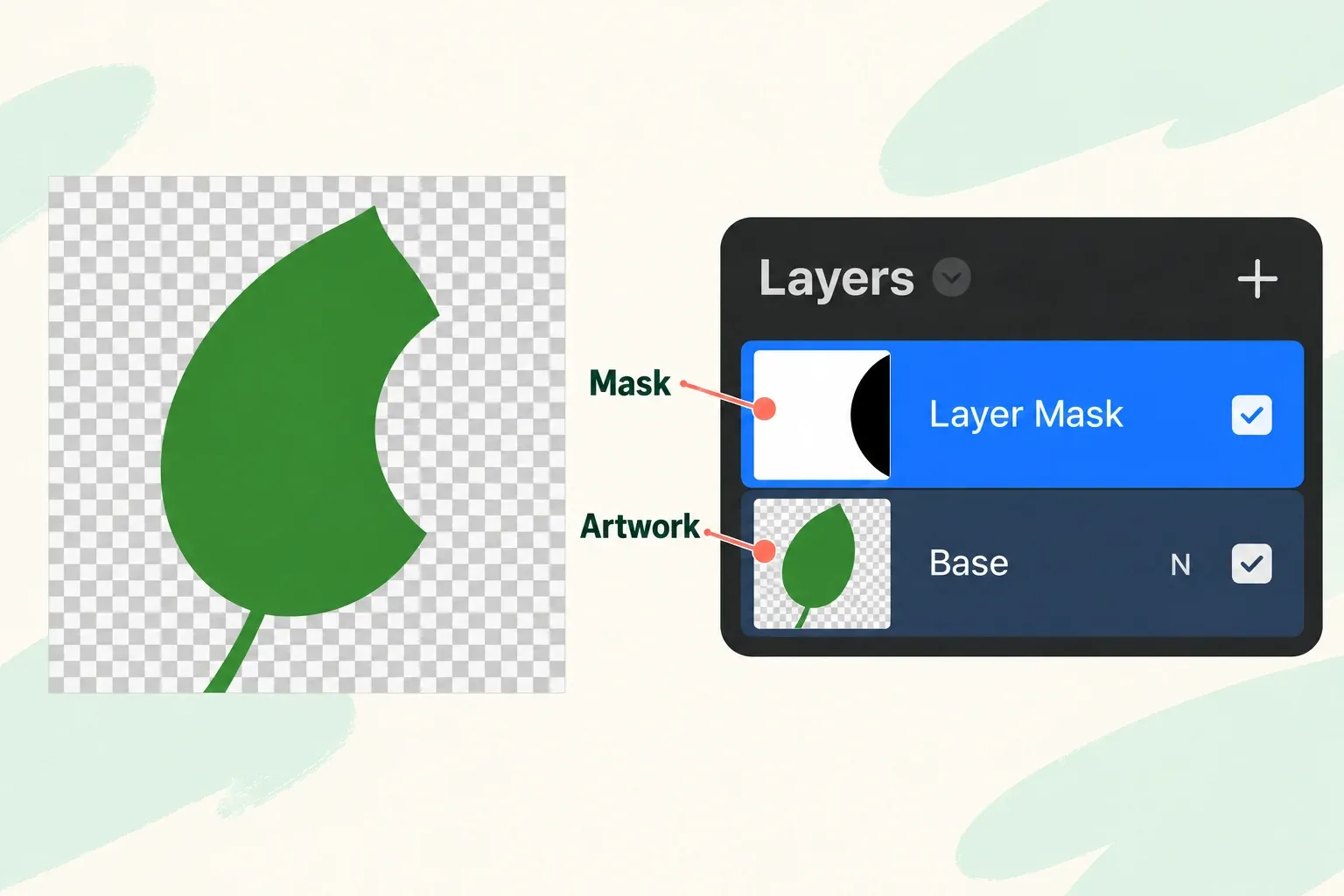
Shape changes affect the methods differently
Changing the base shape also changes what a clipping mask can show. Alpha Lock follows the opacity that already exists on its own layer. A Layer Mask stays attached to its artwork layer and can be edited independently. Those relationships matter more than the similar appearance of the first brush stroke.
Match the method to a likely revision
Suppose a painted leaf needs a different shadow, a new body color, and a shorter tip. Those are three different edits. The following examples use documented mask behavior; they are proposed editing choices, not reported results.
| Revision | Method | Action and limit |
|---|---|---|
| Replace the shadow while keeping the leaf | Clipping Mask | Edit or replace the separate clipped paint layer. The base shape still sets its visible area. |
| Recolor the existing leaf directly | Alpha Lock | Duplicate the leaf first, enable Alpha Lock, then use Fill Layer. Transparent space stays clear; the existing artwork on that copy is recolored. Keep the unaltered original when its color detail matters. |
| Hide the tip, with the option to restore it | Layer Mask | Select the attached mask and paint black on the tip. Paint white on the mask to reveal the underlying pixels again. |
Alpha Lock with Fill Layer affects existing artwork; a Layer Mask changes visibility in grayscale. Neither recoloring nor masking creates missing artwork beyond the source shape. To extend an Alpha Locked shape, turn Alpha Lock off, add the pixels, then enable it again.
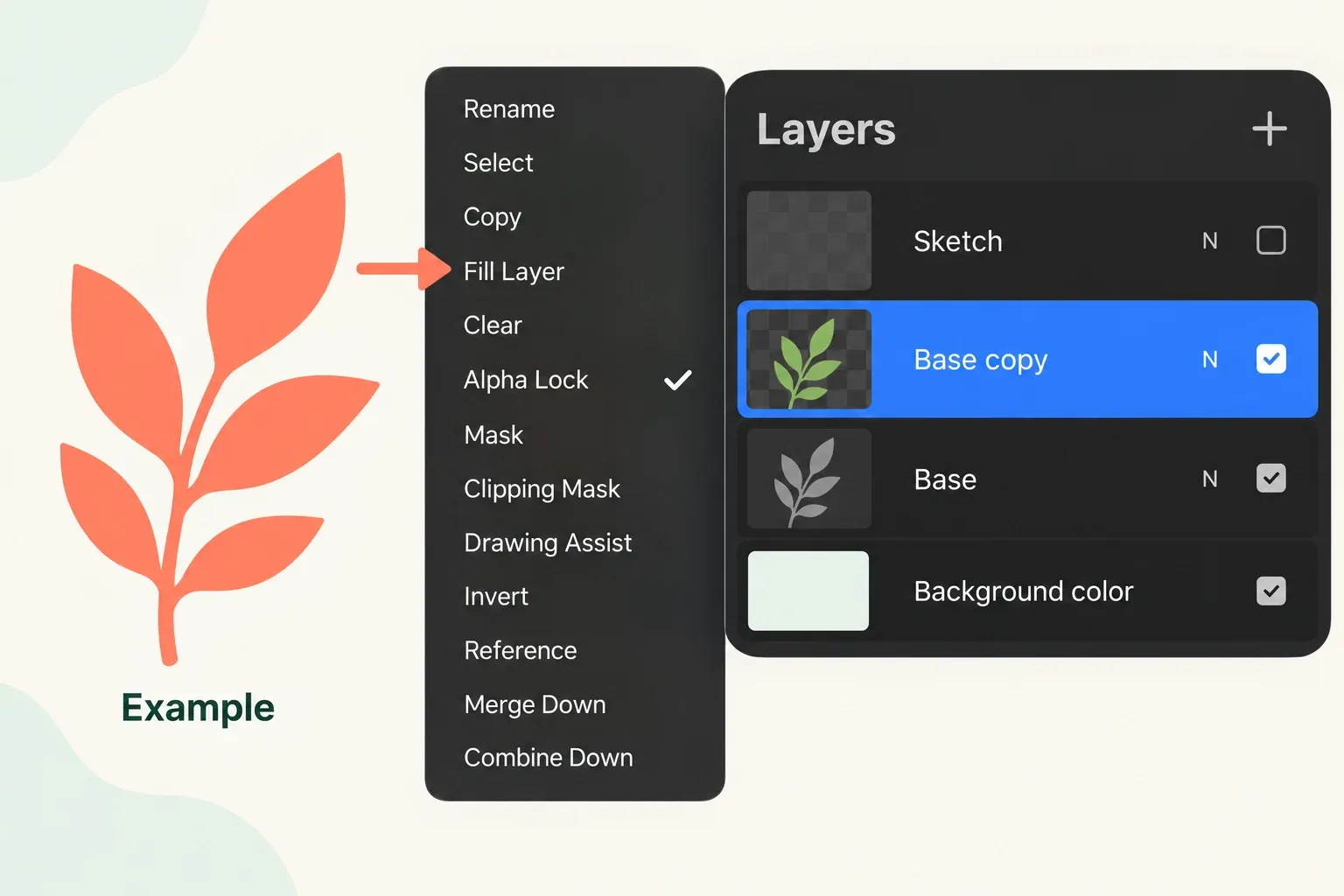
Fit reversible edits within the layer budget
Before adding clipped passes or masks, check that the document can accommodate the planned edits. Save a native copy before merging approved duplicates, and verify that the copy opens. Merge Down removes separate editability, so merge only layers whose independent controls are no longer needed. Direct Alpha Lock edits can conserve a separate paint layer when that destructive tradeoff is intentional; the duplicate remains the recovery route.
Keep the editing relationships in the master
Name the base shape, clipped paint, and mask by their purpose. A short layer map helps another artist identify the control to change. Keep the native .procreate master, which preserves layers, masks and effects, and create flattened delivery copies separately. A visually correct PNG cannot preserve those editable relationships.
If delivering a PSD, ask the recipient to check the mask relationships they need to edit. Keep the native source until they approve the delivery; a matching flat image alone does not establish editability.
This is an independent guide. It is not affiliated with or endorsed by Procreate.