A backup must open and preserve the layers
Back up Procreate artwork as native .procreate files outside the app, retain separate copies for important work, and check the actual files by importing them. PNG and JPEG exports preserve the rendered image but not the editable layer structure. Before deleting artwork, reinstalling Procreate or wiping the old iPad, open and inspect every critical artwork on the receiving compatible setup; a successful sample checks that sample only.
Export the native artwork
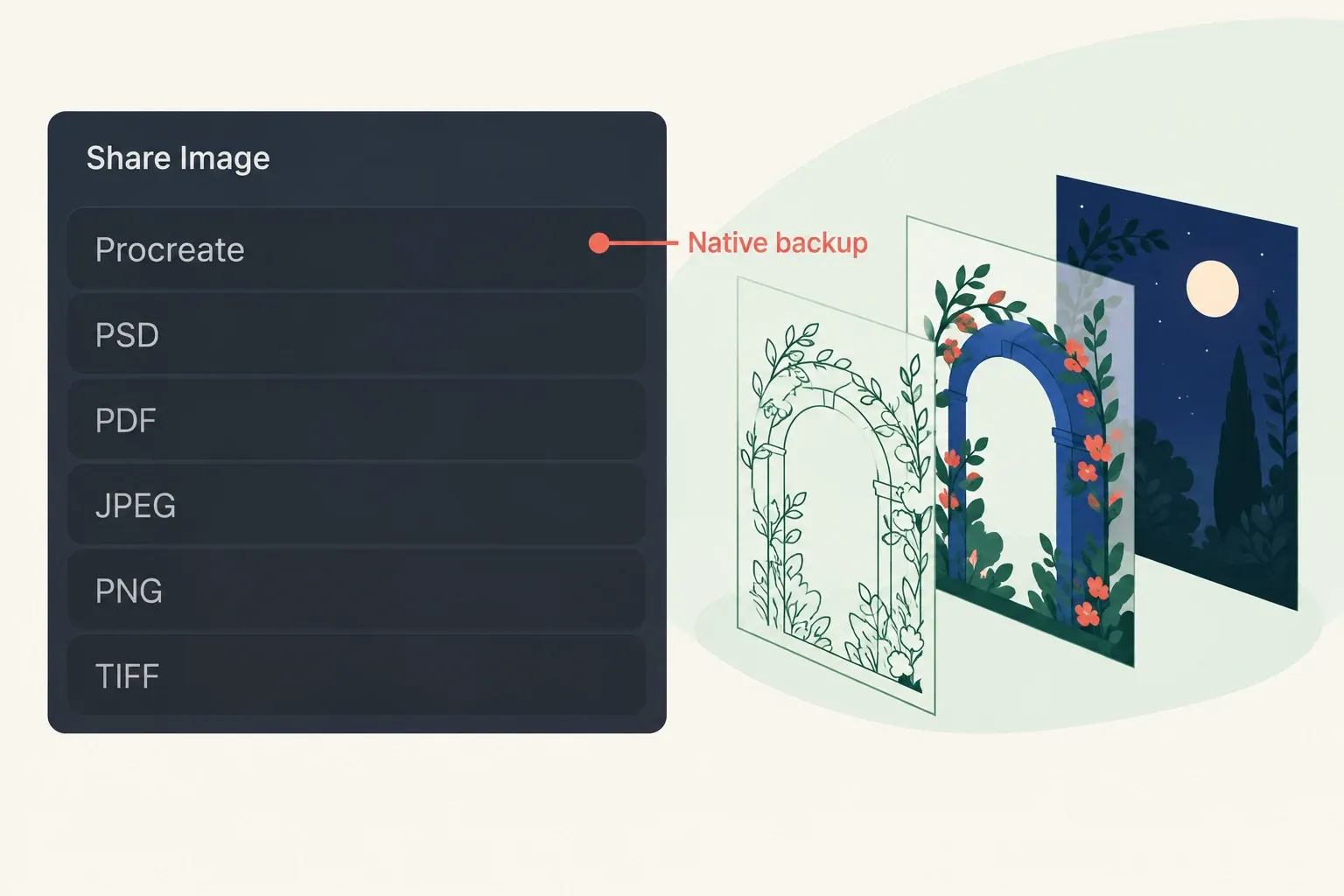
- Open the artwork and choose Actions → Share → Procreate to export its native file.
- When the iPadOS share sheet appears, select Save to Files. Choose an available location and the intended folder, then complete that destination’s save dialog.
- Confirm that the actual
.procreatefile is available in that folder. For a cloud destination, confirm the correct account and completed upload before relying on the copy. Use the import check below to verify it.
The native format preserves layers and masks. It also retains effects and Canvas Information. PNG, JPEG and Procreate’s flattened TIFF exports are useful deliverables, but they are not replacements for the editable native file. On My iPad is still on the same device; retain a copy elsewhere before removing the old setup.
Export multiple artworks from Gallery
- In Gallery, tap Select, then tap the canvases or Stacks you want to back up. Ticks show the selected items.
- Tap Share → Procreate. Wait through the Exporting progress indicator for the iPadOS share sheet.
- Select Save to Files, choose the available destination and folder, and complete the save dialog. If a configured cloud service or storage location is hidden, the official backup procedure points to Ellipsis → Edit Locations.
- After completing the save, return to Procreate. If Gallery is still in Select mode, tap X at the far right of the Gallery selection toolbar to leave that mode.
Native sharing of a Stack exports its constituent canvases separately. Keep an index of the artwork files you expect; do not assume the native exports will restore your Gallery’s Stack organization.
Keep a copy outside the synchronized working location
Procreate recommends keeping exported artwork in multiple secure locations. I would use at least two locations for important artwork, with one dated archive retained independently on a computer or external drive. Two folders governed by the same sync operation are not that independent archive.
For exported files in iCloud Drive, Apple says file changes and deletions appear across devices with iCloud Drive enabled. A separately retained checkpoint gives you another copy to return to when a synchronized file changes or disappears. Wait for uploads to finish and confirm access to the correct account; a cloud folder or filename alone does not establish a usable backup.
Check the Procreate version on the restoring iPad: the Handbook warns that native files exported from Procreate 5.3 do not open in earlier versions. Keep the compatible setup and known-good export until the restore check is complete.
Restore a copy before removing originals
For a routine check, choose a completed native file from the retained backup location. Before deleting originals or wiping the old device, repeat the process for every critical artwork file. Keep the original artwork and exported archive unchanged while checking the imported copy.
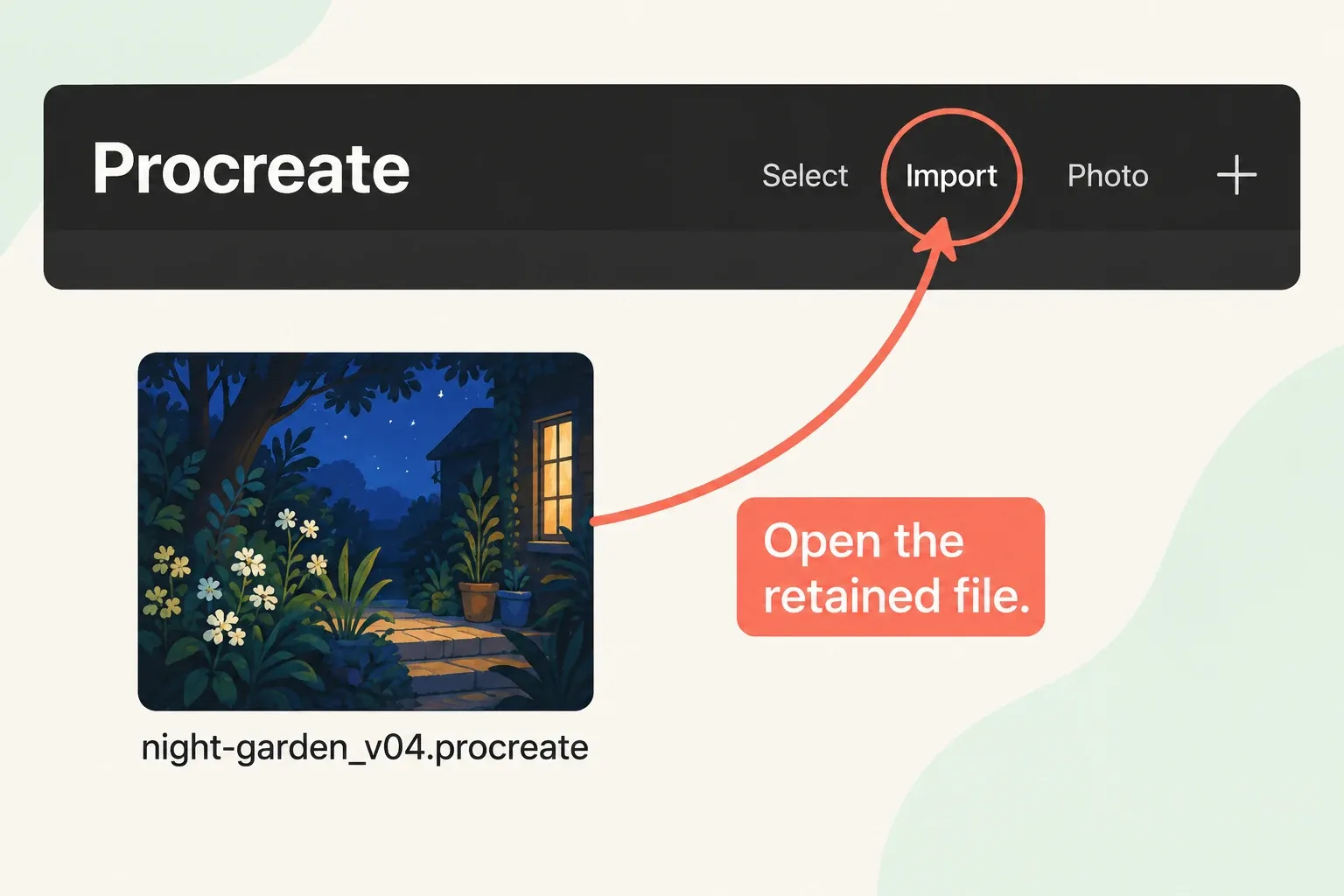
- On the receiving compatible iPad, go to the normal Gallery and tap Import at the top right to open Files.
- Navigate to the retained folder and tap the actual
.procreatefile to import it as a new canvas. Choose the native file rather than its PNG or JPEG preview. - Return to Gallery. Tap the imported copy’s title beneath its thumbnail to rename it, using a distinct label such as
night-garden_restore-check_v04. - Open that named copy and compare it with the intended original or your checkpoint record, using the checks below. A filename or thumbnail does not establish that the complete file is available, current or readable under the restoring version.
- Open Actions → Canvas → Canvas information → Dimensions and compare Pixel width and Pixel height.
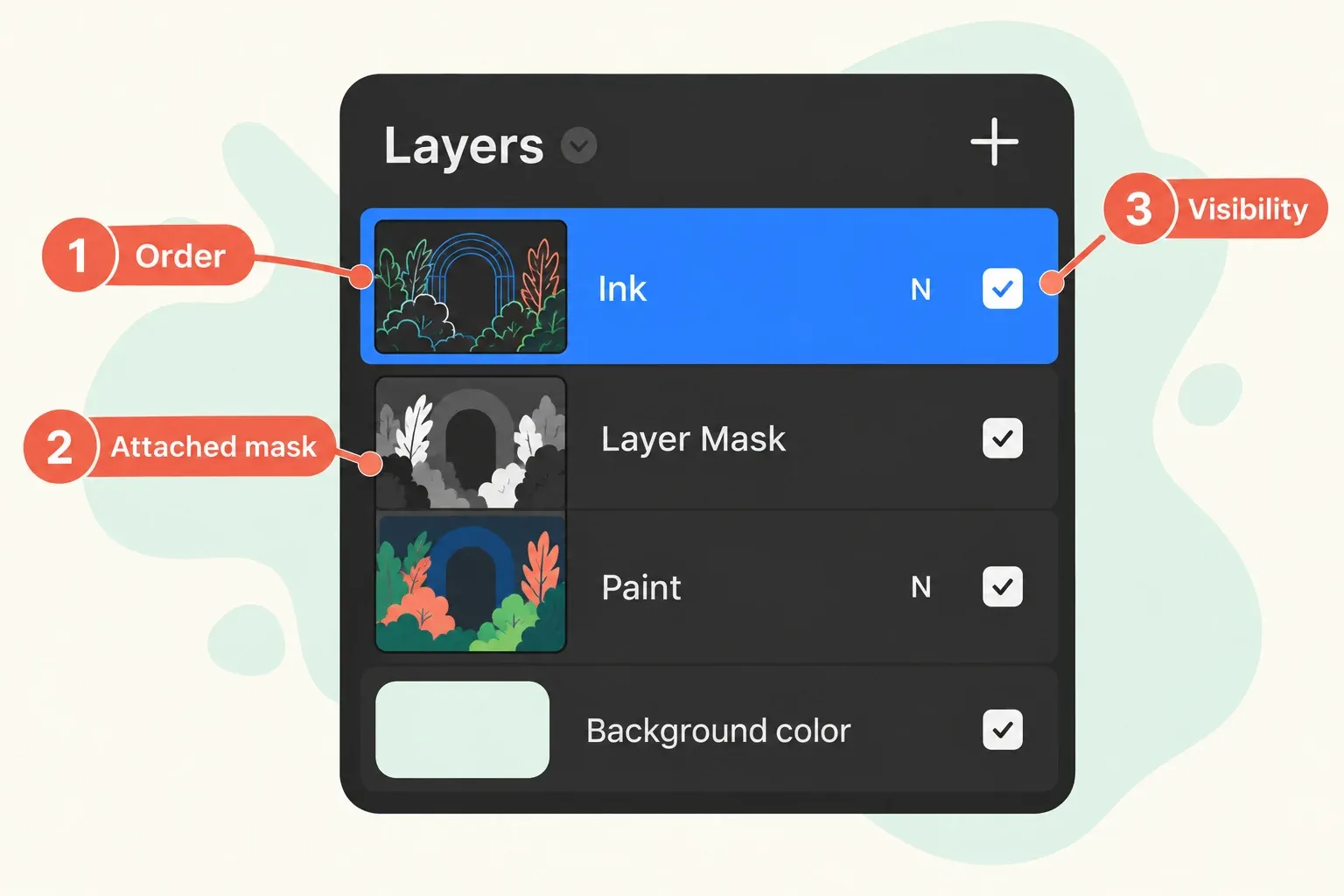
- Open Layers with the overlapping-squares button in the top-right menu bar. Compare the expected layer names, order and visibility-checkbox states. Use the mask-comparison guide to distinguish these structures, then check that layer masks remain attached to their parent layers and that needed clipping relationships are present.
- The letters at the right of a layer identify its blend mode. If you need the full name, tap the letters to open the blend-mode menu showing the current mode and opacity. Read those settings without scrolling through modes or moving the opacity slider. Compare the intended appearance as well as the structure.
For the documented Procreate 5.4 transition, the handbook says older projects using Darken switch to Shade. Note that transition when comparing an older source with a 5.4 copy. A changed label alone proves neither damage nor successful recovery; check the appearance and the editing structure you need.
Do not merge layers, resize, paint or toggle layer visibility to make a copy pass these checks. If it does not open or necessary structure is missing, retain the originals and resolve the mismatch before removing anything.
Repeat this check after changing the storage provider or iPad. Do the same after changing the app version or archive routine. Before migration or reinstalling, record the critical project list, native file locations and separate custom brush backups. Keep the old device and app intact until the receiving setup has opened and passed the relevant checks for those critical files.
Custom brush resources have a separate backup operation. From the Brushes view, tap the library title → Back to libraries; in the overview, press and hold a custom library and choose Share to export it. Retain that resource export separately from the native artwork files.
Retain named checkpoints
Use an artwork name, date, and revision, such as night-garden_2026-09-21_v04.procreate. Keep older known-good checkpoints before merging, resizing, converting, or preparing a major update. The latest copy can contain the latest mistake.
A small backup index can record each project's verified version, storage locations, and restore date. File size may reveal an incomplete copy, but opening it remains the check that matters.
Avoid risky recovery steps
Procreate's support guidance warns that deleting the app removes the artwork stored inside it. A separate usable backup is needed to restore that work. If artwork appears missing, check Gallery stacks, device storage, and available backups before reinstalling or deleting data. Recovery cannot be guaranteed after the only local copy is removed.
Procreate file types and backup value
| File | Preserves layers | Best use |
|---|---|---|
| .procreate | Yes | Editable master and recovery copy |
| PSD | Layers, names, opacity, visibility and blend modes; verify the handoff | Photoshop collaboration |
| PNG | No | Lossless rendered image and transparency |
| JPEG | No | Compact flattened delivery without transparency |
Does iCloud automatically back up every Procreate artwork?
Gallery artwork does not automatically sync to iCloud. Manual artwork export to iCloud Drive is separate from the 5.4 brush-library storage system. A complete iPad iCloud backup may include Procreate data, but it is also different from exporting individual artwork files. Confirm that an applicable backup exists: restoring an older iPad backup restores the entire device and can remove newer artwork. Back up current work before considering that route. For selective recovery, export important artwork as native .procreate files, wait for uploads to finish, and verify that a copy opens.
This is an independent guide. It is not affiliated with or endorsed by Procreate.