When a ColorDrop fill crosses a closed edge, lower Threshold. When it leaves a fringe, raise it gradually. ColorDrop spreads until it reaches an outline or an area of different color. Threshold changes how aggressively it crosses those boundaries. It can't close a gap or choose the intended paint layer, so I'd rule out both before moving the slider.
Separate an open boundary from a threshold problem
Confirm the intended paint layer and boundary source before the next drop. ColorDrop can fill the active layer using a separate Reference layer, so keep that Reference enabled when it deliberately supplies your outline.
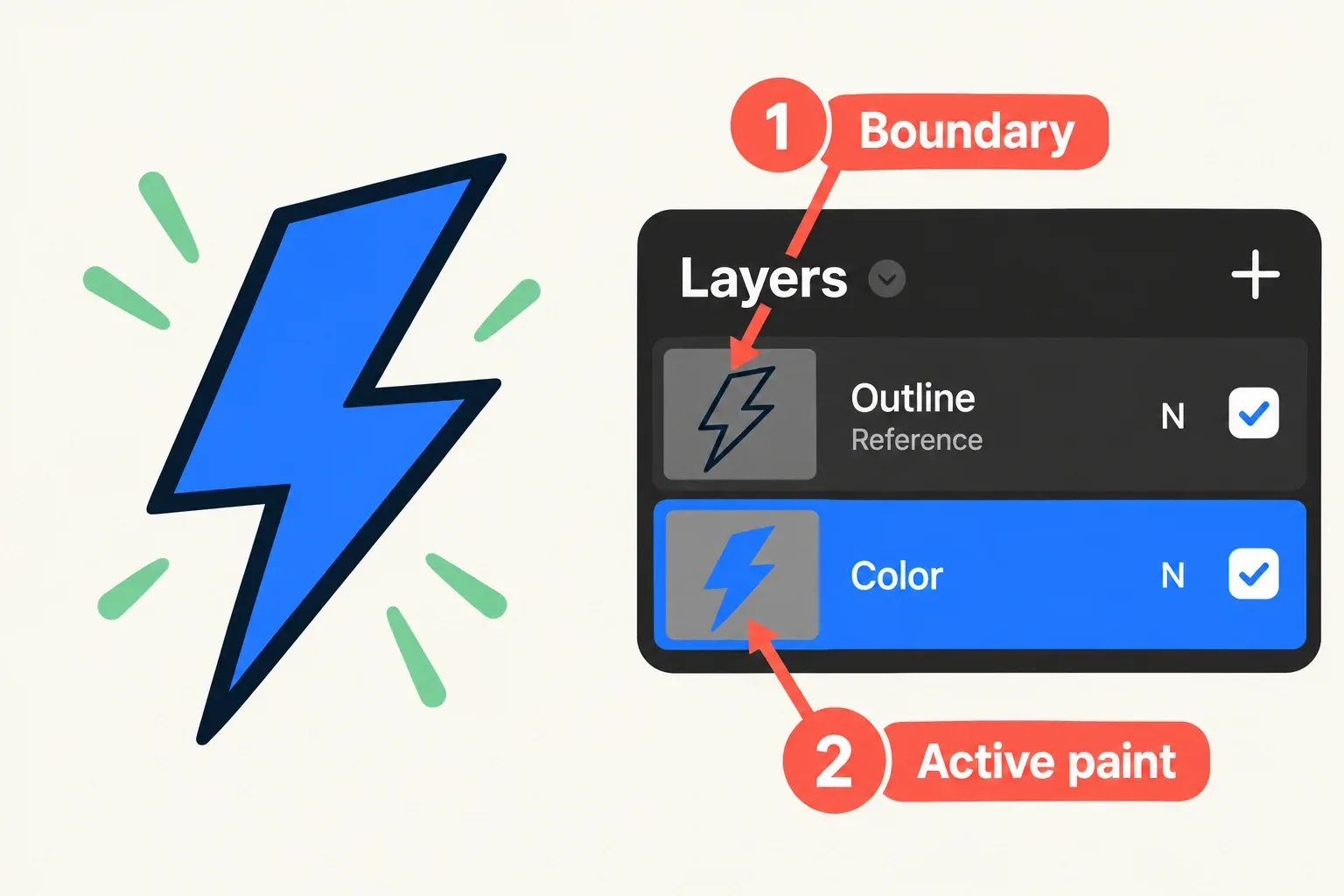
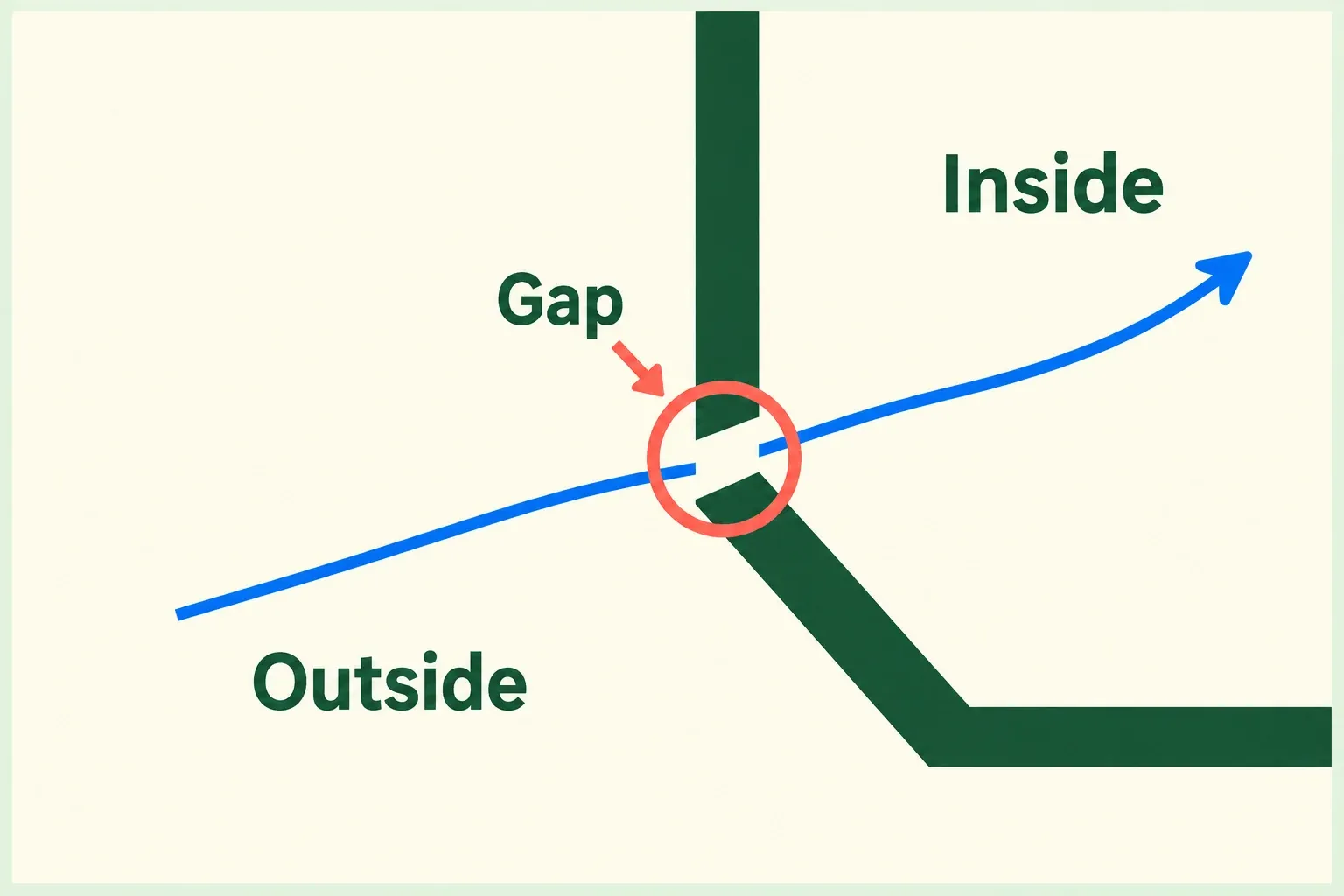
Duplicate the affected layer or canvas and inspect the escape point at high zoom. A transparent break can connect the inside to the outside even when the outline looks closed at drawing size. Close that gap before increasing Threshold. A soft or textured edge may need a lower starting value than a hard, opaque contour.
If no fill appears or it follows another object, use the general ColorDrop diagnostic guide to check the active layer and Reference setup. The adjustment below deals with how far the fill spreads on the intended boundary.
If the color leaks across an edge
ColorDrop Threshold controls how aggressively the fill crosses color boundaries. Drag the color into the area and keep holding without releasing. After a moment, a blue line at the top of the screen shows the Threshold amount. While keeping contact, move your finger left to lower Threshold or right to raise it. Watch the boundary, then lift your finger to commit the fill. Lower percentages make the fill more precise and less likely to cross similar colors. Higher percentages make it spread more aggressively.
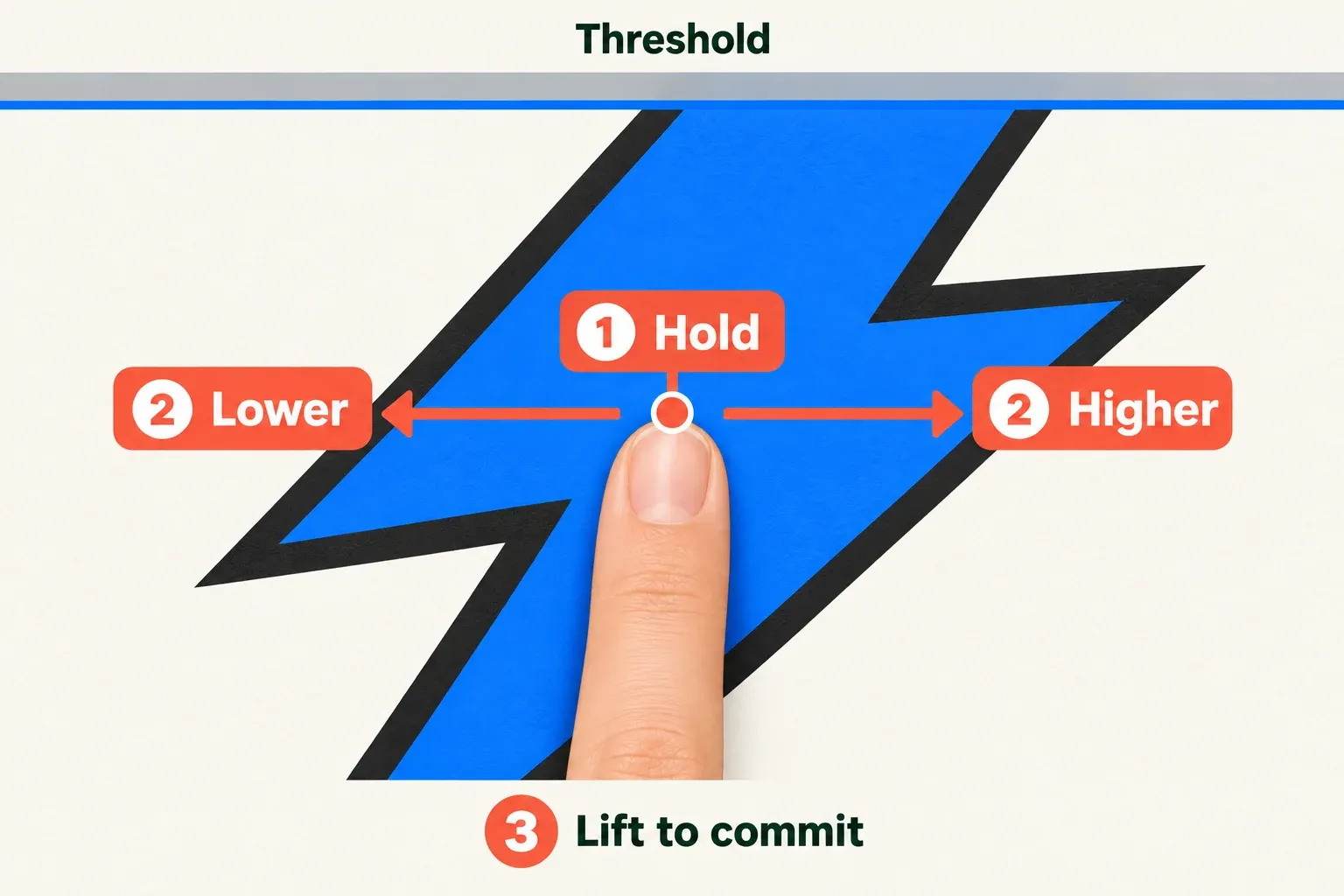
For a fill leaking across a closed edge, lower Threshold. For an unfilled pale fringe inside the outline, raise it gradually. I'd start lower when the outline is soft, textured, or antialiased, and watch the boundary throughout the adjustment. A higher value isn't automatically better: it may solve a small unfilled fringe while also crossing a nearby boundary. The artwork and brush edges determine the useful range. After committing, inspect the actual filled edge at narrow corners and intersections, and zoom as needed before using the same value elsewhere.
Procreate remembers the chosen Threshold until it's changed. A setting of 100% is saved as 97.6% to avoid color overflow. So if ColorDrop behaves differently on the next fill, check the active threshold instead of assuming the tool has reset.
Keep the same boundary source and active paint layer while comparing Threshold. If no value fills the inner fringe without spilling outside, return to the gap or soft-edge inspection rather than repeatedly increasing the setting.