
If the Symmetry line is visible but your stroke doesn’t mirror, check the active layer first. Drawing Assist operates on a layer and marks it Assisted in the Layers panel. A normal layer above or below it stays freehand unless an Assisted Drawing gesture is configured to force assistance while a Drawing Guide exists. If that layer is tagged, check the guide next.
| What you see | Check first |
|---|---|
| A visible guide, but no mirrored stroke | The actual drawing layer and its Assisted tag. |
| A reproduced stroke at the wrong angle or offset | The guide’s position and rotation; keep existing artwork separate from guide adjustments. |
| A repeated motif that turns rather than simply mirrors | Symmetry geometry and the Rotational Symmetry toggle. |
| Assistance switches unexpectedly, or affects a normal layer | Configured Assisted Drawing gestures and whether a Drawing Guide exists. |
Before you change settings or make diagnostic strokes, swipe the artwork thumbnail left in Gallery and choose Duplicate. I’d run every check below on that copy and keep the finished original aside.
Find the layer receiving the stroke
Open Layers and tap the layer you intend to draw on to make it the Primary, or active, layer. Its row is bright blue. Look for Assisted on that same row. A tag on a different layer doesn’t enable assistance on the layer receiving your stroke.
If the active layer has no tag, tap that selected layer again to open Layer Options, then choose Drawing Assist. This control uses the last Drawing Guide and settings for the current canvas, so inspect the guide next if it was previously set to something other than Symmetry. Whenever you add or switch to a new layer, check its own Assisted tag before drawing.
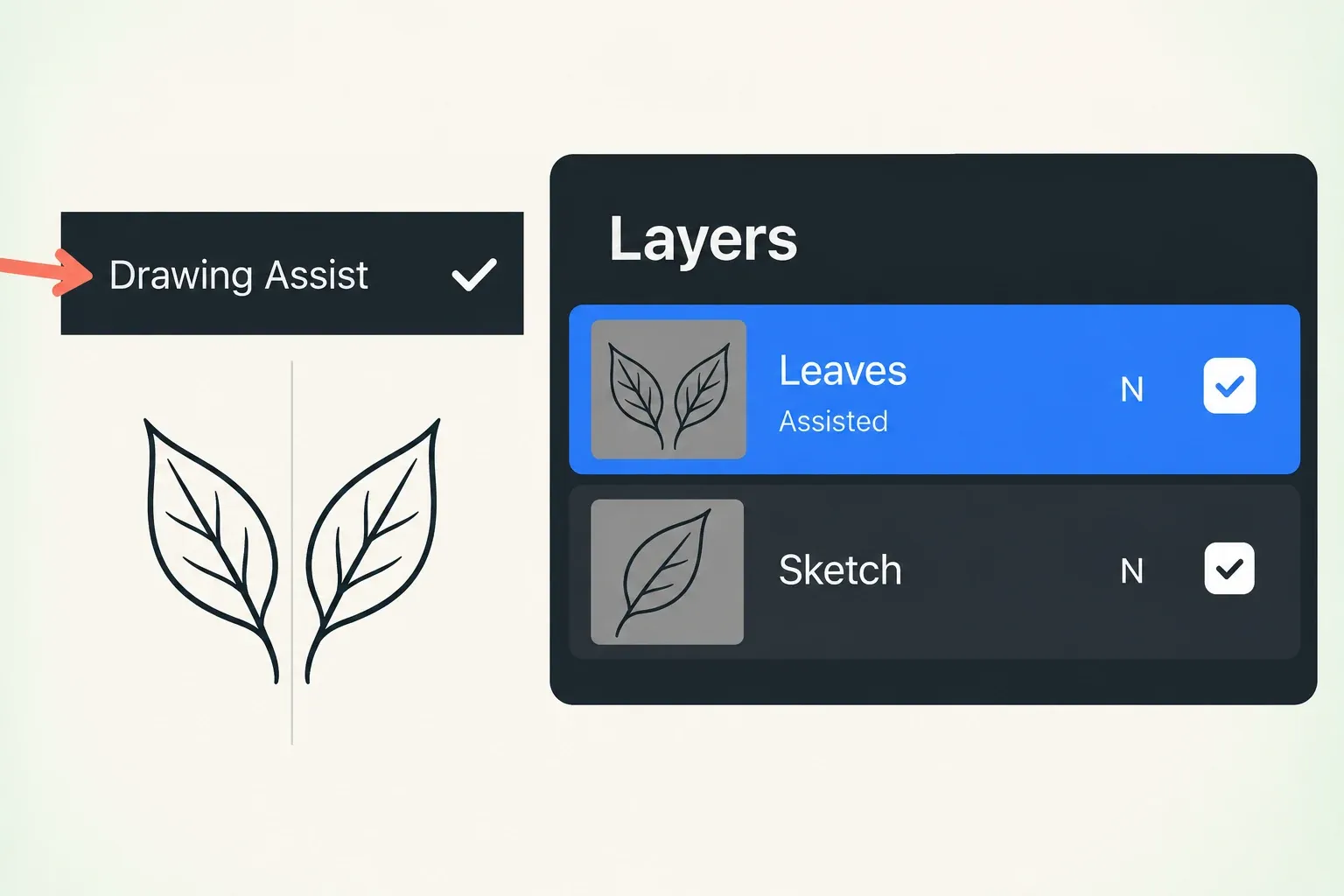
You don’t have to trace the visible line: Assist applies across the canvas, whether you are on a guideline or not. For freehand work, turn Drawing Assist off on that layer or use a normal layer above or below it. If a configured gesture forces assistance, review that gesture before you judge the freehand result.
Check which symmetry guide is active
Guide visibility and layer assistance are separate checks. If no guide is visible, open Actions > Canvas and turn on Drawing Guide. To inspect its mode, tap Edit Drawing Guide, then Symmetry. Tap Options to open Guide Options, where you choose the symmetry geometry and find the Assisted Drawing and Rotational Symmetry toggles. If the axis is hard to see, inspect the guide’s color, opacity and thickness in that editor. Opacity and thickness can make the lines invisible.
In Guide Options, turning on Assisted Drawing activates assistance on the Primary layer, and setting up Symmetry switches it on by default. That’s a reason to check the layer you’ve selected, not to assume every layer in the document is Assisted.
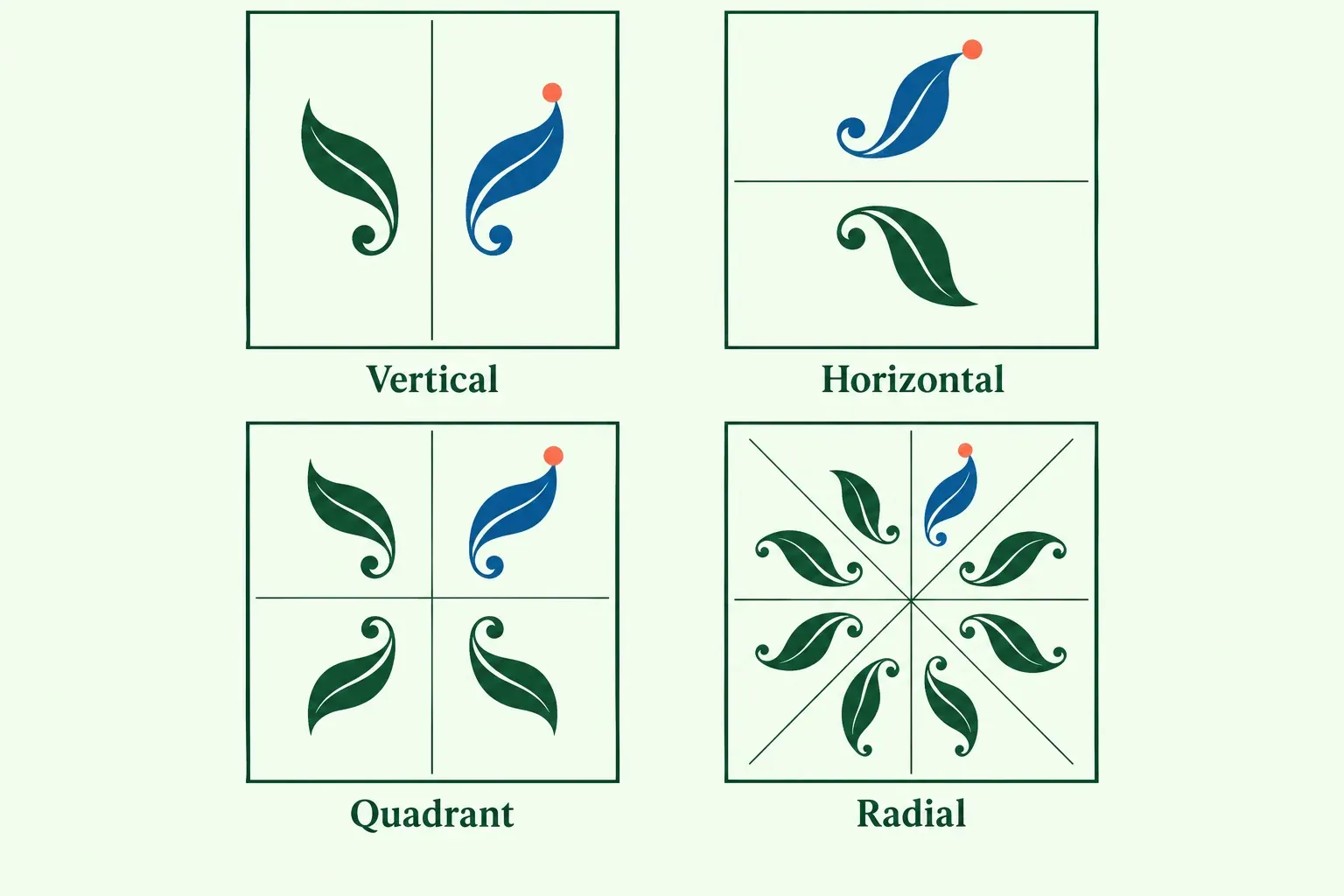
Vertical is the initial symmetry mode, but that doesn’t tell you how an existing canvas is set now. Vertical reproduces one side of the guide on the other, and Horizontal does the same between top and bottom. Quadrant repeats a stroke across four sections, while Radial repeats it across eight. Choose the geometry the drawing needs rather than judging a Quadrant result as a failed Vertical mirror.
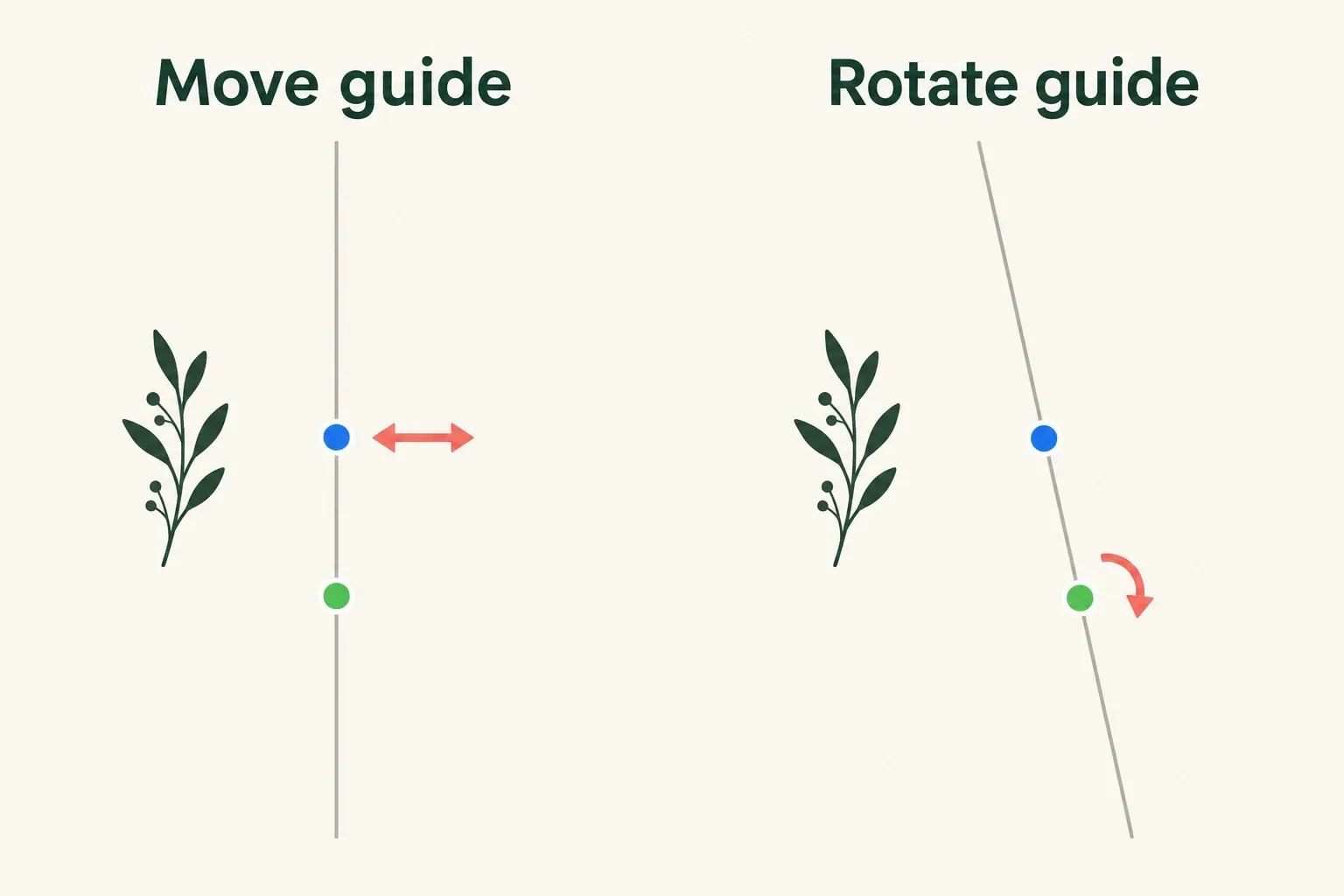
If the reproduced stroke is at an unexpected angle or offset, inspect the axis before you delete anything. The blue positional node moves the guide, and the green rotational node rotates it. Tap a node and choose Reset to restore the guide’s default position. Reset is a guide control. Do not use it to recenter or recover already displaced artwork. Tap Done to commit guide changes, or Cancel to leave them unapplied.
Distinguish Mirror from Rotational
New Symmetry Guides use Mirror Symmetry by default. The Rotational Symmetry toggle changes how the reproduced stroke is reflected and rotated. A motif that looks turned rather than simply reflected may therefore be a mode choice, not a broken stylus. Change one control at a time and tap Done before judging the next stroke.
Check unexpected assistance
Open Actions > Prefs > Gesture Controls > Assisted Drawing when assistance switches unexpectedly. If configured there, Tap Modify and Apple Pencil double-tap toggle Drawing Assist on the current layer.
The other configured methods behave differently: when a Drawing Guide exists, paint, smudge and erase strokes made with such a method are Assisted even if the current layer is not. Inspect the shortcut used for the stroke, not just the tag. Turn off an unwanted shortcut in those settings, then compare another stroke in the copy.
QuickShape is a separate feature: it straightens or regularizes a held stroke rather than mirroring it across a guide.
Check a disposable stroke before returning to the original
In the copy, confirm the intended layer and its Assisted tag. Open the guide editor and its Guide Options, choose Vertical with Rotational Symmetry off, and tap Done. I’d use that plain mirror for the check, because one axis produces a single reflection to compare. Draw a short curved stroke on one side of the guide and release it without holding. Check for a reflected stroke on the other side of that same axis. Compare position and orientation. Whether the motif looks finished doesn’t matter for this check. If you change a layer setting, guide control or shortcut, change only one before you repeat it.
I’d work through the active layer and the committed guide first, then the gesture settings, because those only change the result when a shortcut is configured. If these checks still don’t explain the result, keep the copy and contact Procreate support with your app version, your iPadOS version, the selected tool and the exact symptom, including whether Paint fails to mirror or only Smudge behaves differently. Do not recrop the original or reinstall the app as a generic symmetry fix. Those actions don’t follow from the layer and guide checks above.