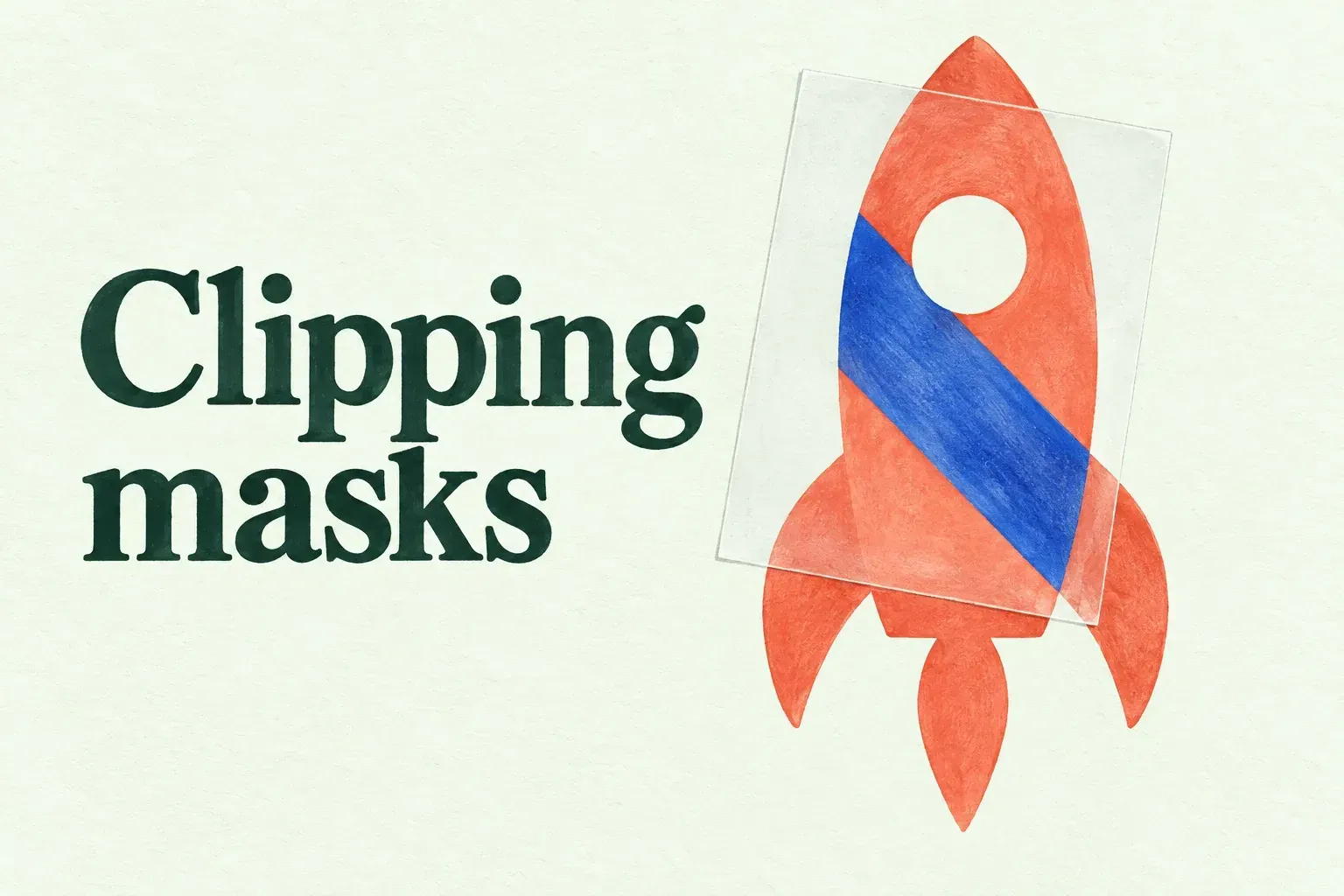
A clipping mask keeps paint on a separate layer while the base below decides where it shows. Choose Clipping Mask in that layer's Layer Options once the silhouette is settled but its shading or texture may change.
Build the two-layer relationship
Put the base shape on one layer and create another layer immediately above it for the treatment. For this example, use a filled, opaque silhouette with transparent space outside it. Tap the overlapping-squares Layers button in the top-right menu bar, then tap the base layer to make it active. Press + at the top right of the Layers panel to add a new layer above the active base.
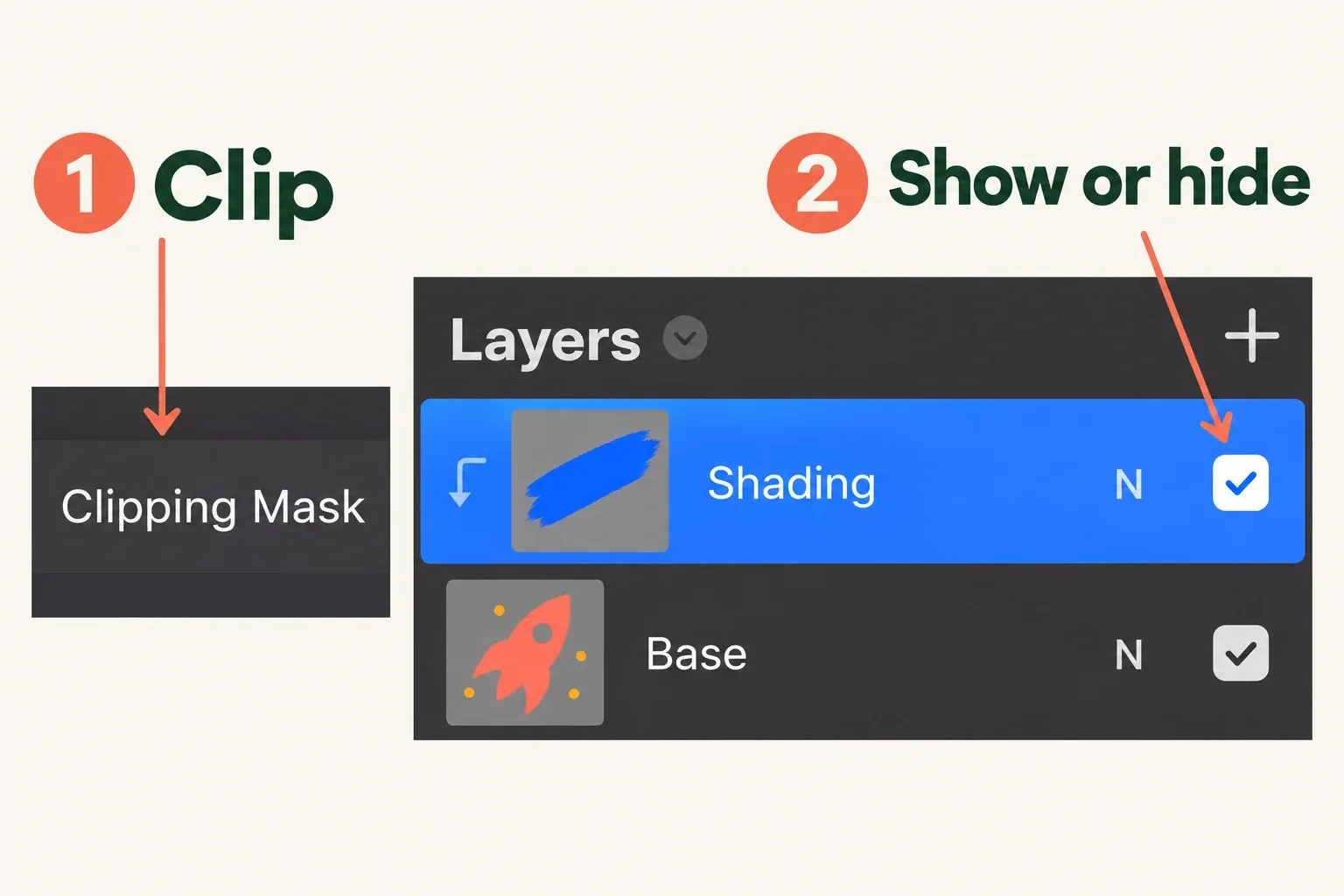
Name the base Base and the upper treatment Shading. For each layer, tap to select it, tap again to open Layer Options, then choose Rename. Select the upper Shading layer, tap it again to open Layer Options, and choose Clipping Mask. The upper layer's visible area now follows the shape and transparency of the layer beneath. The option is unavailable on the bottom layer because it has no parent below it.
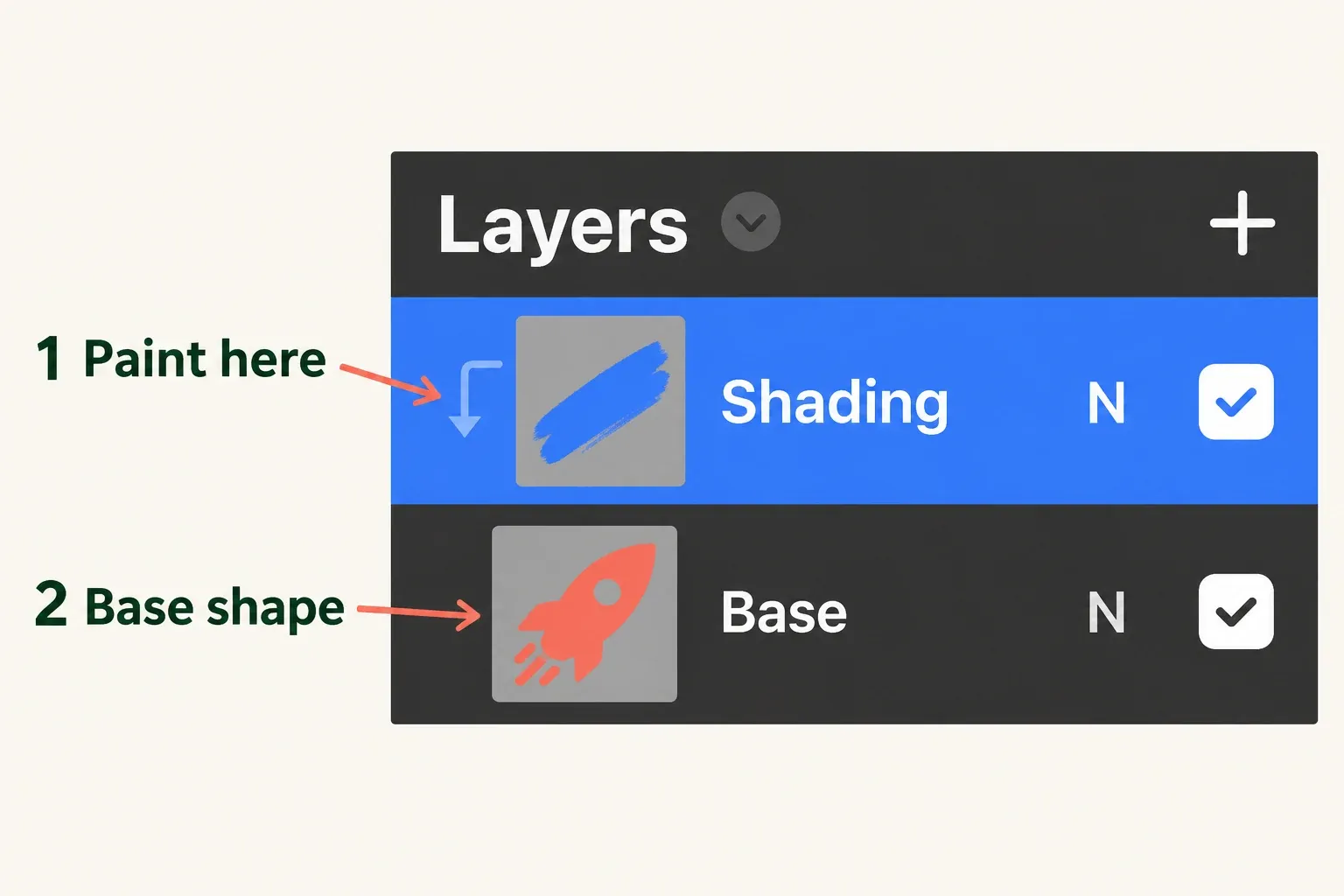
Before painting, confirm that Shading is the bright-blue active layer in Layers: drawing and painting affect this Primary layer. Choose a paint color that contrasts with Base. Tap Paint twice to open the brush library, select a brush, then tap the canvas. Paint a stroke across the base shape's edge. The stroke remains on the upper layer, while only the part allowed by the parent is shown. That's my default for adding color or texture without erasing the base. It also means the clipped layer can contain paint outside the currently visible boundary. Switching the clipping relationship off may reveal it.
To inspect the stroke with clipping off, open Layers and select Shading. Tap Shading again to open Layer Options, then tap Clipping Mask to toggle its clipped status. Compare the visible stroke with the clipped version; paint stored outside Base may now appear. To restore clipping, select the same Shading layer, tap it again, and choose Clipping Mask once more. Keep Base visible and leave the layer order unchanged during this comparison.
To compare shading with the base alone, tap Shading's Visibility Checkbox to hide its contents, then tap the checkbox again to show them. This hides or shows the treatment; the Clipping Mask command controls its relationship to Base. Leave Base visible for both views.
Diagnose a surprising result
If the effect disappears after moving layers, check their order. Several consecutive clipping masks can share one base layer. Follow the clipped chain down to the first non-clipped layer: that is the base controlling their visible boundary. Here, Texture and Shading are consecutive clipped layers above an opaque Base. Both treatments share Base's shape. Partly transparent areas in a base also affect the clipped paint's transparency.
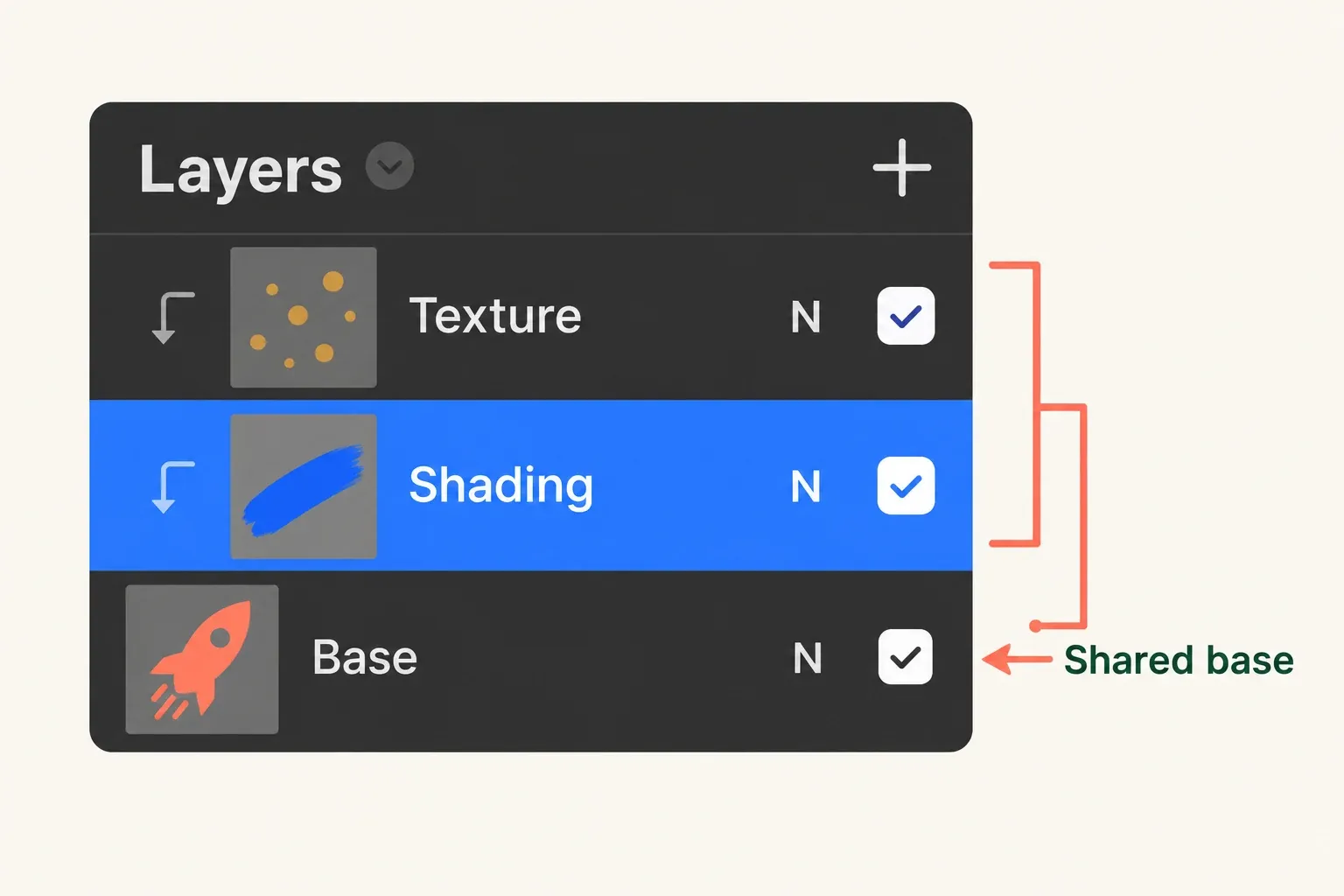
Reordering the clipped layer or inserting another non-clipped layer can change that relationship, and moving a clipped layer to the bottom deactivates clipping. Moving or transforming the parent changes the area in which the clipped paint appears. These are layer relationships, so I'd inspect the stack before repainting a missing mark. The site's clipping-mask troubleshooting guide covers other causes of a missing effect.
A Layer Mask uses grayscale to hide or show its parent's content. Keep the base and treatment named clearly so a later layer reorder doesn't silently change which shape controls the result. The layers and masks comparison explains that broader choice before the stack becomes difficult to inspect.