
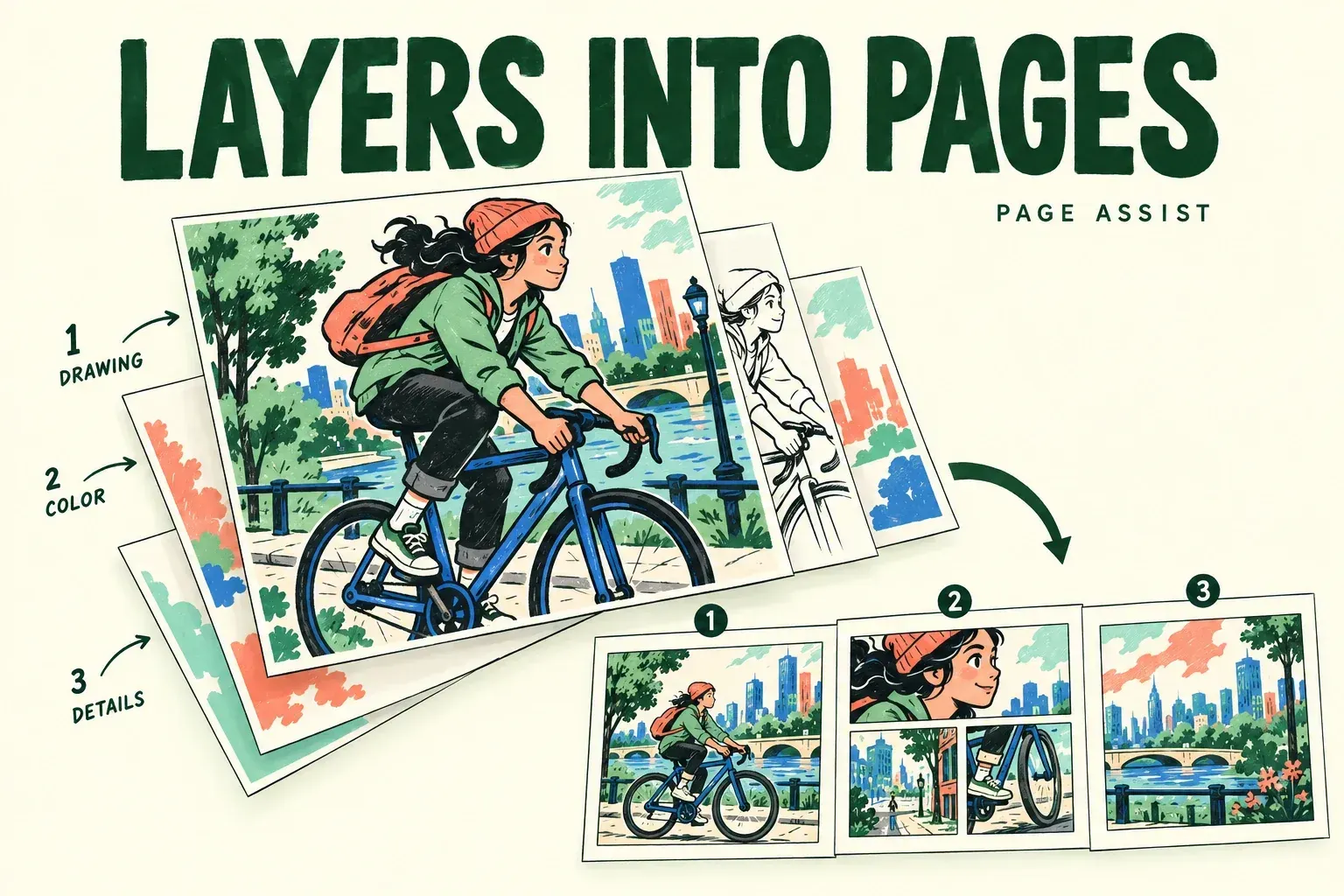
If your Procreate artwork suddenly looks like a sequence of separate pages, Page Assist may be on. Enabling Page Assist makes existing layers appear as individual pages in a timeline. They haven’t necessarily disappeared. The interface is treating them as pages of one document, so the Page Assist toggle is the first thing to check.
Importing one PDF while in Gallery opens it in Page Assist automatically. Importing multiple PDFs saves them to Gallery without opening them. Importing while an artwork is already open doesn’t open the PDF automatically either. So if you imported a single PDF from Gallery, expect a page-based view.
Check whether Page Assist is active
Open Actions > Canvas and look at the Page Assist toggle. The same toggle turns the multi-page interface on or off. If the goal was to paint one layered illustration, switch Page Assist off and inspect the Layers panel again before moving or deleting anything. I’d start with that view change, since it’s a safer first check than rebuilding the artwork.
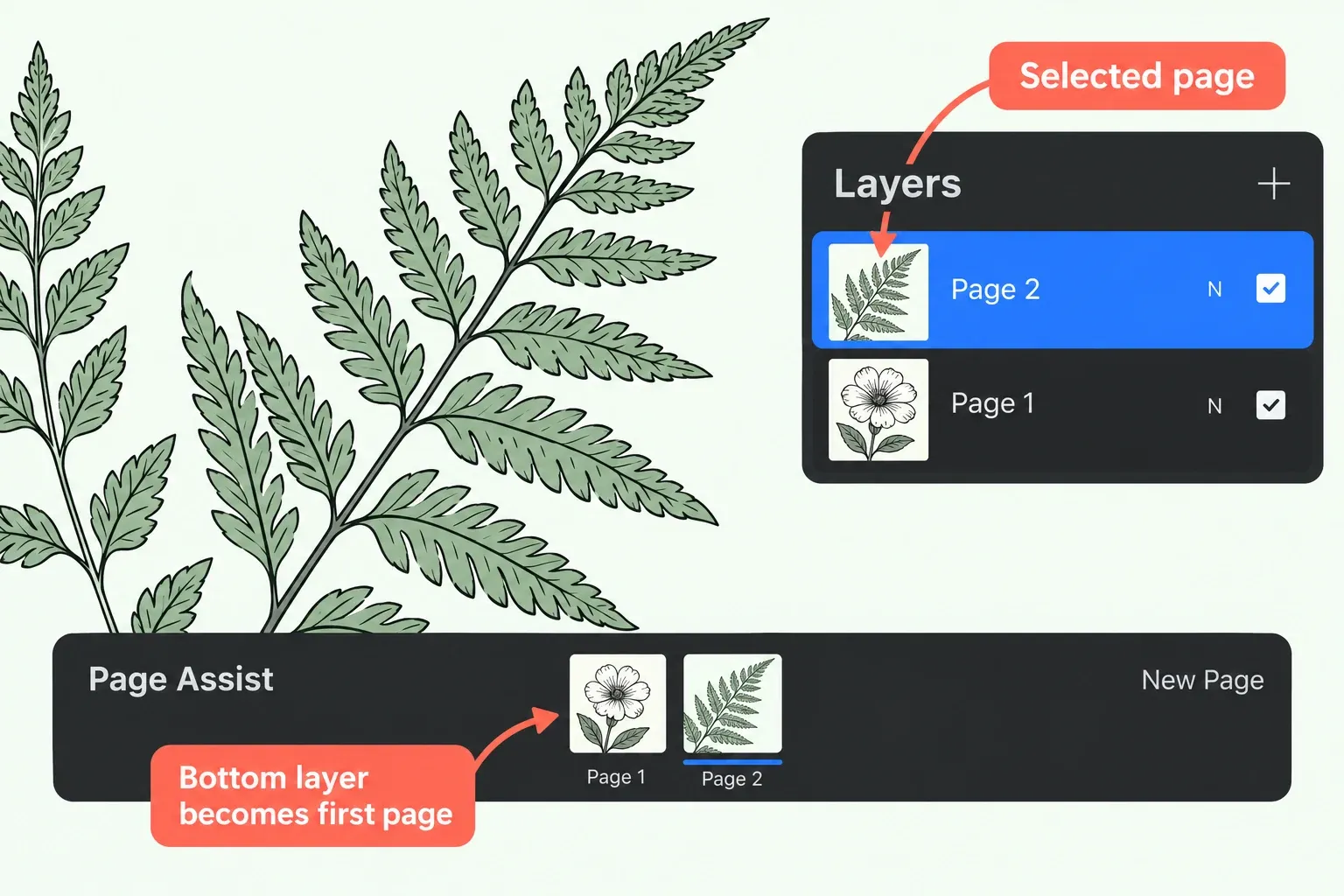
Page Assist is useful when the work is a sketchbook, comic, storyboard, or marked-up PDF. It gives each page a thumbnail in the timeline. The selected page is underlined in blue, and drawing affects that selected page. The bottom layer becomes the far-left page in the Page Assist timeline. This ordering can make familiar layers look unexpectedly rearranged when you first switch modes.
Keep several drawing layers on one page
One page doesn’t have to mean one paint layer. I’d group only layers that belong together. Grouping every layer just to hide an unexpected timeline can make the document harder to navigate later.
Check two layered pages
The picture above shows one layer per page. For a small practice exercise with layered pages, use a document with a flower drawing and a fern drawing already on separate component layers, such as linework and color. Keep the flower components in one group and the fern components in another.
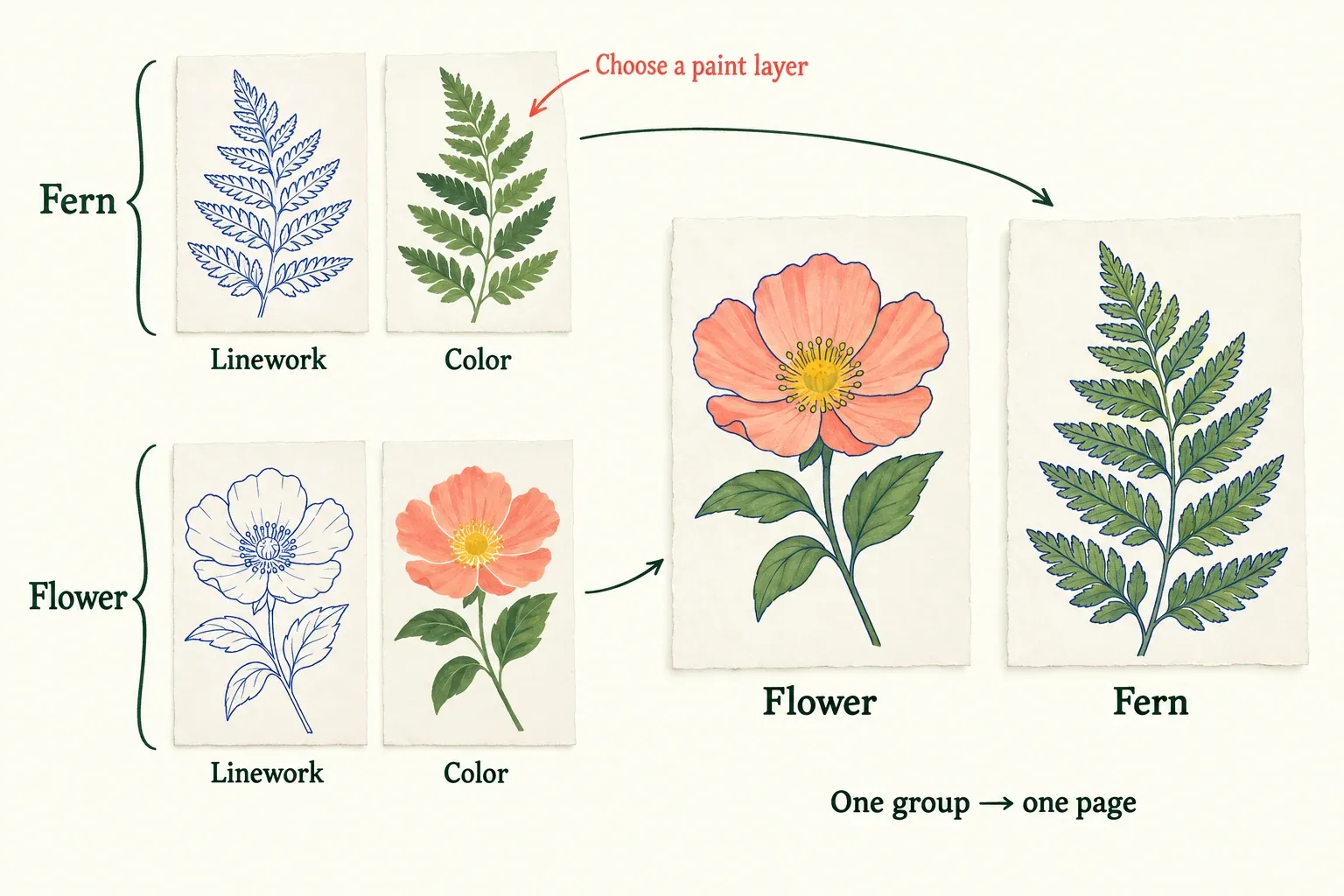
- In the Layers panel, tap the first flower layer, then swipe right on the other flower layers to select them. In Procreate 5.4, tap the highlighted Layers Menu chevron, then Group. Repeat with only the fern components to create a second group. Each group becomes one page in the timeline.
- With Page Assist on, check the two page thumbnails. For these two separate groups, the bottom group corresponds to the leftmost page. Tap each thumbnail and match its blue underline to the drawing on the canvas.
- Choose the page you intend to work on. Expand its group with the arrow on the right, then tap the component layer you want to paint on. Drawing and painting affect the Primary, or active, layer; check that layer before making a stroke.
- In this disposable practice document, make one small mark on the chosen component layer. Check that it appears on the intended page, then tap the other page and check that its drawing is unchanged.
Selecting the group doesn’t choose a component paint layer. If you start painting with a group selected, Layer Select appears so you can select a layer inside that group. For this exercise, choose the intended component in the Layers panel first.
When you need another page, New Page adds a blank one to the right of the current page. Adding a separate, ungrouped layer in the Layers panel also adds a new page while Page Assist is active. Layers inside a group belong to that group’s page. If a mark appears on the wrong page, check the blue underline in the timeline before redrawing it.
Use one shared Background only when needed
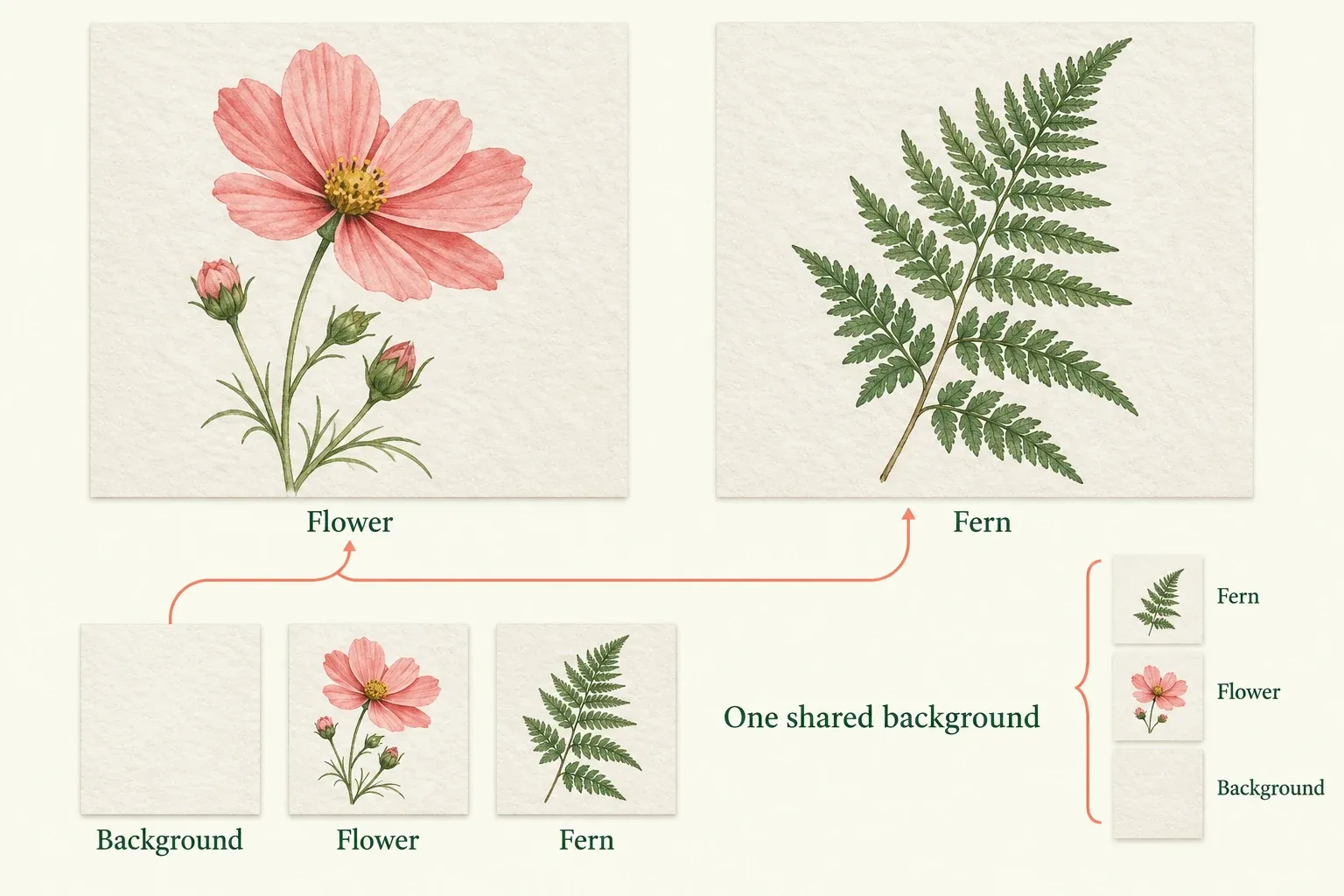
A backdrop layer inside the flower group belongs to that page. If you want the same paper texture underneath every page, use Page Assist’s Background page instead: it appears underneath every other page. Only the leftmost page can be the Background, and only one Background is allowed at a time.
Tap the leftmost page to select it, tap it again to open Page Options, then turn on the Background toggle. It stays fixed at the left of the timeline and the bottom of Layers while the other pages sit above it. Turn that same toggle off to return it to a normal page. Keep this shared page separate from the component layers inside each page group.
To hand back a Page Assist document as a PDF, use Actions > Share > PDF under Share Layers. Open the exported PDF in the viewer intended for the recipient and check the page order and contents before sending it.
Distinguish pages from animation frames
Page Assist and Animation Assist both show a thumbnail timeline at the bottom of the screen, overlaid on the lower canvas. They serve different jobs. Page Assist organizes document pages and PDF markup, while Animation Assist organizes frames and playback for motion. If you meant to inspect nearby animation poses, use the onion-skin settings guide instead of reorganizing a Page Assist document.