
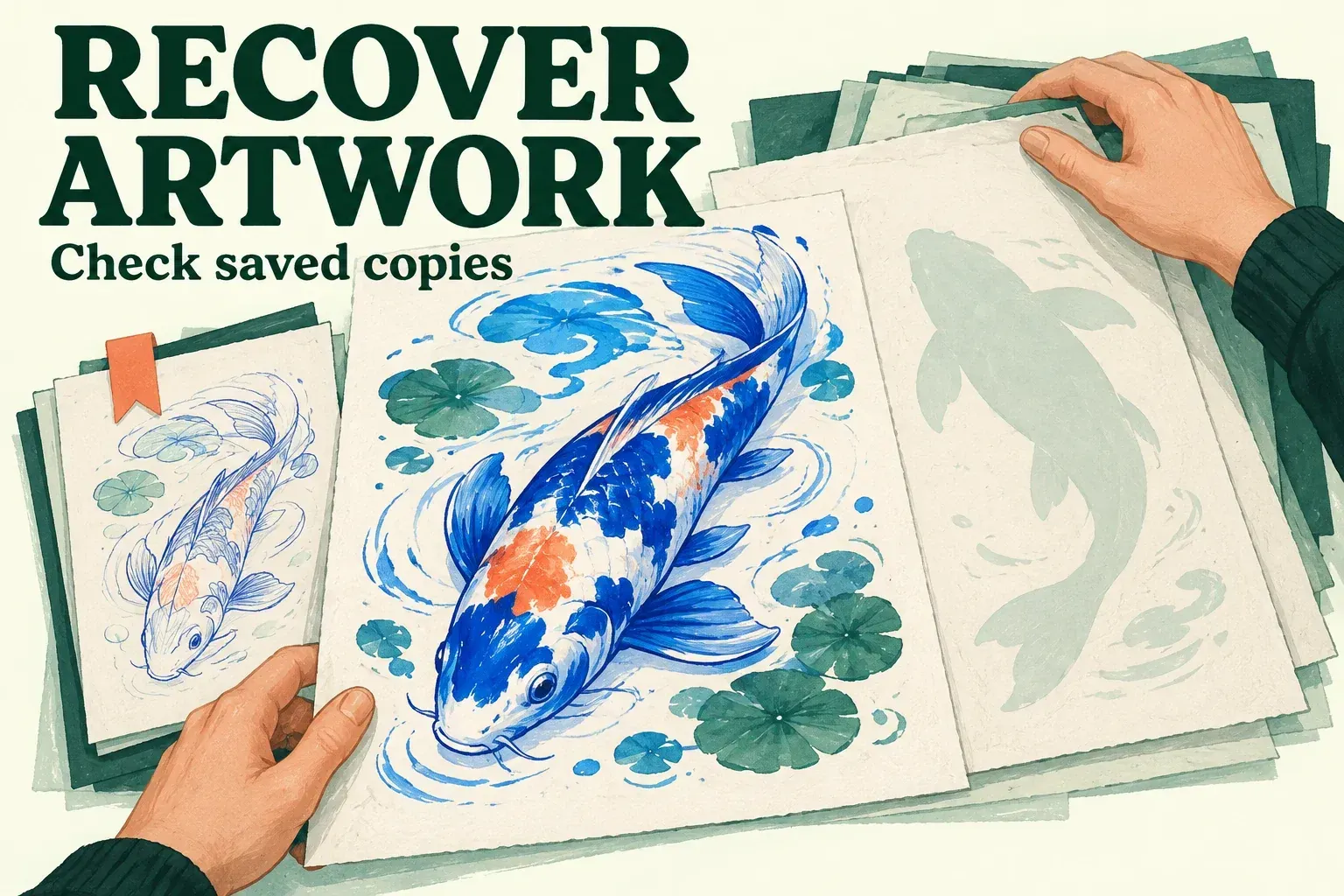
If you deleted an entire artwork from Procreate's Gallery, recovery depends on a surviving export or a device backup that contains it, so look for those copies first. Procreate says Gallery deletion cannot be undone and recovery requires a previously saved copy. Files' Recently Deleted folder can't undelete a canvas that existed only in the Gallery.
If you just deleted a layer inside a canvas that is still open, stay there and use Undo while the layer deletion remains in the available history. Procreate warns that leaving or backgrounding the app prevents restoring that deleted layer or group through Undo. This is the immediate layer-recovery case, separate from deleting an artwork in the Gallery.
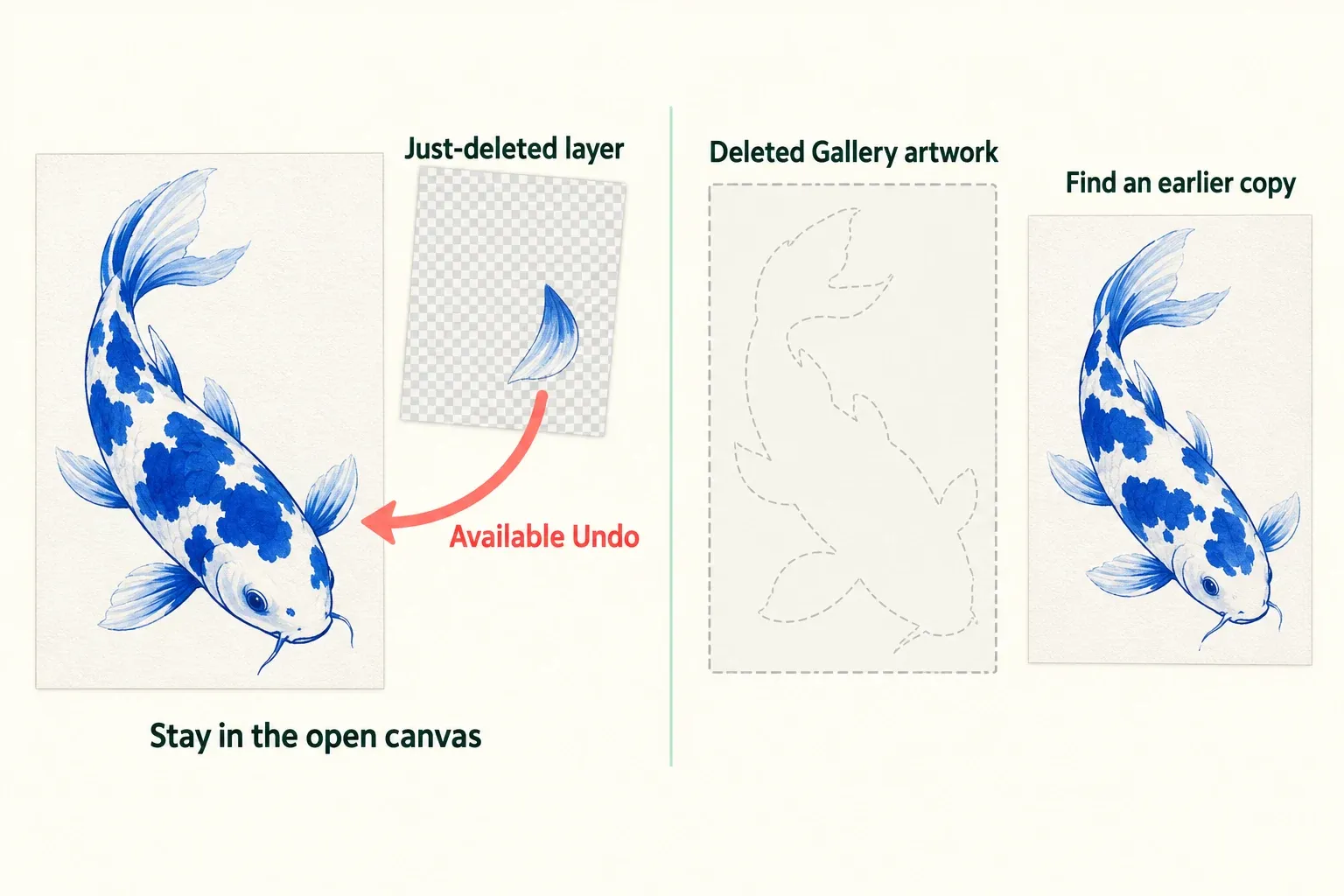
For a missing canvas, keep Procreate installed. Deleting the app deletes its locally stored artwork. I'd protect the surviving drawings before trying an older device backup, because that restore can remove newer work.
Choose the recovery route
| Your situation | First action | Recovery limit |
|---|---|---|
| A layer was just deleted; the canvas is still open | Use available Undo without leaving the app. | Canvas history does not undo a Gallery artwork deletion. |
| A thumbnail is missing from the main Gallery | Check the relevant Stacks and identifiable canvases. | A misplaced canvas is different from a confirmed deletion. |
| A previous artwork export still exists | Keep the file and import a copy from Files. | You recover the saved state, which may be older than the lost work. |
| An exported file was deleted from Files or iCloud Drive | Check Files → Recently Deleted. | This searches deleted exports, not Gallery-only artwork. |
| Only a pre-loss device backup may contain the canvas | Identify the backup and secure current work independently before considering a restore. | Restoring affects the whole iPad and is not guaranteed to recover the drawing. |
With no usable copy or backup containing a genuinely deleted canvas, there is no supported recovery route in Procreate's guidance. Check the possible copies below before deciding that none remains.
Protect the artwork you can still open
Export important surviving canvases through Actions → Share → Procreate. The native .procreate format preserves layers, masks and effects. Store these exports outside the iPad and confirm you can access the files from another device or computer before any device erase. Procreate distinguishes cloud exports from files saved under On My iPad. A file kept only on the device would still be on the iPad you're erasing.
A PNG or JPEG can preserve a viewable image, but it can't replace the native document's editable layer structure. Keep any such image you find. It may still let you salvage the finished artwork when the layered source is gone. Protect other current iPad data too before following a whole-device restore procedure.
Check the Gallery and previous exports
I'd start with the Stacks that could contain the drawing. Procreate uses Stacks to group artworks in the Gallery, so a canvas missing from the top level may still be inside one. Inspect plausible thumbnails before assuming the artwork was deleted. If you find it, export a native copy before making further changes.
Next, check the places you exported or sent the drawing to. Search Files for its name, inspect your usual cloud folder, and check a computer or message attachment if you previously transferred a copy there. Confirm the storage account as well as the filename. An older revision with a similar name is a candidate, not necessarily the lost final version.
Being signed in to iCloud does not mean the drawing is in iCloud Drive. Procreate says Gallery artwork does not automatically sync to iCloud. Manual exports to iCloud Drive and complete iPad backups are separate ways to preserve it.
Recover a deleted export in Files
This route applies only if the artwork had already been exported to Files. Apple keeps deleted files from iCloud Drive and On My iPad in Recently Deleted for up to 30 days. Removing a file from Recently Deleted deletes it immediately and makes it unrecoverable through this route. The folder does not contain a canvas deleted only inside Procreate's Gallery.
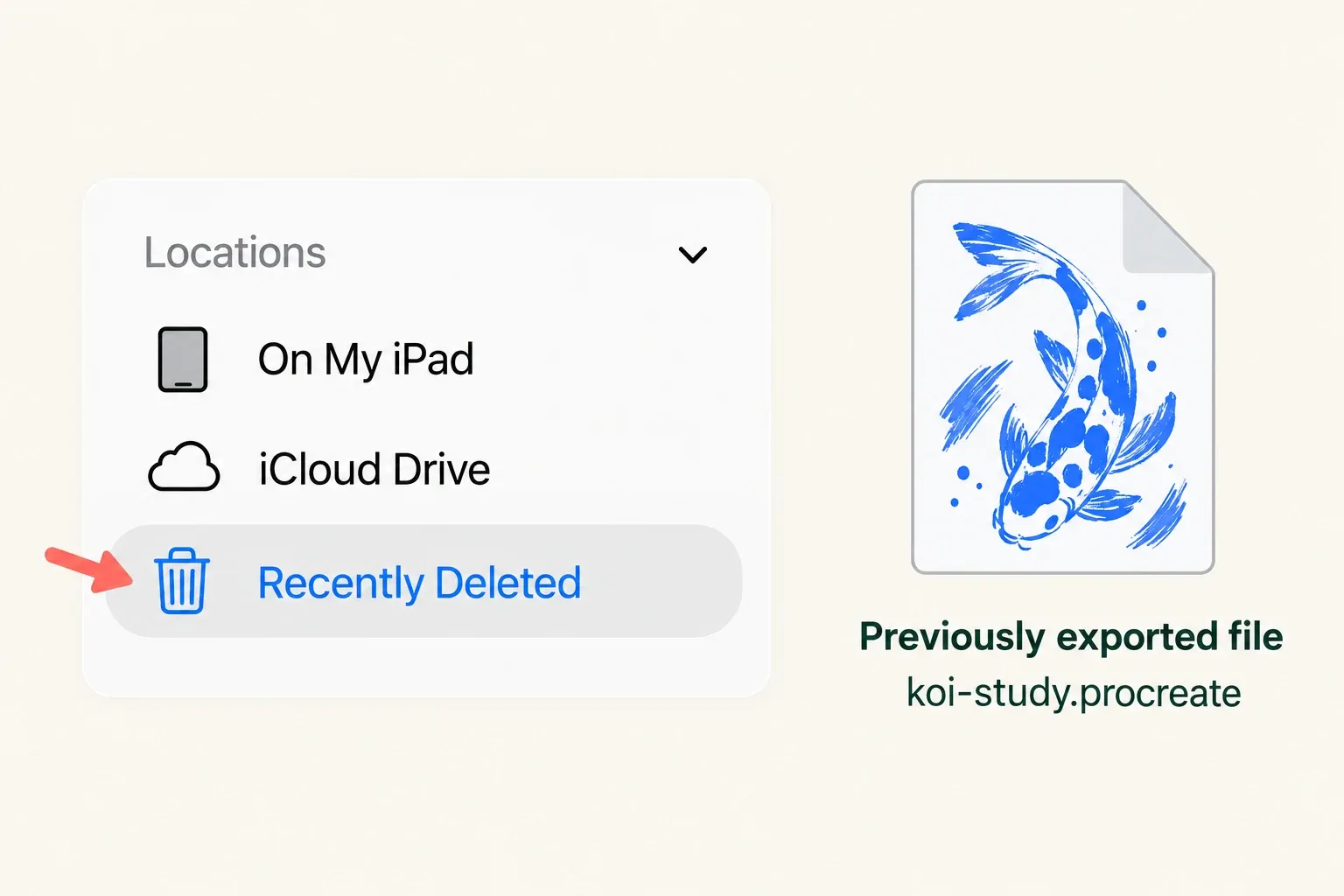
- Open Files on the iPad. If the sidebar is hidden, tap Show Sidebar.
- Under Locations, tap Recently Deleted.
- Tap the More button, choose Select, and select the export you want to recover.
- Tap Recover. Apple says the file returns to its original location.
For an export stored in iCloud Drive, Apple also provides Recently Deleted and Data Recovery on iCloud.com. In iCloud Drive, select Recently Deleted, choose the file and select Recover. If it is not listed there, open iCloud's Data Recovery, choose Restore Files, select the candidate and choose Restore.
During Data Recovery, leave iCloud Drive unchanged. Apple warns that browsing Drive in another window or editing and deleting its files can interrupt recovery. Files kept with a different cloud provider need that provider's recovery options; Apple's instructions do not establish their retention rules.
Import and check the recovered copy
Keep the recovered export untouched and import a copy. In Procreate's Gallery, tap Import to open Files and select the artwork. It opens as a new canvas, so you can inspect it without replacing a surviving Gallery version.
Check the drawing itself and the layers needed to continue it. Compare its canvas dimensions and visible result with any reference you still have. Don't assume the desired artwork is intact just because the file is listed in storage. Confirm that the imported canvas contains the revision you need. Once you have a usable copy, keep a separate native export using the Procreate backup workflow.
If the canvas or export is still present but appears blank or won't open, keep the original data and contact Procreate support before deleting anything. A blank thumbnail alone doesn't establish the cause or prove that no artwork data remains.
Consider a whole-iPad backup last
Do not erase the iPad until current work is secured outside it and you have identified a plausible pre-loss backup. Procreate warns that an older backup restores the entire iPad and can lose newer artwork. Apple's iCloud restore route requires erasing an already configured device before restoring during setup. This is a device restore, not a selective import of one drawing.
Check the backup's device identity and date. For deleted-artwork recovery, you need a saved state from after the drawing existed and before it was deleted. Apple's restore screen lets you review backup dates and sizes. Its general advice to choose the most recent backup doesn't establish that the deleted drawing is in that backup, so I'd judge each candidate by its date. A snapshot taken after deletion may already lack the drawing. A new backup cannot recreate the earlier canvas.
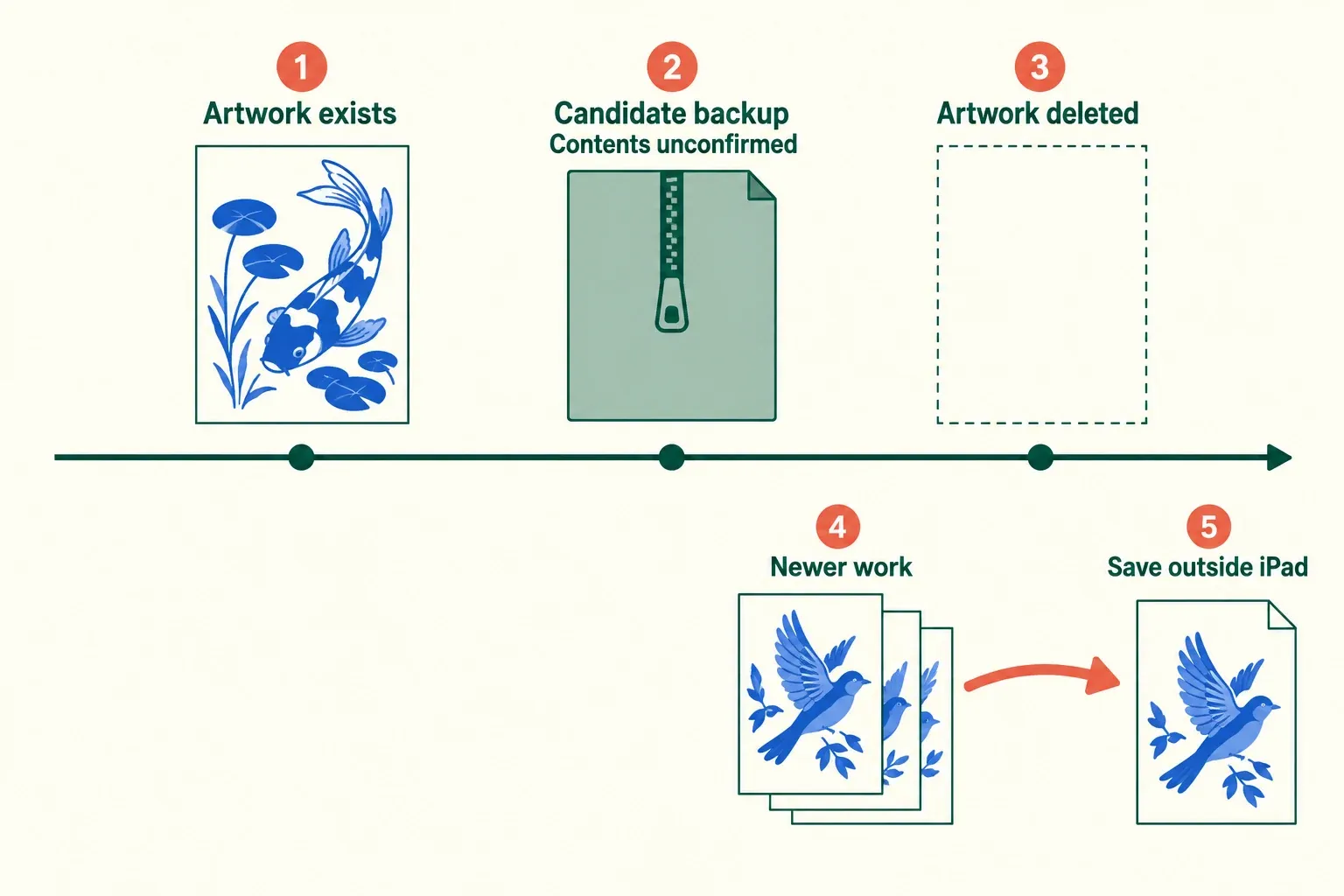
Backup inclusion matters too. Apple says iCloud Backup includes downloaded app data, while data stored in iCloud Drive is separate. Apps can be excluded from backups. Confirm that the candidate could contain Procreate's data. An iCloud account or a backup entry alone is insufficient evidence of that drawing's presence.
If you decide to restore after preserving current data, follow Apple's current restore instructions for your backup: From iCloud Backup during setup, or Restore Backup in Finder on a supported Mac or Apple Devices on a supported Windows PC. For the computer route, retain the encrypted backup password if one is required. Keep the device connected as instructed and allow app content to finish restoring before inspecting the Gallery. Recovered artwork still needs the same content check as an imported file.
When no copy contains the artwork
If the canvas was genuinely deleted and none of your exports or backups contains it, Procreate's supported recovery methods cannot bring it back. Do not delete and reinstall the app to try to fix that loss. A promised recovery scan or a time-lapse video is not evidence that the editable canvas can be restored.
For unexplained disappearance, a blank canvas or an unreadable file, contact Procreate's support team. Give the iPad model, iPadOS version and Procreate version, then describe when the artwork was last intact and what you did before it disappeared. Preserve any candidate file and report the exact error. Support can assess the symptom; contacting them does not guarantee recovery of a deleted canvas.