

To organize artwork in the Procreate Gallery, tap Select, pick the artworks, then tap Stack. A Stack groups artwork thumbnails inside the Gallery. If an artwork seems to have vanished, open your Stacks before starting recovery steps. A Stack is an organizational view, not a backup, so keep a separate verified copy of important artwork before deleting, resetting, or reinstalling anything.
Create a Stack and give it a useful name
In Gallery, tap Select, tap the artworks you want to group, then tap Stack. The Handbook also describes a drag route: drag one artwork thumbnail onto another, and when the lower thumbnail turns blue, drop the first onto it to make a Stack. Name it after the way you look for work. A client, a project, or a series is more useful than a generic "Finished" pile.
New Stacks are named Stack by default. Tap the title to rename the Stack, the same way you'd rename an individual artwork. Several Stacks with the default name can make the Gallery look orderly while a particular drawing gets harder to locate.
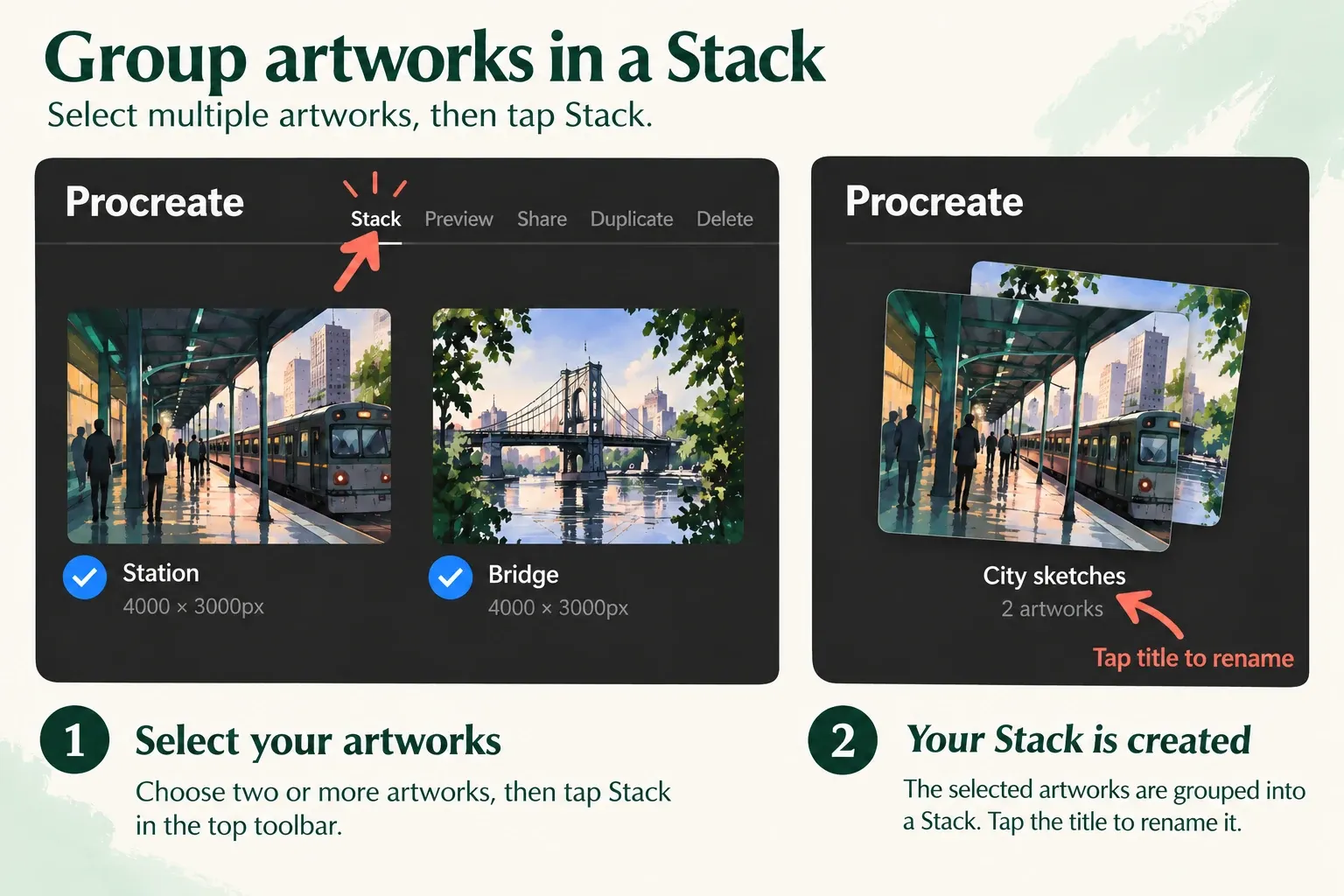
Before organizing a large Gallery, I'd rehearse on two expendable or already backed-up works. Make a Stack, open it, and confirm that both thumbnails are inside. A quick look at the contents makes an accidental drop easier to spot before you move more artwork.
Add work without making a second Stack
To place another artwork inside an existing Stack, drag it over that Stack and hold until the Stack flashes blue twice. Once the Stack opens, drop the artwork among the thumbnails inside.
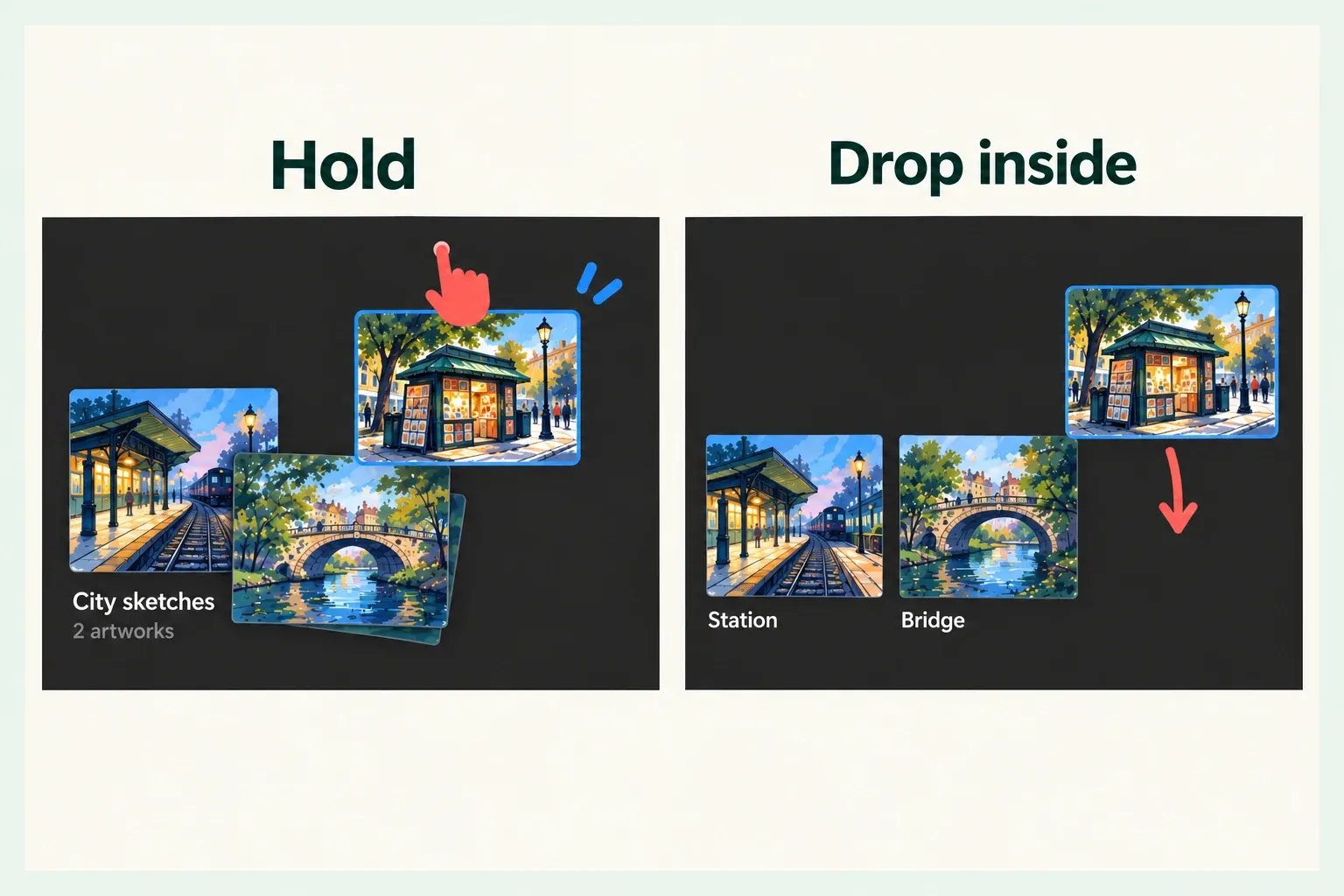
Releasing a thumbnail too early over another artwork can create a different Stack instead of adding to the intended one. That's why I'd look inside the destination after the drop rather than rely on where the thumbnail seemed to land.
You can also rearrange artwork and Stacks in the Gallery by dragging their thumbnails. Dragging changes the organization only. The underlying content of a canvas stays the same. If you need an independent safety copy, follow the artwork backup and verification guide before treating any cleanup as reversible.
Move a canvas back to the Gallery
Open the Stack, pick up one or more artwork thumbnails, then use another finger to tap the < Stack return control at the top left. Drop the held artwork back in the Gallery. The Handbook also describes dragging the held items over that return control to leave the Stack. Confirm that the artwork appears in the main Gallery before moving or deleting anything else.
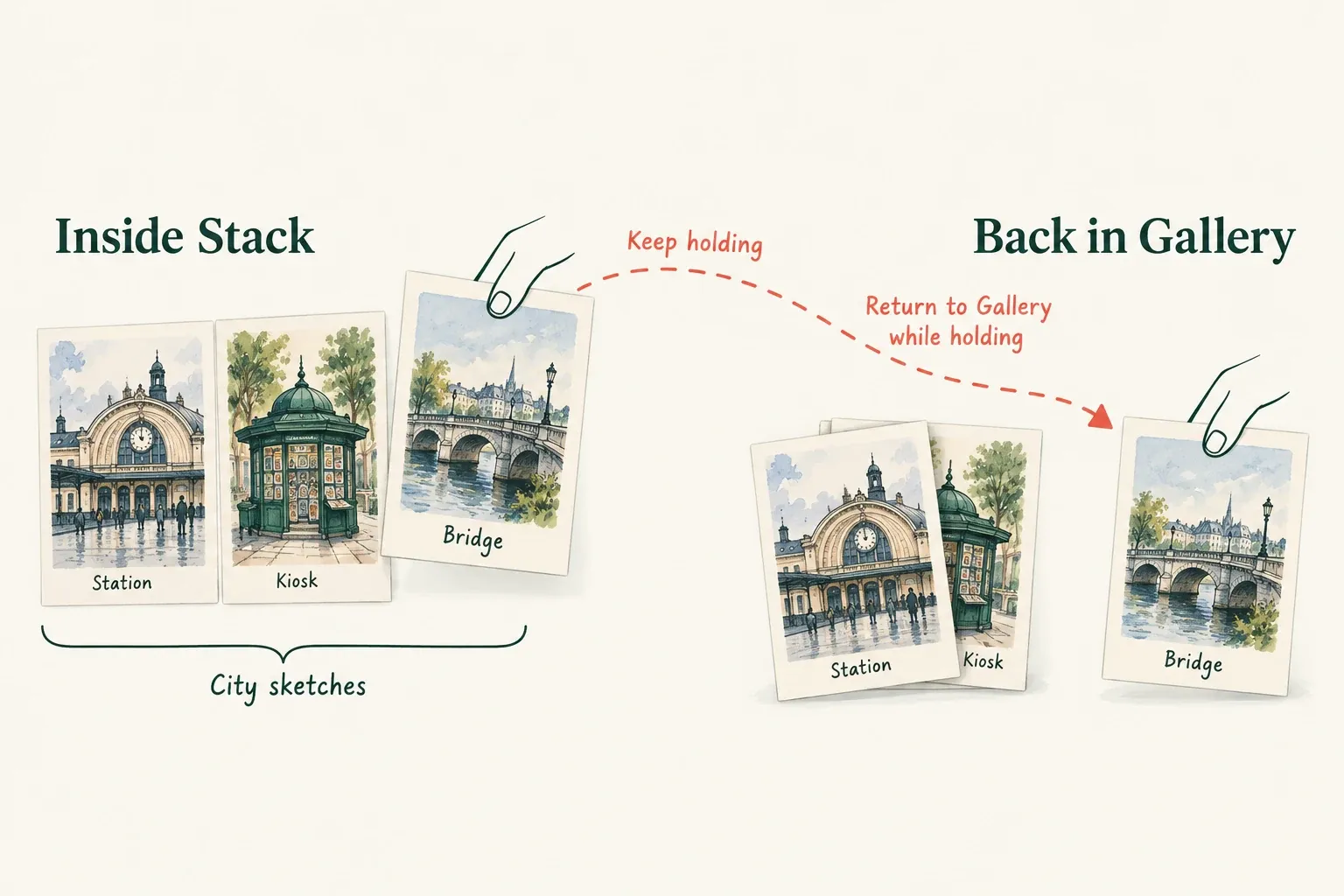
If checking the Stacks doesn't locate the canvas, follow the missing-artwork recovery guide and inspect verified external copies. Reorganizing thumbnails can't recover a deleted file.