Approve the delivered file against one recorded specification
Check the file you're sending, not just the color profile shown on your Procreate canvas. Record the recipient's required profile, dimensions, format and proof condition, save a named delivery copy, then inspect that copy. A field you can't verify stays unconfirmed.
I'd settle the recipient's requirements before converting anything. Choosing the working color space is a separate decision, and the RGB-or-CMYK guide walks through it.
Write down the destination requirement
Ask for the destination and product, accepted file format, pixel dimensions, trim and bleed requirements, exact color profile, whether that profile must be embedded, and any proof approval needed. Use the recipient's current template where one is supplied. Procreate recommends agreeing size, profile and preferred format with an external print service before starting the artwork. For finished work, resolve those same requirements before making the delivery version.
Write the full profile name the recipient specifies. “RGB” or “CMYK” alone isn't a complete profile requirement. Also agree who performs any conversion and, if one is needed, the target profile and rendering intent. Don't substitute a generic print preset for an unanswered requirement.
Keep the master distinct from the export
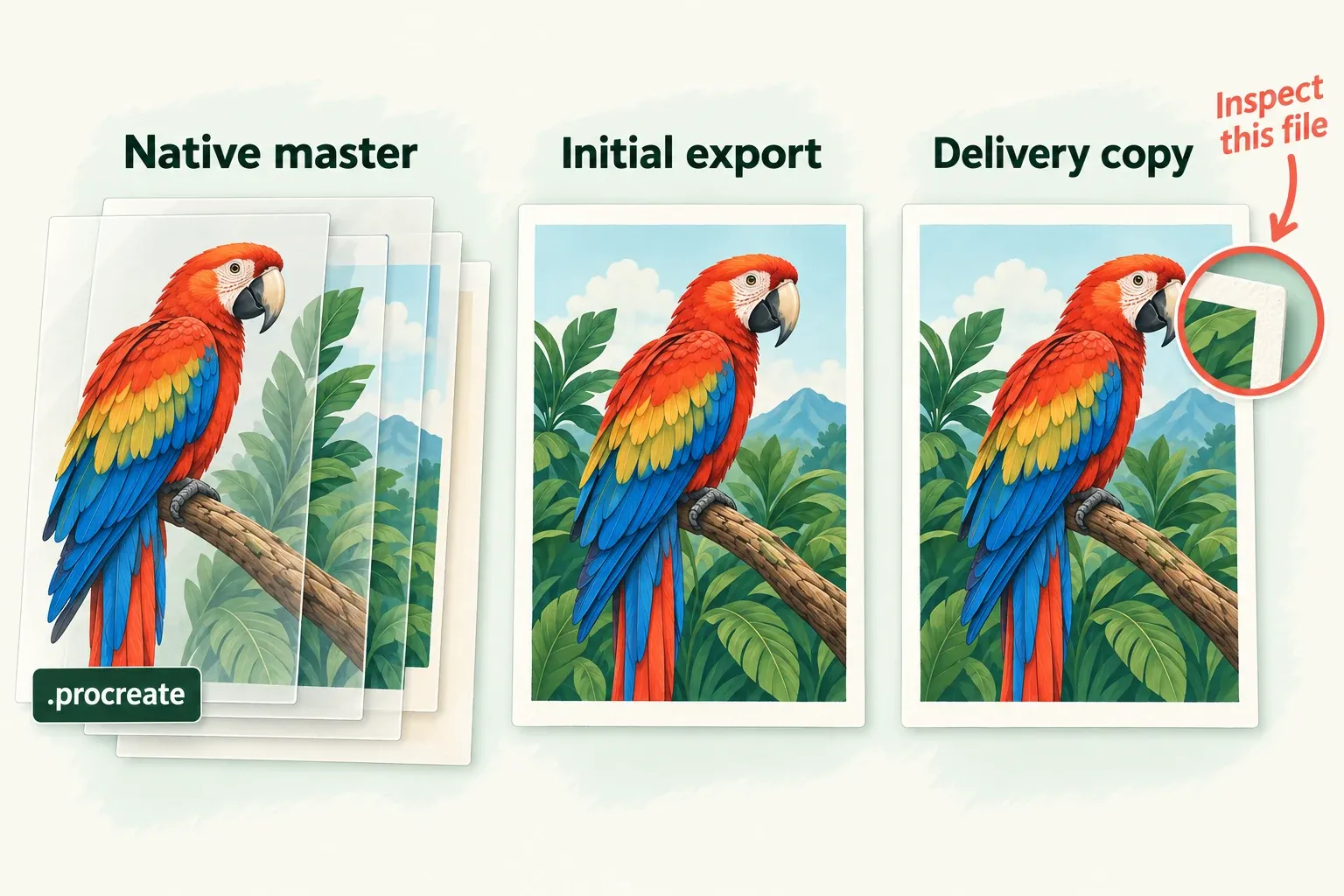
Retain the editable .procreate document with its layers, masks and effects. Save a native copy independently of the delivery file, using the Files route below with the Procreate format. A flat image intended for a recipient shouldn't be your only retained source.
Give the delivery version a name that identifies its destination and revision. I'd keep the native master, the initial export and any converted copy as three separate files, so a conversion never lands on the only source. Conversion changes belong on the delivery copy. Keep the earlier files until the recipient accepts the handoff.
Save the exact delivery copy
Use Procreate's Gallery-to-Files export route so you have an identifiable file to inspect:
- In the Gallery, swipe left on the exact canvas and tap Share.
- Select the agreed compatible format and wait for the export to finish.
- Tap Save to Files.
- Navigate to the exact destination you chose, check the file name, and tap Save.
Find the saved file in that location and record its actual name, folder or cloud destination, and delivery version. Open this file for inspection. If you later convert it, record the converted copy's name and location instead of carrying over the initial export's results.
Resolve a mismatch before making the delivery version
Read the working profile under Actions > Canvas > Canvas information > Color profile. That menu can change profiles within the existing color space. It can't switch an RGB canvas to CMYK or a CMYK canvas to RGB. Procreate also lets you choose a supported RGB or CMYK profile for a new custom canvas. That's a setup choice for separate work, and it doesn't convert the finished delivery file.
First establish the saved export's profile with the inspection route below. If it already meets the recipient's profile requirement, I'd record it without converting, since a conversion would change pixels that already pass. If it doesn't, agree a conversion route with the recipient. The Mac route below is one conditional option for an existing image. Otherwise, ask the recipient to prepare or specify a compatible conversion.
Convert a copy with ColorSync Utility on a Mac
Use this branch only when the image's starting profile is known, the recipient-supplied target profile is available, and the rendering intent is agreed. The image must be a format ColorSync can open and save that also supports the recipient's target color model and delivery requirements. If compatibility is unclear, ask the recipient before proceeding. For CMYK output, choose a compatible accepted format: the PNG specification defines RGB, grayscale and indexed image types, with no CMYK image type.
- Duplicate the exported image on the Mac first. Keep the original export and native master independently; the next steps change the duplicate.
- In ColorSync Utility, choose File > Open and open that duplicate.
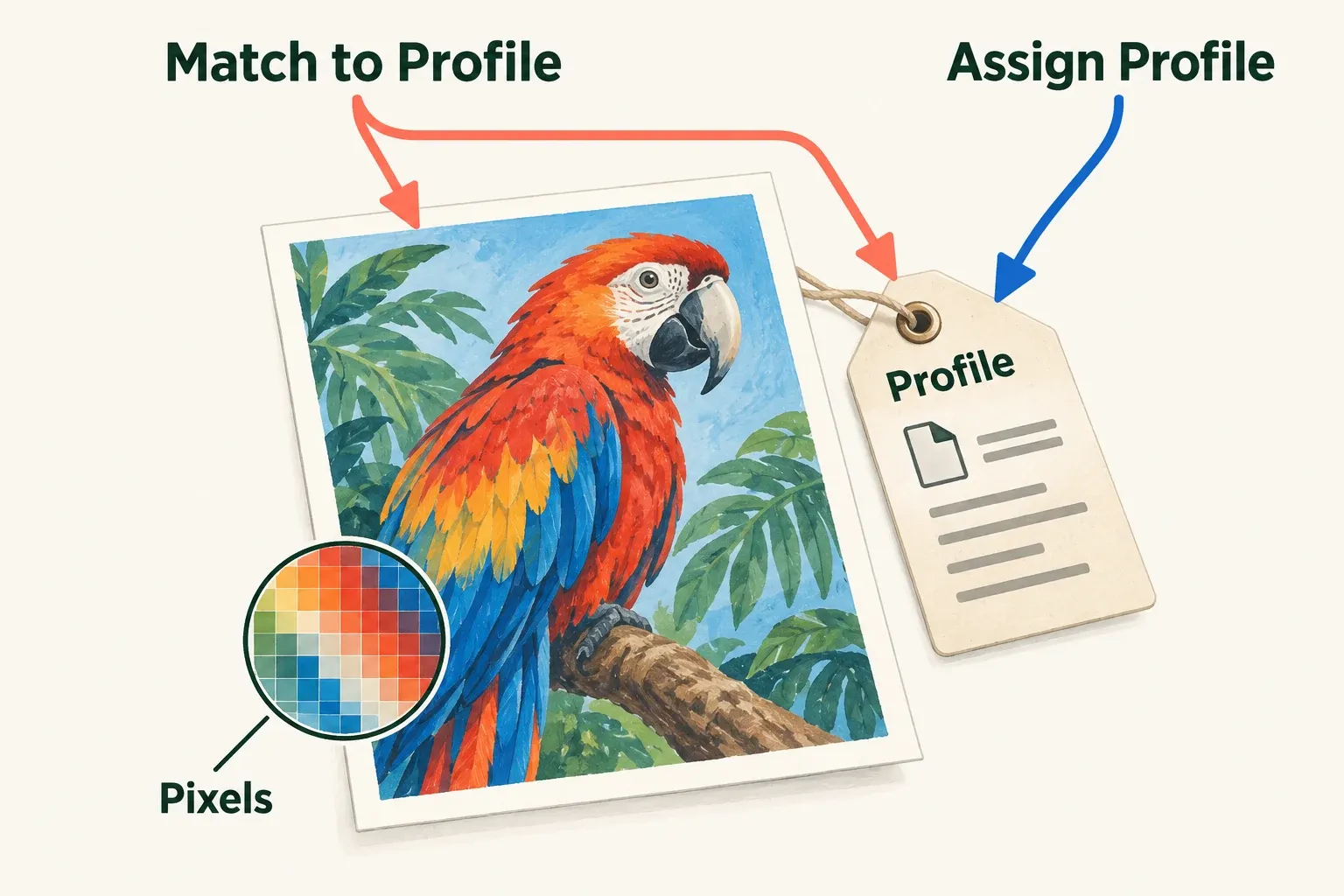
- Choose Match to Profile in the first pop-up menu at the bottom left. Apple's Match to Profile operation changes the image pixels to match the new color model and profile, then assigns that profile.
- Choose the recipient-supplied target profile in the second bottom-left menu.
- Choose the recipient-agreed rendering intent in the bottom-right menu.
- Click Apply. Apple documents that Apply saves the changes to the file, so this overwrites the duplicate you opened. Inspect that saved result before sending it.
Record the source file, target profile, intent and resulting delivery version. Assign Profile changes only the image's profile. It doesn't perform the pixel conversion above. Do not use assignment to make an unknown or mismatched file appear to pass inspection.
Inspect the saved file with an available tool
Use an inspector that can open the actual saved delivery format and report the property you need. A canvas setting or a preview that looks right doesn't establish the export's embedded profile. If you have no suitable inspector, send the identified file to the recipient for confirmation and leave the affected fields unconfirmed.
Inspect with Photoshop desktop if already available
This route is for readers who already have Photoshop desktop and a file it can open. Preserve the file's embedded profile while inspecting it, so a conversion to Photoshop's working space doesn't change what you're checking.
- Record your existing settings under Edit > Color Settings before changing them. Under Color Management Policies, select Preserve Embedded Profiles for the applicable RGB, CMYK and Gray policies. Enable Ask When Opening under both Profile Mismatches and Missing Profiles, then select OK. Adobe documents these profile-preservation policies and opening warnings.
- Open the actual saved export or final converted copy. If an embedded-profile mismatch warning appears, choose Use the embedded profile. Do not convert to the working space or discard the profile for this inspection. If a missing-profile warning appears, record it, cancel opening and ask the recipient how to handle the untagged file. Assigning a profile would not establish which profile the export originally contained.
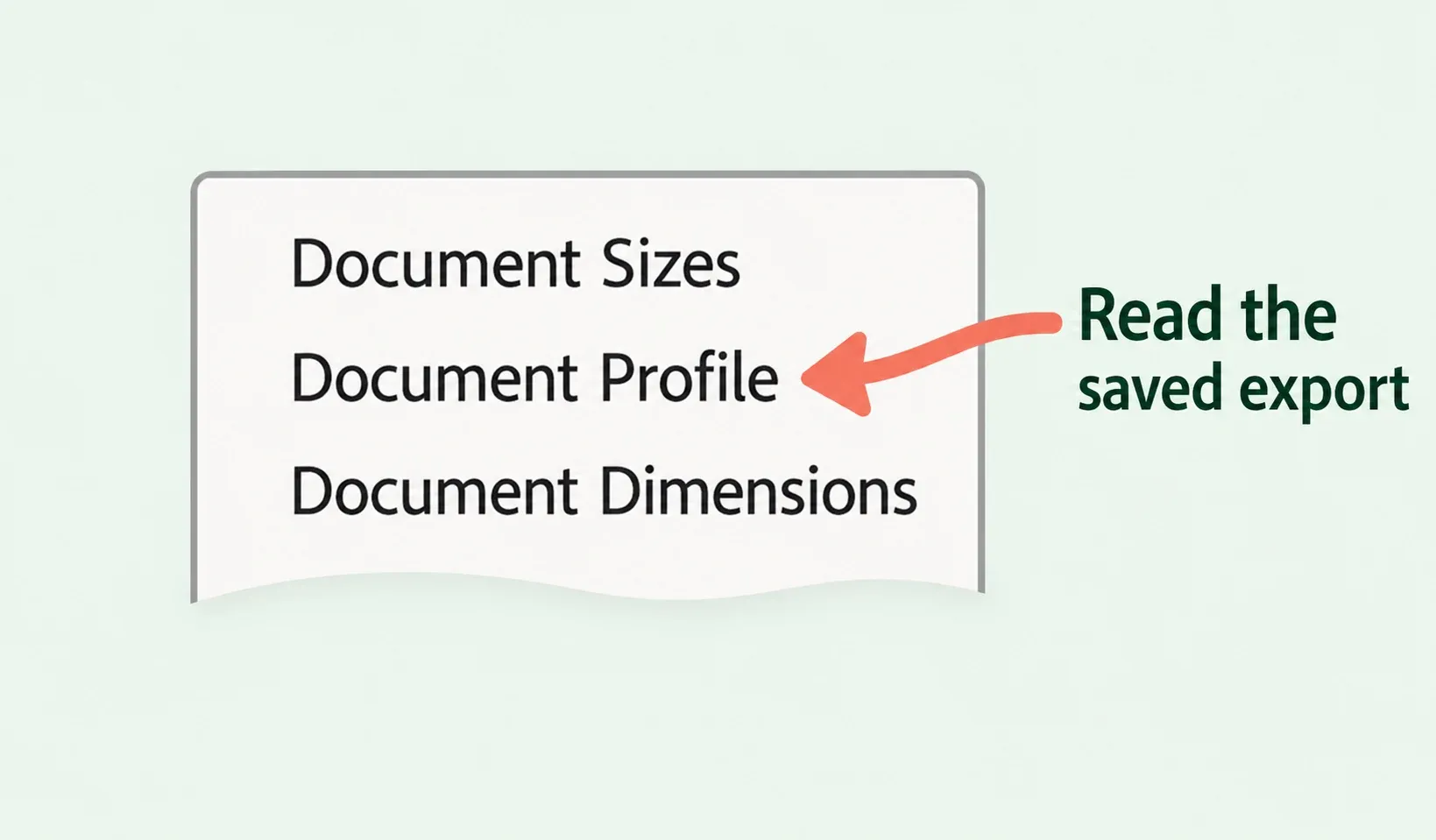
- Open the document status menu beside the status display at the bottom of the document window and choose Document Profile. Adobe defines this readout as the name of the color profile used by the image. Record the exact value alongside any opening warning; do not record a working-space setting as the exported file's profile.
- Choose Document Dimensions separately and check the displayed units. Adobe's document status bar can show dimensions and color profile; selecting its file-information area also displays width, height, channels and resolution. Record the pixel width and height needed by the specification. If the readout does not establish the required pixels, trim or bleed, leave that geometry field unconfirmed and request a recipient check.
- Finish without saving an assigned or converted inspection document over the delivery file. Restore your recorded global Color Settings if you changed them.
A preserved-profile readout supports the profile check. It doesn't approve print color, trim, bleed or transparency, so check those requirements separately. For the size calculation behind a print specification, use the canvas-size guide.
Record acceptance from the saved export
Keep one record tied to the exact delivery name, location and version. After sending it, ask the recipient to confirm which copy they received. Acceptance of a different export isn't acceptance of this handoff.
| Requirement | Record from the delivered file | Accept only when |
|---|---|---|
| File identity | Actual file name, location and delivery version; recipient's received copy | The checked file is the version the recipient received. |
| Profile | Exact reported profile, required embedding and any missing-profile warning | The embedded profile meets the agreed requirement; missing or unreadable metadata is resolved. |
| Geometry | Pixel width and height, trim and required bleed | The saved file matches the current product specification or template. |
| Format and transparency | Actual saved format and required alpha or background result | The recipient confirms the format and requested properties of that file. |
| Color-critical output | Proof or sample approval tied to the delivery version | The recipient accepts the consequential visible result through the agreed proof process. |
Keep unresolved fields visible. A successful export, transfer or upload does not supply the missing evidence.
Example of a handoff decision
Educational example: suppose a recipient asks for a PNG with their specified sRGB profile embedded, 2400 × 3000 pixels, and no bleed. Apply the following decisions to that hypothetical specification:
- Pass for the checked fields: if inspection of the actual saved PNG confirms the specified embedded profile and 2400 × 3000 pixels, accept those fields and record the file version. Any required transparency or proof approval still needs its own check.
- Unconfirmed: if the profile is missing or your inspector cannot report it, keep the profile field open and request the recipient's inspection. Do not assign sRGB merely to create a passing readout.
- Fail: if the reported profile or pixel dimensions differ from the request, reprepare a separate delivery copy through an agreed compatible route and inspect it again. If the recipient instead requests CMYK, first agree a compatible format rather than trying to make a CMYK PNG.
Use proofing for consequential work
The ICC's explanation of rendering intents accounts for differences between devices, media and viewing conditions. So a Procreate canvas profile and a correct file-profile readout don't tell you how a physical print will look on the chosen material under its viewing conditions.
When that physical result matters, agree a proofing process with the receiving service and use its available proof or sample option. Record which delivery version was approved and any requested correction. Keep the source and delivery files until the recipient accepts the result. I wouldn't promise monitor-to-print equality from metadata alone.
This is an independent guide. It is not affiliated with or endorsed by Procreate.