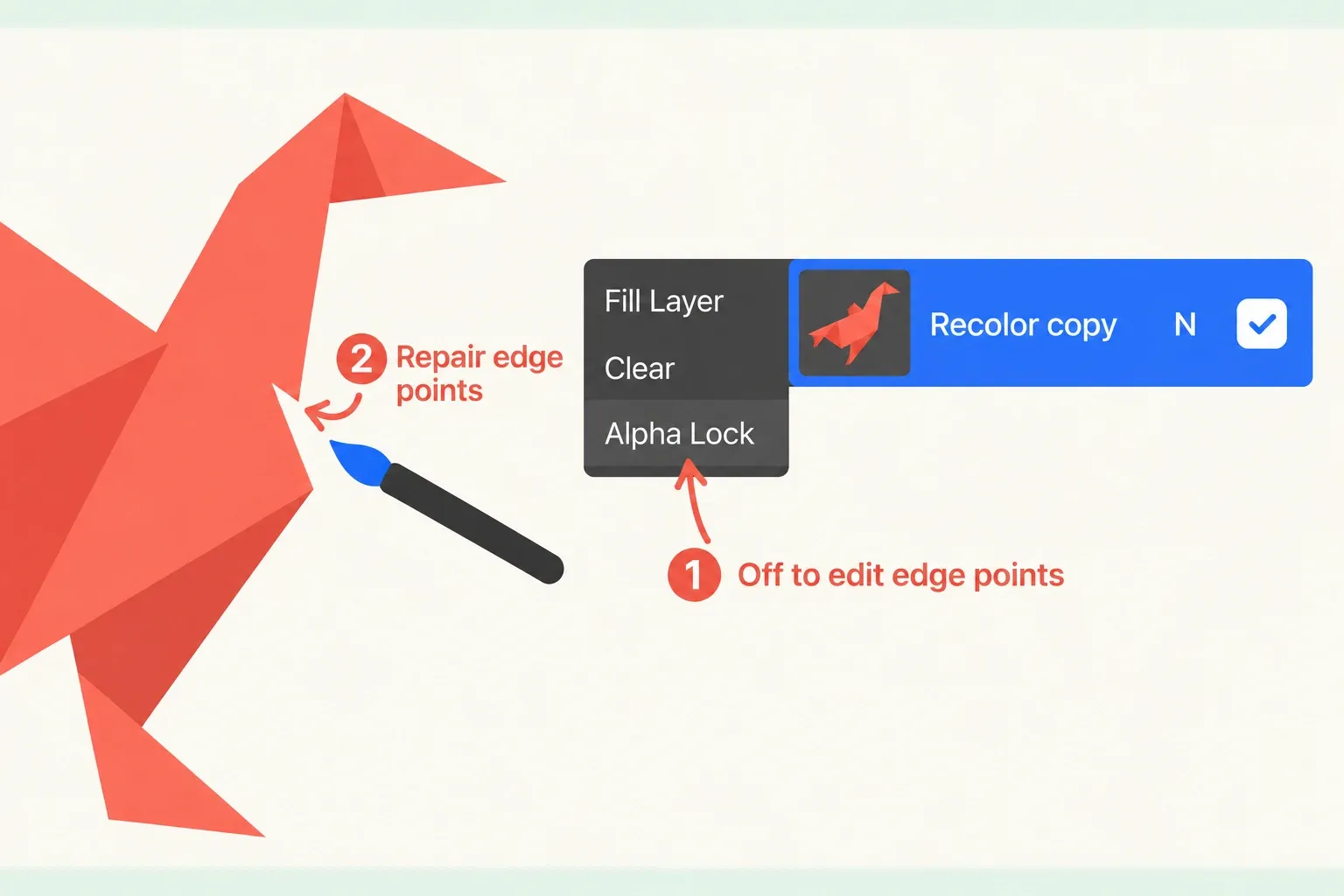

Alpha Lock protects transparent parts of the selected layer. Turn it on in Layer Options. Once it's on, paint and Fill Layer affect only pixels that already exist on that layer, while empty space stays empty. That's why I'd reach for it when changing the color of a finished silhouette. It doesn't create a new editable layer, though.
Turn it on for the right layer
Work on a duplicate if you may need the original colors later. Painting with Alpha Lock changes the selected layer itself. Duplicating first gives you a separate recovery point.
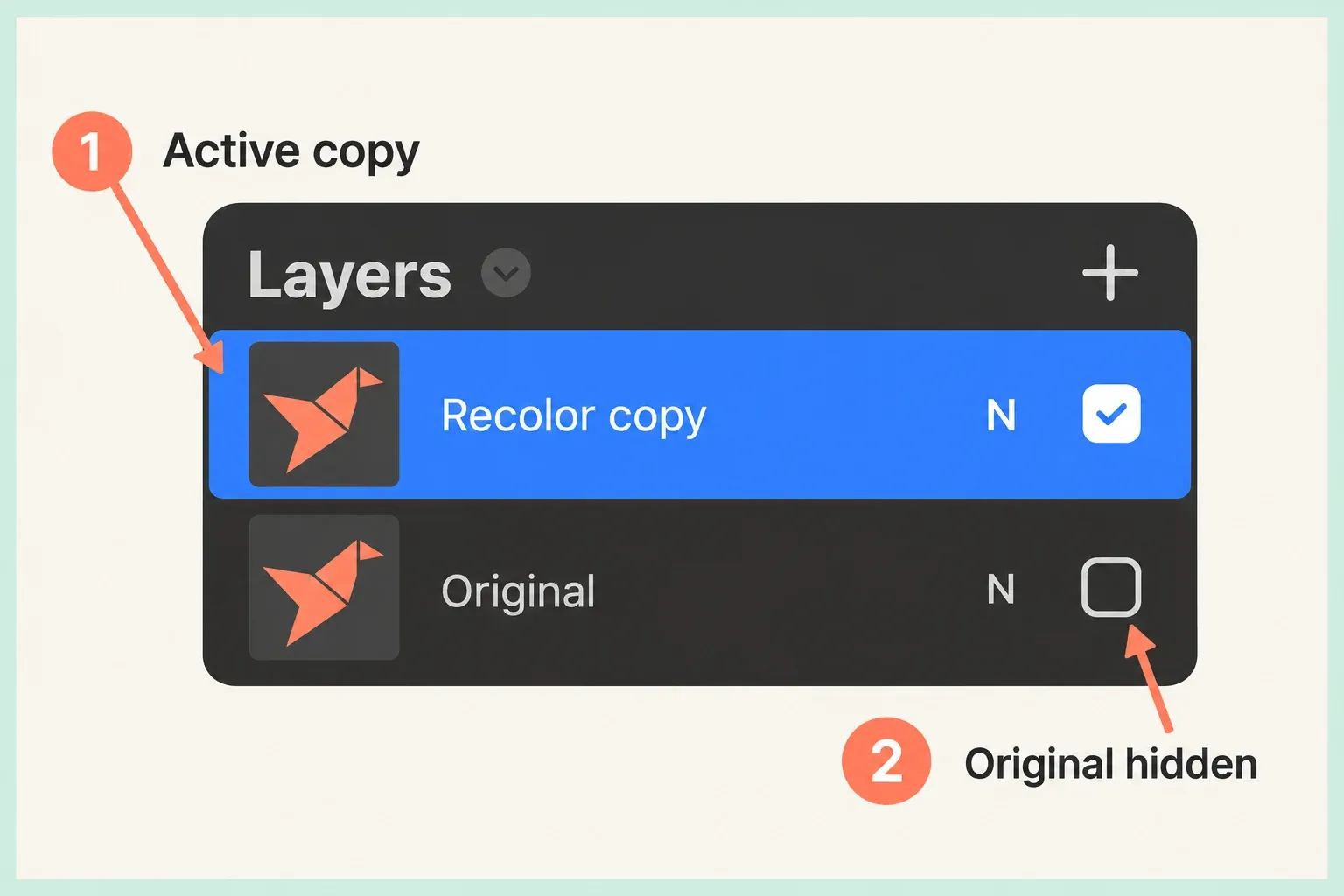
Open Layers and tap the layer that contains the marks you want to recolor. If other layers are also selected, tap the word Layers and choose Deselect All, then tap the source layer again. Tap Layers and choose Duplicate to create a copy directly above the source. Tap the copy explicitly to make it active. Hide the original with its Visibility Checkbox and keep the copy visible; leave the original untouched.
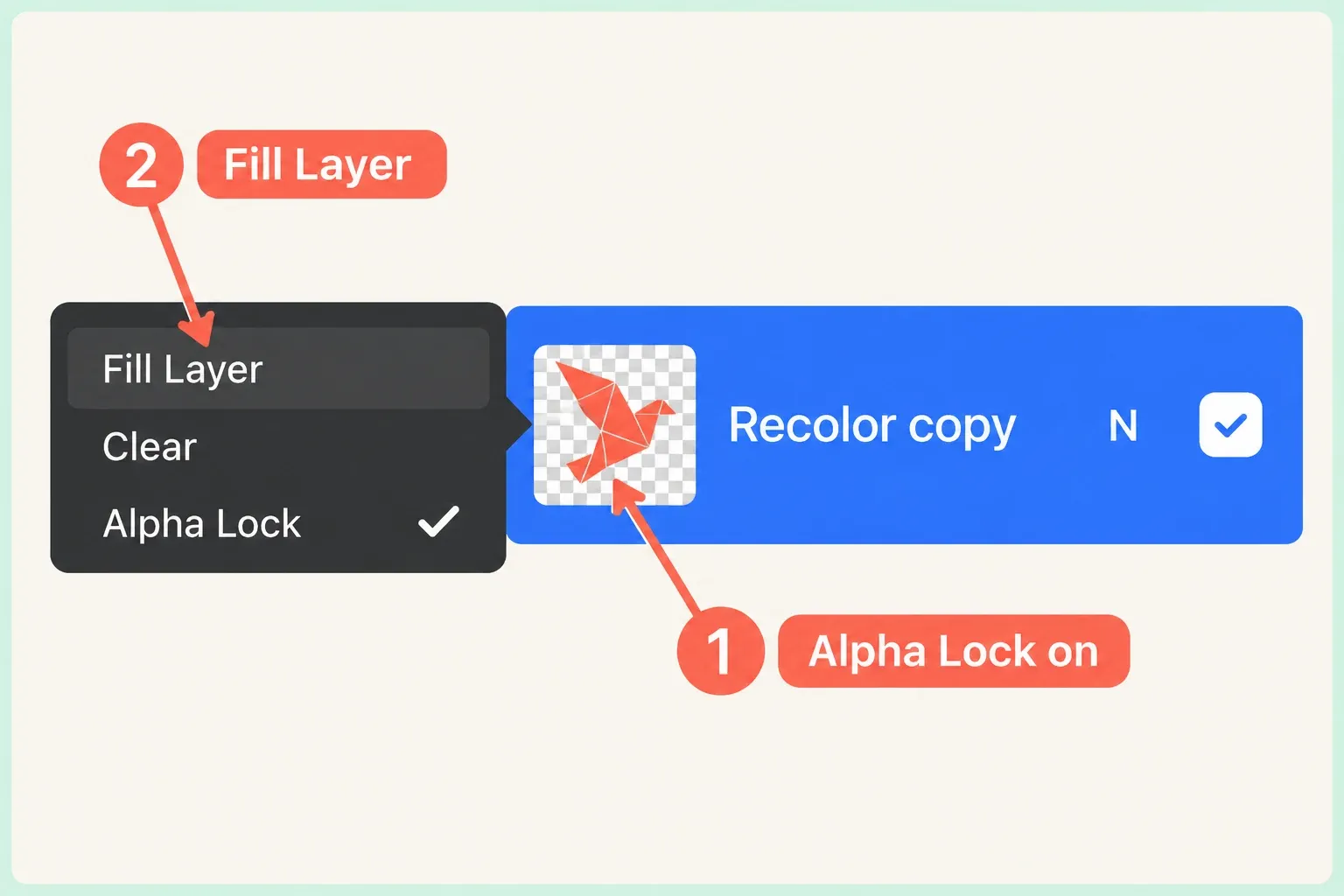
Tap the copy again for Layer Options and turn on Alpha Lock. The thumbnail gains a checkered background. As a shortcut, swipe the layer from left to right with two fingers to activate Alpha Lock.
For a full recolor, choose the desired color, open the copy's Layer Options again and tap Fill Layer. With Alpha Lock enabled, it fills only existing artwork with the current color, leaving transparent areas untouched. Check that the copy has the intended color and inspect its boundary while the original stays hidden. Use a brush instead when you want to shade only part of the shape.
A selected artwork layer that is opaque across the whole canvas leaves Alpha Lock no transparent boundary to protect. The separate Background Color layer is a different setting, so look for the checkered Alpha Lock background in the artwork layer's thumbnail.
Know what the lock does not do
Layer Lock prevents edits to the layer. Alpha Lock still permits painting, but only where that layer already has content. If a brush appears to stop at the edge of a shape, I'd check which of these states is active before changing the brush or selection, since a layer setting is the cheaper thing to rule out.
A Clipping Mask is a different choice when you want paint on a separate layer. The upper layer is clipped by the shape and visibility of the lower parent layer, so you can move the paint treatment without repainting the base. A clipping mask cannot be enabled for the bottom layer in the stack because it has no layer beneath it. See the clipping-mask walkthrough for the layer order.
Check the result before continuing
Before the intended recolor, try a short color stroke across both the artwork and surrounding transparency on the copy. With Alpha Lock on, only the existing artwork should receive paint. While that stroke is the latest action and Undo is available, tap the canvas with two fingers to undo it, then apply the intended color change. Do this before returning to the Gallery or exiting Procreate, which clears Undo history. Zoom in at the boundary to look for a fringe or holes in the source shape. Alpha Lock preserves the layer's current transparency, including partially opaque pixels and imperfect edges.
Keep Alpha Lock on for a direct recolor of existing pixels. To extend or repair the silhouette, open the copy's Layer Options and tap Alpha Lock to turn it off. Make the shape changes, then enable Alpha Lock again for contained recoloring. When the color treatment needs independent editing, I'd move it to a separate clipping-mask layer instead.