
Procreate Dreams is Procreate's separate animation app for iPad: $12.99 once, no subscription, iPadOS 16.3 or later. It animates three ways, frame by frame in a Flipbook, with keyframes, or by recording a drag live, and it works with sound and video, which Animation Assist inside Procreate doesn't. Four review scores put it at a median 4.5 out of 5. I'd buy it once a piece needs sound, several things moving on their own timing or keyframed motion; for a short looping GIF, Animation Assist is enough.
Below: what the app is, the three animation methods, what Dreams 2 and 2.1 changed (including the lasso question), how reviewers score it, the track limit for your iPad, the formats it takes in and puts out, and how to set up a first movie without regretting the settings later.
What Procreate Dreams is
Dreams is a stand-alone app, not a mode inside Procreate. The Procreate Dreams FAQ says the two apps are developed and sold separately, and you don't need Procreate to use Dreams. It came out on November 22, 2023, won the 2024 Apple Design Award for Innovation, and got its biggest update, Dreams 2, in December 2025.
Everything in a movie sits on tracks, which stack on the Timeline like layers. A track can hold a drawing, a Flipbook of frames, a photo, text, video or audio. That's the difference you feel first coming from Procreate: a drawing app with an animation helper on one side, a timeline editor with drawing tools on the other.
| Spec | Procreate Dreams |
|---|---|
| Price | $12.99 once in the US App Store; no subscription, no in-app purchases |
| Device | iPad only; requires iPadOS 16.3 or later; 1.8 GB download |
| Animation | Flipbook (frame by frame), keyframes, Performing (live recorded motion) |
| Drawing size | Drawings up to 16K; movie output up to 3840 x 3840 pixels |
| Brushes | Over 300 Procreate brushes; imports custom and purchased Procreate brushes |
| Sound and video | Audio tracks and video tracks; the number depends on your iPad |
| From Procreate | Opens layered .procreate files; brings Animation Assist files in as a Flipbook |
| Export | MP4 and MOV (H.264, HEVC, ProRes), GIF, transparent video, PNG sequences |
The price has dropped since launch. The Creative Bloq review listed Dreams at $19.99 in 2023, and that figure still floats around older pages. The Dreams App Store listing shows $12.99, and Dreams 2 arrived as a free update for anyone who already owned it.
Three ways to animate in Dreams
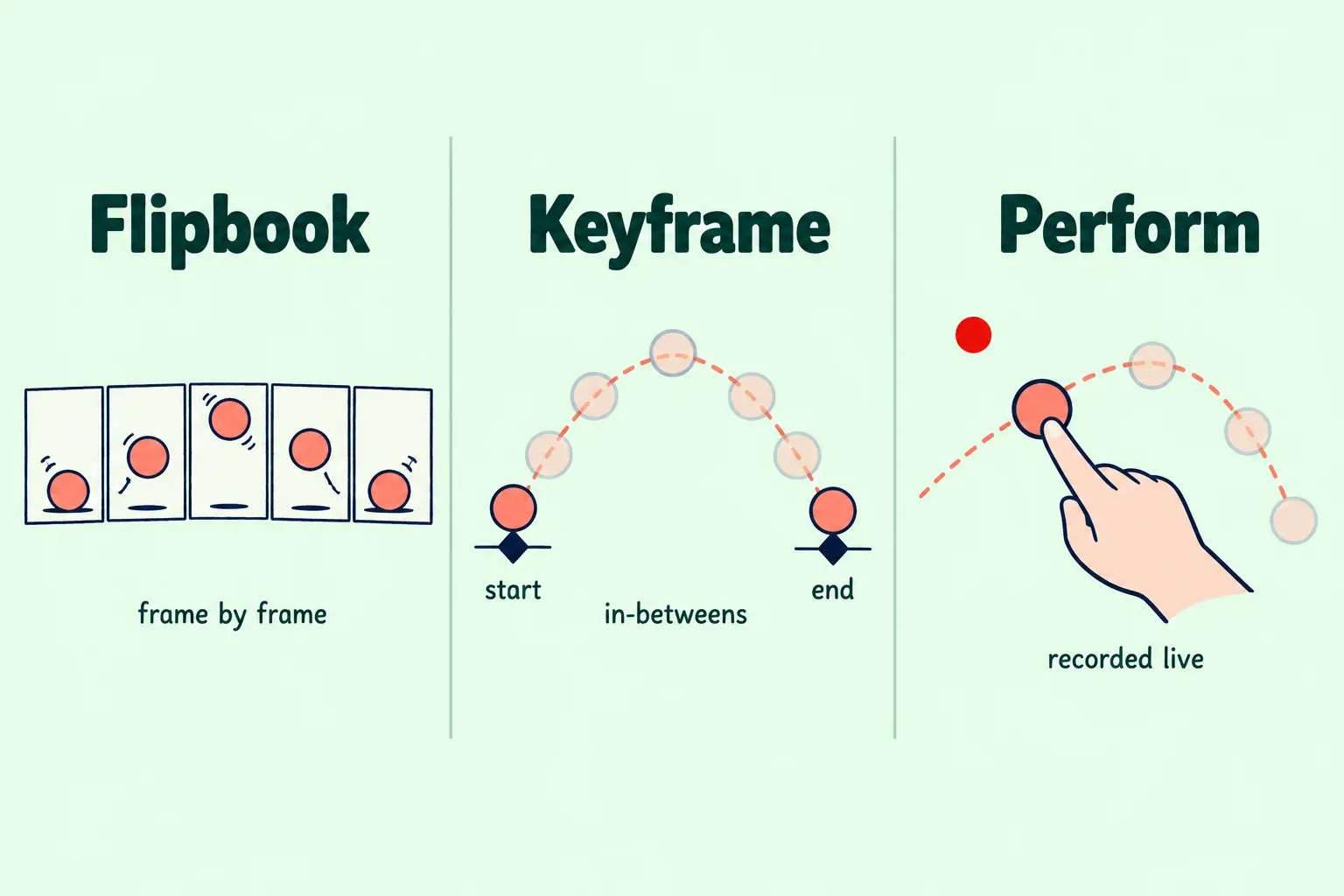
Dreams gives you three methods, and most movies end up mixing them. Pick by what you're moving: new drawings, finished artwork, or something you'd rather act out than plot.
Flipbook: frame by frame
Tap the Plus button on the far right to open the Create menu, then tap Flipbook. The canvas fills the screen and you're in Draw & Paint mode with brushes, layers, Filters, Select and Transform. A new Flipbook starts with as many frames as the movie's frames per second, so a 12 FPS movie gives you one second to fill.
The Flipbook section of the Dreams Handbook covers the part Animation Assist users will notice: a Flipbook holds several tracks and shows three at a time. Each track takes its own opacity, blend mode and mask (clipping, alpha or luminance), and scrubbing through frames plays an audio preview, which is how you time a mouth shape to a word.
Keyframes: set two points, let Dreams fill the middle
Tap the word Keyframe at the bottom of the Timeline to enter Keyframe mode. From the Playhead menu, Move adds motion, warp or distort keyframes, and Filter adds opacity, gaussian blur, sharpen, noise, HSB or Lens Blur. Set a start and an end, and Dreams generates the in-between frames, which animators call tweening. This is the method for sliding a title across the screen, fading a background or pushing a camera move on a finished painting.
Performing: record a drag in real time
Performing turns a gesture into keyframes as you make it. In Perform mode, tap and drag anywhere on the Stage to move the selected content, and every move lands on a keyframe track underneath it. You can perform the same piece more than once to layer moves, and with Apple Pencil Pro a barrel roll rotates the content while you drag; turn that off in Movie settings → Prefs → Gestures. Tap Perform again while it's selected to reach Motion filtering and Roll sensitivity; a higher Motion filtering value smooths out a shaky hand.
My order for a first project: draw the character in a Flipbook, move it around with Performing, then tidy the few moves that need exact timing with keyframes. Performing gets natural motion fast; keyframes are easier to correct.
What Dreams 2 and 2.1 changed
Dreams 2 arrived in December 2025 as a free update. Older movies need upgrading before they open, which takes a tap on the file. Creative Bloq's Dreams 2 coverage lists what changed:
- A lasso tool for selections and transformations in Draw & Paint and the Flipbook.
- A redesigned Timeline with three modes: Compose for placing content without disturbing keyframes, Perform for recording motion, Keyframe for keyframing.
- Multiple Flipbook tracks with blend modes and masks.
- GIF export and transparent video export.
- Duration handles, luminance masks and Continuous Filling in ColorDrop.
- More room to customize keyboard shortcuts, a Multiselect button that's easier to find, and new brushes from Kyle T. Webster.
Version 2.1 followed with smaller workflow fixes, described in the App Store notes and on Procreate's what's new page:
- Flipbook mini. Undock the Flipbook, shrink it and park it on any edge, including the left or right side as a vertical timeline.
- Next and previous drawing. Two buttons jump to the next or previous drawing, however many held frames away it sits; hold one to hop to the start or end of the Flipbook.
- Scrub lock. Tap the center of the scrub wheel to lock to the current frame.
- Backstage visibility. In Movie Settings → Stage you can raise the opacity of content that extends past the Stage, so you see what you're moving in.
- Multi-select restore. Hold the Multi-select button to bring back your previous selection.
- Easing names. The easing preset name now shows on the keyframe track, and Compose can flip content without touching its keyframes.
What still isn't there: vector brushes, a bones rig for character animation and 3D objects. Creative Bloq names all three as the remaining asks, and none of them came with 2.1.
Does Procreate Dreams have a lasso tool?
Yes, since Dreams 2. Inside a Drawing or Flipbook, tap Select and choose Freehand. The Select page of the Dreams Handbook lists four modes: Automatic, Freehand, Rectangle and Ellipse. The options are Add, Remove, Invert, Copy & Paste, Color Fill and Clear.
Clear catches people out. It removes the selection outline, not the pixels inside it. To delete what's selected, scrub three fingers left and right on the canvas. If you know Procreate's selection modes, the four in Dreams will feel familiar. One catch: Copy & Paste copies only the active layer and drops the copy on a new drawing layer.
What reviewers score it
I gathered every numeric score I could read in full: two launch reviews, one review of Dreams 2 and the US App Store rating. TechRadar and Clumsy Cursor wrote assessments without a score, so they shape the reading below but sit outside the numbers.
| Source | Date and version | Score | Main point |
|---|---|---|---|
| Creative Bloq, Rob Redman | 22 Nov 2023, launch release | 5 out of 5 | Comprehensive tools, no subscription, runs on older iPads; the one minus is iPad only |
| awcomix | 22 Nov 2023, launch release | 4.5 out of 5 | Half a star held back only because it was a first release |
| Joe Rover | 8 Dec 2025, Dreams 2.0 | 4.5 out of 5 | More user friendly, better workflow, great new brushes; still wants auto-shapes |
| App Store US users | Current listing | 3.9 out of 5 | 577 ratings |
| Composite | 2023 to now, 4 scores | Median 4.5, range 3.9 to 5.0 | Critics alone: median 4.5 from 3 reviews |
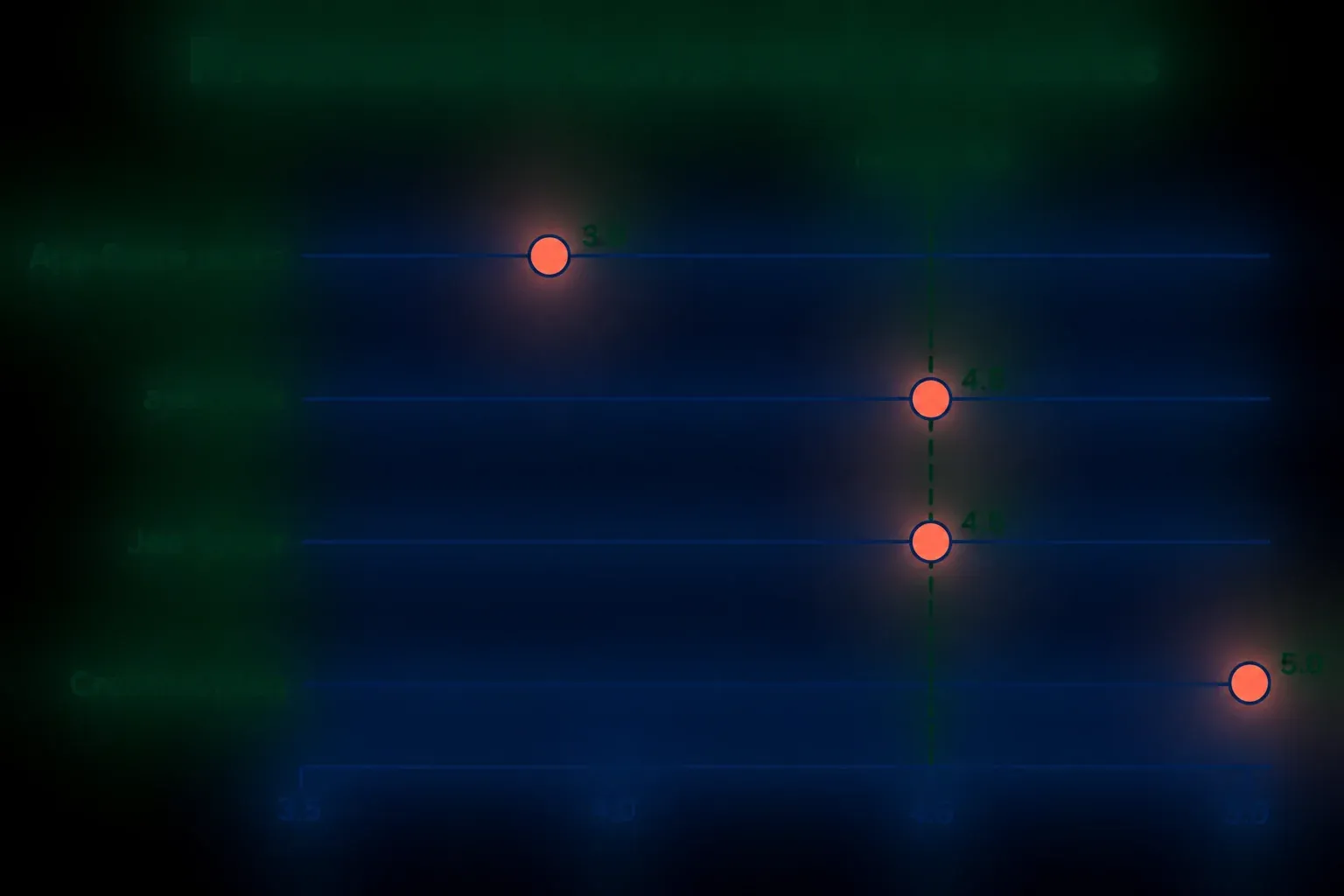
The critics agree on value and differ on readiness. awcomix's launch review held back half a star only because it was a first release. TechRadar's December 2023 piece was harder on it: transform and selections had slipped past 1.0, layer and clipping masks and reference layers were missing, and some fills took up to a minute or crashed the app. Dreams 2 answered the selection, transform and mask complaints, and Joe Rover's Dreams 2.0 review scored it 4.5 for being easier to move around in. Clumsy Cursor's assessment lands in the same place: Dreams 2 made it a much more complete tool, especially for people who already draw in Procreate.
The users' 3.9 is the outlier, and the written reviews behind it are worth a skim before you buy. One complaint is that aliased pixel-art brushes look blurry. Procreate's reply under that review explains that Dreams is raster-based and the fix is a higher resolution in Movie Settings → Project → Resolution. I'd read the 3.9 as a warning to set up the project properly, not as a verdict on the tools: the one critic score for Dreams 2 sits right at the 4.5 median.
Which iPads run it and how many tracks you get
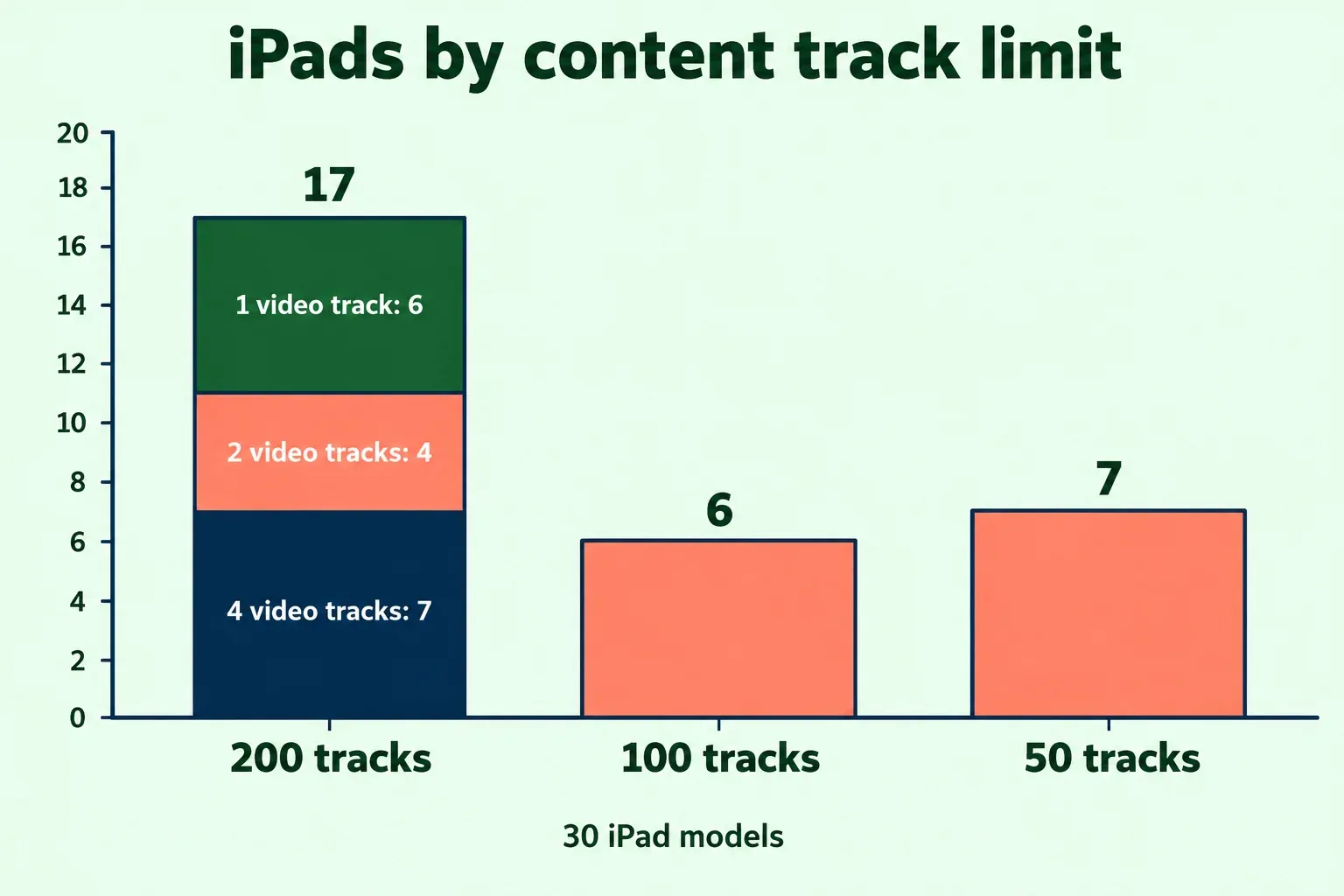
Every iPad that runs iPadOS 16.3 runs Dreams. What changes from model to model is how much a movie can hold. Procreate's iPad compatibility list gives a content track limit and a video track limit for 30 models, and the counts fall into five tiers:
| Content tracks | Video tracks | ProRes | Models |
|---|---|---|---|
| 200 | 4, up to 4K | Yes | 7: iPad Pro (M5), iPad Pro (M4), iPad Pro 11-inch (4th gen), iPad Pro 12.9-inch (6th gen), iPad Air (M4), iPad Air (M3), iPad Air (M2) |
| 200 | 2, up to 4K | Yes | 4: iPad Pro 11-inch (3rd gen), iPad Pro 12.9-inch (5th gen), iPad Air (5th gen), iPad mini (7th gen) |
| 200 | 1, up to 4K | Yes | 6: iPad Pro 11-inch (1st and 2nd gen), iPad Pro 12.9-inch (3rd and 4th gen), iPad mini (6th gen), iPad (A16) |
| 100 | 1, up to 4K | No | 6: iPad Air (3rd and 4th gen), iPad mini (5th gen), iPad (8th, 9th and 10th gen) |
| 50 | 1, up to 1080p | No | 7: iPad Pro 9.7-inch, iPad Pro 10.5-inch, iPad Pro 12.9-inch (1st and 2nd gen), iPad (5th, 6th and 7th gen) |
Procreate marks the limits as subject to change with ongoing hardware testing, so check the list for your exact model before a big project. Movie resolution has its own cap: 3840 x 3840 pixels, lower on less powerful hardware. Drawings inside the movie can go up to 16K.
If you're buying an iPad partly for Dreams, I'd skip the 50-track tier. Those models also cap video at 1080p, and a movie with a background, a few characters, text and sound spends tracks quickly. Tracks aren't the same as layers in Procreate, where the count depends on canvas size; the Procreate layer limit guide covers that side.
Import and export formats
Dreams takes in almost anything an iPad can hold. The Content Types page of the Dreams Handbook lists:
- Images: .jpg, .png, .tiff, .gif, .heic, .tga and .procreate. An animated GIF comes in as a Flipbook.
- Video: H.264 in .mp4, .m4v or .mov, HEVC in .mov, and ProRes from 422 Proxy up to 4444 and XQ.
- Audio: .mp3, .aiff, .wav, .flac, .aac, .caff, .m4a, .ac3 and .mp2, converted to 48 kHz PCM on import.
- Fonts: .otf, .ttf and .ttc.
Import from Files or Photos through the Create menu, or drag content in from another app. Animation Assist files from Procreate open as a Flipbook, so frames you've already drawn come with you.
Share has six export routes:
| Share option | What you get | Use it for |
|---|---|---|
| Video | .mp4 at the movie's FPS, duration and resolution | Posting and sending |
| Animated GIF | A GIF that Dreams optimizes for color, resolution and frame rate | Loops for chats and web pages |
| Frames as images | A folder of PNG files, one per frame | Editing in another app; large for high-resolution movies |
| Current frame | One PNG at the project resolution | A thumbnail or a still |
| Procreate Dreams | A .drm copy without undo history | Backups and handing the project to another iPad |
| Advanced export | Custom export format, scale and audio format | ProRes, transparent video, exact delivery specs |
Transparent video needs two settings in order. Turn on Transparent background in Movie settings → Stage, then go to Share → Advanced Export and pick HEVC or ProRes 4444, both in a .mov file. ProRes only appears on iPads that support it. For a single transparent still out of Procreate itself, the steps to export a transparent PNG through Share are the shorter route.
A .drm from Share leaves out undo history. To keep it, go back to the Theater, hold the movie and choose Share → Procreate Dreams → Full undo history. Those files get big, so check free space first.
Set up a first movie
Three settings are worth choosing before the first stroke, because changing them later means redoing work. The Project settings page covers each one.
- Frames per second. In the Theater, tap the ellipsis at the top right of a creation preset, or later go to Movie settings → Project → Frames per second. The presets are 12 (Frame by frame), 15 (Anime), 24 (Cinema), 30 (Television), 50 (PAL), 60 (NTSC) and 120 (Mobile), plus Custom. I'd start hand-drawn work at 12: every second is a dozen drawings, not two dozen.
- Resolution. Movie settings → Project → Resolution, up to 3840 x 3840. Set it for where the movie will play. For crisp pixel art, set it here at the start, since that's the fix Procreate gives for blurry pixel brushes.
- Undo steps. Movie settings → Project → History offers 10, 20, 50, 100, 250, 1000 or infinite. Higher counts make the file much larger, infinite most of all. I'd keep a long movie at 100 or below and lean on Recovery points, the last three states Dreams saves in the same menu whenever you undo three or more actions and keep working.
- Draw. Tap Plus → Flipbook and draw the first frame. Tap two fingers to undo and three fingers to redo.
- Add sound. Bring an audio file in through the Create menu, then scrub the Flipbook to hear where each beat lands.
- Leave the mode. Tap the mode title, then Finish Drawing, to get back to the Timeline.
- Export. Tap the movie title at the top left of the Timeline, then Share → Video for an MP4, or Animated GIF for a loop.
A connected keyboard helps here. Dreams keeps its own shortcut list at Movie settings → Prefs → Keyboard Shortcuts, and any non-system shortcut can be remapped to up to four modifier keys plus a key. Procreate's own list is separate; the Procreate keyboard shortcuts guide covers that one.
Who should buy Procreate Dreams
Buy it if your animation needs sound, more than one thing moving on its own timing, keyframed moves on finished art or text, or drawn work over video. That's where Animation Assist runs out, and $12.99 once is a small price for the step up.
Wait if you make short loops, stickers or GIFs. Animation Assist is already in Procreate and exports those formats directly; the Animation Assist vs Procreate Dreams comparison shows where each one fits. Dreams is also a separate purchase from Procreate, as the Procreate pricing breakdown explains.
Look elsewhere if you need vector strokes, a bones rig, 3D objects or a desktop workflow. Dreams has none of the first three, and it runs only on iPad. For vector drawing on a tablet, the Procreate vs Adobe Fresco comparison covers Fresco's vector brushes; on Windows, the Procreate for PC guide lists the apps that fill the gap.
Short answers
Is Procreate Dreams free?
No. It's $12.99 once in the US App Store, with no subscription or in-app purchases. Owning Procreate doesn't include it.
Do I need Procreate to use Dreams?
No. Dreams works on its own and has its own brushes. Procreate helps only if you want to bring in .procreate files or Animation Assist frames.
Is Procreate Dreams on iPhone?
Not on iPhone. It runs on iPad with iPadOS 16.3 or later. Procreate's iPhone app is Procreate Pocket, a separate $5.99 drawing app, not Dreams.
How do you undo in Procreate Dreams?
Tap two fingers on the canvas to undo and three fingers to redo. The number of steps you can go back is set in Movie settings → Project → History.
Can Procreate Dreams export a GIF?
Yes, since Dreams 2. Tap the movie title, then Share → Animated GIF; Dreams optimizes color, resolution and frame rate for the file.
This is an independent guide. It is not affiliated with or endorsed by Procreate.