
Procreate Pocket is Procreate for iPhone: $5.99 once in the US, iPhone only, and a separate purchase from the $12.99 iPad app. Pocket 5 brought its brushes up to date with Procreate 5.4 on iPad, adding 150-plus brushes, brush libraries and Page Assist, but it has no 3D Painting and no documented Apple Pencil support yet. I'd buy it as a sketchbook that travels with you, not as a stand-in for an iPad, because buyers rate it 0.5 to 0.7 stars below the iPad app in all four storefronts compared below, and the written complaints keep coming back to the small screen.
Below: what Pocket 5 changed, a side-by-side table against Procreate on iPad, where Apple Pencil and third-party styluses stand, what buyers and reviewers say in numbers, how to move artwork and brushes between iPhone and iPad, the settings worth changing on a phone, export and time-lapse, and who should buy it.
What Pocket 5 changed
Pocket 5 arrived in October 2026, with 5.0.1 following within days, after a 4.x line that started in February 2021 and ran to 4.0.19. Procreate staff described the update on the Pocket 5 thread on Procreate Folio as "bringing Pocket up to date with Procreate 5.4," with interface and quality-of-life work rather than a new engine. The Procreate Pocket App Store listing spells out what that means in practice:
- New brushes. Over 150 new brushes by in-house brush developer Kyle T. Webster, which the Pocket brush library guide groups into 18 brush sets. The Classic library is still there: pinch inwards in the Brushes panel.
- Finding brushes. Brush Search (swipe down in the library and type text or an emoji), Brush Libraries for project collections, Recent Brushes and a color history.
- Brush memory. Up to four saved size or opacity memories per brush.
- Steadier lines. Stabilization combined with Motion Filtering, set app-wide or per brush in Brush Studio.
- iPad-compatible brush settings. Pocket brush settings are now fully compatible with iPad, including per-brush pressure curves and alpha threshold, which removes anti-aliasing for clean pixel art in Procreate.
- Page Assist. Import PDFs, mark them up and build multi-page documents.
- Brushes in Files. Brushes now live On My iPhone or in iCloud Drive, and you can move them later from the Actions menu.
The notes also mention "exciting hardware compatibility" without naming a device. One thing stays off the list on purpose: staff said on the same thread that 3D Painting isn't planned for Pocket, because rotating the camera means holding a modifier button, which is finicky without a supported stylus.
Pocket vs Procreate on iPad
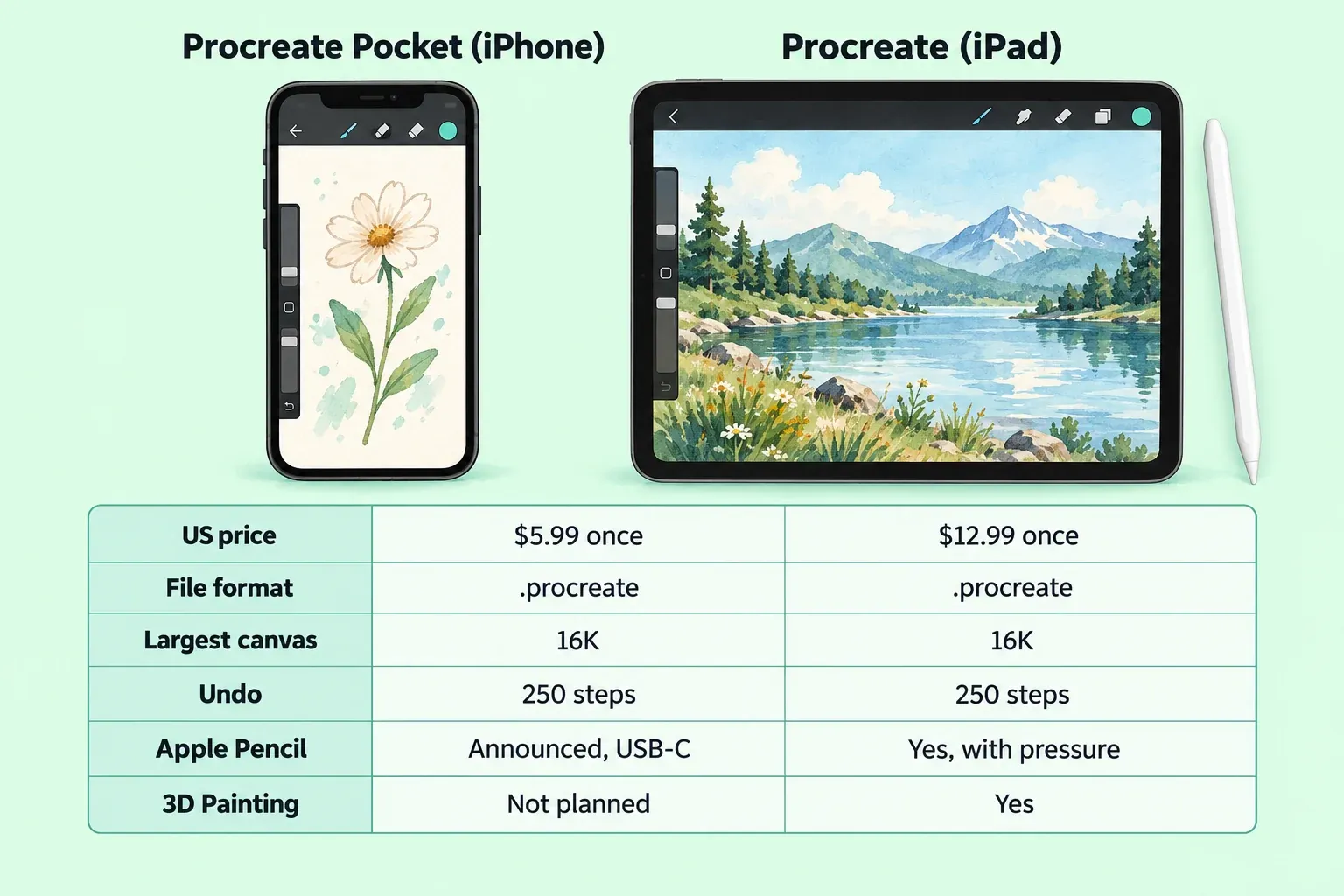
Pocket shares the file format, canvas ceiling and undo depth with the iPad app. The differences are the device, the price, the stylus and 3D.
| Feature | Procreate Pocket | Procreate on iPad |
|---|---|---|
| Runs on | iPhone only | iPad |
| US price | $5.99 once | $12.99 once |
| Requires | iOS 26.0 or later | iPadOS 16.3 or later |
| File format | .procreate | .procreate |
| Largest canvas | 16K in one direction, depending on the iPhone | 16K in one direction, depending on the iPad |
| Undo | 250 steps, cleared when you leave the canvas | Up to 250 recent steps |
| Apple Pencil | Announced for iPhone Duo with Apple Pencil (USB-C), not yet in the notes or Handbook | Supported, with pressure |
| 3D Painting | Not planned | Paints on imported models since Procreate 5.2 |
| US App Store rating | 3.8 from 13K ratings | 4.4 from 51K ratings |
The sources behind the iPad column are the Procreate for iPad App Store listing, the iPad canvas creation guide and Procreate's undo and redo article. If 3D is the reason you're looking at Procreate, the Procreate 3D painting guide covers the iPad side. One version rule matters for moving files: artwork saved in Pocket 4.0.8 or later opens only in Procreate 5.3 or higher.
Apple Pencil and styluses on Pocket
Procreate now describes Pocket on its Procreate Pocket page as "made and optimized for iPhone and iPhone Duo." Staff on the Folio thread called iPhone Duo the first iPhone model to provide Apple Pencil (USB-C) support, and a staff reply on the Pocket 5 beta board says Pocket will support iPhone Duo and Apple Pencil (USB-C) "once compatibility is released." Neither the Pocket 5 release notes nor the Pocket Handbook describes Pencil behavior yet.
Even when it lands, expect less than an iPad Pencil gives you. Apple's Apple Pencil comparison lists low latency and tilt sensitivity for the USB-C model, and marks pressure sensitivity as not compatible with it. My advice: don't buy an Apple Pencil for Pocket until the release notes or the Handbook name it, because a promise on a forum thread isn't a feature you can return to the store, and even then plan on tilt, not pressure.
Third-party styluses are a dead end. The Procreate Pocket FAQ says Pocket no longer officially supports any third-party stylus. Older Wacom, Adonit and Ten One Design models, such as the Bamboo Sketch, Jot Touch 4 and Pogo Connect 1 and 2, may still connect, with no guarantee, and the Pocket Preferences page still offers the option to connect one.
Fingers get a workaround instead. On an iPhone without 3D Touch, Pocket detects it and turns the lower sidebar slider into a pressure control. The Pocket interface guide says to tap and hold the slider button until you feel a haptic tap to swap it between Pressure and Opacity; on iPhones with 3D Touch it sets opacity. If a paired stylus on iPad ignores pressure, the Apple Pencil pressure fix explains how pressure, tilt and touch differ.
What buyers and reviewers say
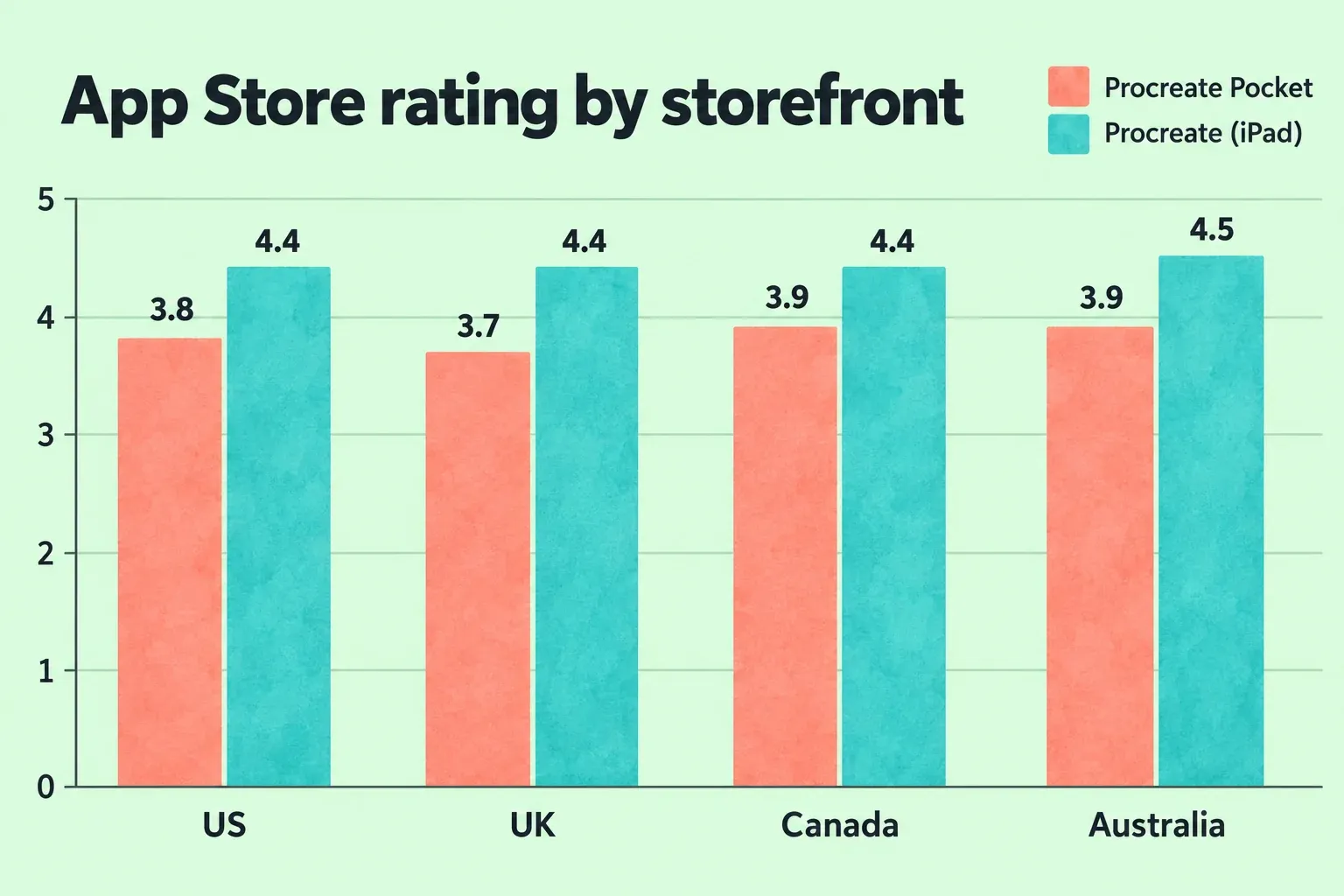
Editorial reviews of Pocket are scarce and old, so this composite starts with buyers: the App Store rating and price for Pocket and for Procreate on iPad in four storefronts, the US, UK, Canada and Australia Pocket listings, set against the matching iPad listings.
| Storefront | Pocket price | Pocket rating | iPad price | iPad rating | Pocket price vs iPad |
|---|---|---|---|---|---|
| US | $5.99 | 3.8 (13K) | $12.99 | 4.4 (51K) | 46% |
| UK | £5.99 | 3.7 (2.2K) | £12.99 | 4.4 (7.7K) | 46% |
| Canada | C$7.99 | 3.9 (1.5K) | C$17.99 | 4.4 (6.2K) | 44% |
| Australia | A$9.99 | 3.9 (718) | A$19.99 | 4.5 (5.6K) | 50% |
Composite result: Pocket's median rating is 3.85 (range 3.7 to 3.9, four storefronts, about 17,400 ratings, 3.8 weighted by rating count). Procreate on iPad sits at a median 4.4 (range 4.4 to 4.5, about 70,500 ratings). Pocket costs a median 46% of the iPad price (range 44% to 50%). Store figures are lifetime averages with rounded counts, and Pocket 5 is only weeks old, so nearly every one of those ratings describes Pocket 4 or earlier.
The written reviews explain the gap. A 2018 US reviewer was "struggling to find any situation where I've ever felt comfortable using the application on the iPhone" and asked for "some sort of cloud syncing." A 2022 reviewer who used Pocket instead of buying an iPad found it "challenging to create something on such a small screen" and noted that "on Pocket it seems like there aren't any major updates." Creative Bloq's ImagineFX review of Pocket 2 called it "an essential painting app for iPhone users," then listed the iPhone being fiddly to work on and controls that are "perhaps over-sensitive" as the drawbacks.
My read: the gap is the screen and the finger, not the engine. Pocket 5 answers the update complaint and moves brushes into iCloud Drive, but it can't make a phone bigger, so judge it as a sketchbook, not as your main studio.
Move artwork and brushes between iPhone and iPad
Protect the original first. Moving a file is the moment a version mismatch or a sync delay can cost you work, so send a copy and keep the Pocket artwork where it is until the iPad opens it.
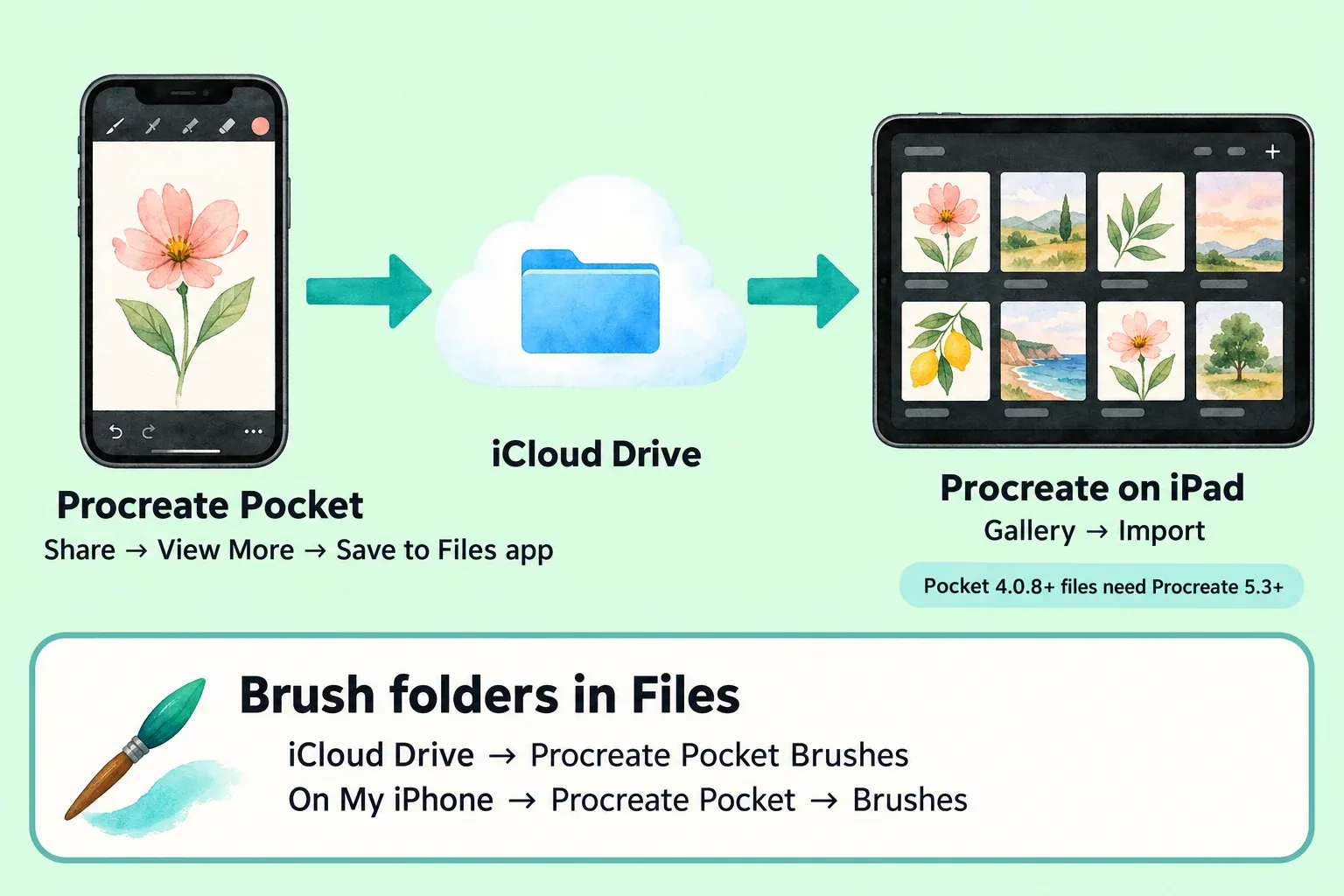
- In the Pocket Gallery, swipe the artwork's thumbnail left, tap Share and choose the Procreate format. Then use View More → Save to Files app; the Pocket import and share guide lets you save to iCloud Drive or On My iPhone. Pick iCloud Drive.
- Wait for the sync. Files saved to iCloud Drive show up in the Files app or Finder on your other devices once they sync.
- On the iPad, open the Procreate Gallery and tap Import in the top right. The iPad import guide opens the Files app; tap the .procreate file.
- Check the version. Pocket files from 4.0.8 onward need Procreate 5.3 or higher on the iPad.
For a one-off transfer, Pocket's Share menu also uses iOS Sharing, so AirDrop works. The .procreate format is unique to Procreate products, which is why the native file is the copy worth keeping; the Procreate backup guide covers where to store it.
Brushes have their own folders now. Pocket 5 stores them in Files under iCloud Drive → Procreate Pocket Brushes, or under On My iPhone → Procreate Pocket → Brushes. The Store brushes in iCloud toggle in Preferences switches between the two and asks whether to move all brushes or new brushes only. To bring in a set from elsewhere, find the .brush, .brushset, .brushlibrary or .ABR file in the Files app and tap it, as the Pocket brush sharing guide describes.
If you're upgrading from Pocket 4, Procreate's Pocket 5 brush upgrade article says your custom brushes move to the Classic Library, brushes with clashing names get a number added, and a missing set can come back through Actions → Help → Restore brush libraries. It also recommends backing up your most important brushes by hand. I'd do that before the upgrade, not after, because the restore option is a repair path, not a backup; the brush backup steps show how.
Set up Pocket for a small screen
Most of the useful switches live in Preferences: tap the ellipsis to expand the toolbar, then go to Actions → Preferences.
- Right-hand Interface. The sliders sit on the left by default; this toggle moves the sidebar to the right. If you draw with your left hand, I'd turn it on, because the phone sits in your right hand and that thumb can reach the sliders without crossing the canvas.
- Stabilization. Pocket lets you set it app-wide or per brush. I'd set it per brush in Brush Studio, on inking and lettering brushes only, because smoothing that steadies a long line also drags behind fast sketch strokes. Motion Filtering is built with hand tremors and accessibility in mind, so turn it on app-wide if that's your reason.
- Canvas size. Pocket canvases run from 1 x 1 pixels up to 16K in one direction, depending on your iPhone, with 17 color profiles. Larger canvases allow fewer layers; the Procreate layer limit guide explains the trade.
The gestures match the iPad, which is the fastest way to stop hunting for buttons on a small screen. From the Pocket gestures guide:
| Gesture | What it does |
|---|---|
| Two-finger tap | Undo |
| Three-finger tap | Redo |
| Three-finger swipe down | Copy Paste menu |
| Four-finger tap | Full Screen |
Pocket keeps 250 undo states, and the Pocket layers guide notes that undo memory clears when you exit the canvas. The undo guide's Pocket section covers the Rapid Undo delay setting.
Export, PDFs and time-lapse
Pocket's export list is long. The App Store listing names TIFF, transparent PNG, multi-page PDF, web-ready JPEG and animated GIF, PNG and MP4. The Pocket share guide says the Procreate format keeps all of your artwork's data intact, and a PSD keeps layers, layer names, opacity, visibility and blend modes for the layered PSD route to Photoshop. For a cut-out with no background, follow the transparent PNG steps.
- PDFs. Turn on Page Assist from Actions → Canvas. The Pocket Page Assist guide says it creates and opens multi-page PDFs, with each layer or group becoming a page; the Page Assist layers guide shows how pages map to layers.
- Time-lapse. The Pocket video guide records at 1080p on the Good Quality setting, goes up to full 4K, and exports Full length or 30 Seconds. Pick quality before you start, as the time-lapse guide explains.
- Animation. Pocket includes Animation Assist and exports animated GIF, PNG, MP4 and HEVC; the Procreate animation guide walks through frames and onion skins.
- Commercial use. The Pocket FAQ says art you make with the default brushes and swatches, time-lapse videos included, is yours to use however you like, and the bundled fonts are under the SIL Open Font License.
- FacePaint. It needs an iPhone with an A12 chip or a TrueDepth camera, which means iPhone XR onwards.
A .procreate file won't open in Windows apps as it is; the guide to opening Procreate files on Windows covers the export formats that do.
Should you buy Procreate Pocket?
- You already use Procreate on iPad: yes. At 44% to 50% of the iPad price in the storefronts above, it's a cheap way to sketch away from the iPad, and the files and brushes move across.
- You only have an iPhone: yes, for sketches, small illustrations, pixel art and quick animations. Skip it if you want long painting sessions; that's the use the low-rated reviews struggled with.
- You want Procreate on iPad for less: no. Pocket is iPhone only, and the Procreate price guide lists each app as a separate purchase.
- You need pressure from a stylus or 3D Painting: wait or buy the iPad app. Pocket has neither today, and the announced Apple Pencil (USB-C) has no pressure.
- You're on Windows or Android: Pocket won't help; the Procreate for PC guide covers the options there.
Procreate Pocket FAQ
Is Procreate Pocket free?
No. It costs $5.99 once in the US, with no subscription; other storefronts set their own price, such as £5.99 in the UK.
Does Procreate Pocket work on iPad?
No. The App Store lists it as iPhone only. On iPad you need Procreate, a separate $12.99 app; check your model with the iPad compatibility check before you buy.
Does buying Procreate include Pocket?
They're separate purchases, so owning Procreate on iPad doesn't give you Pocket, and Pocket doesn't give you the iPad app.
Can I open Pocket files on the iPad?
Yes. Pocket and Procreate both save .procreate files; import them from Files in the iPad Gallery, with Procreate 5.3 or higher for files from Pocket 4.0.8 onward.
This is an independent guide. It is not affiliated with or endorsed by Procreate.