
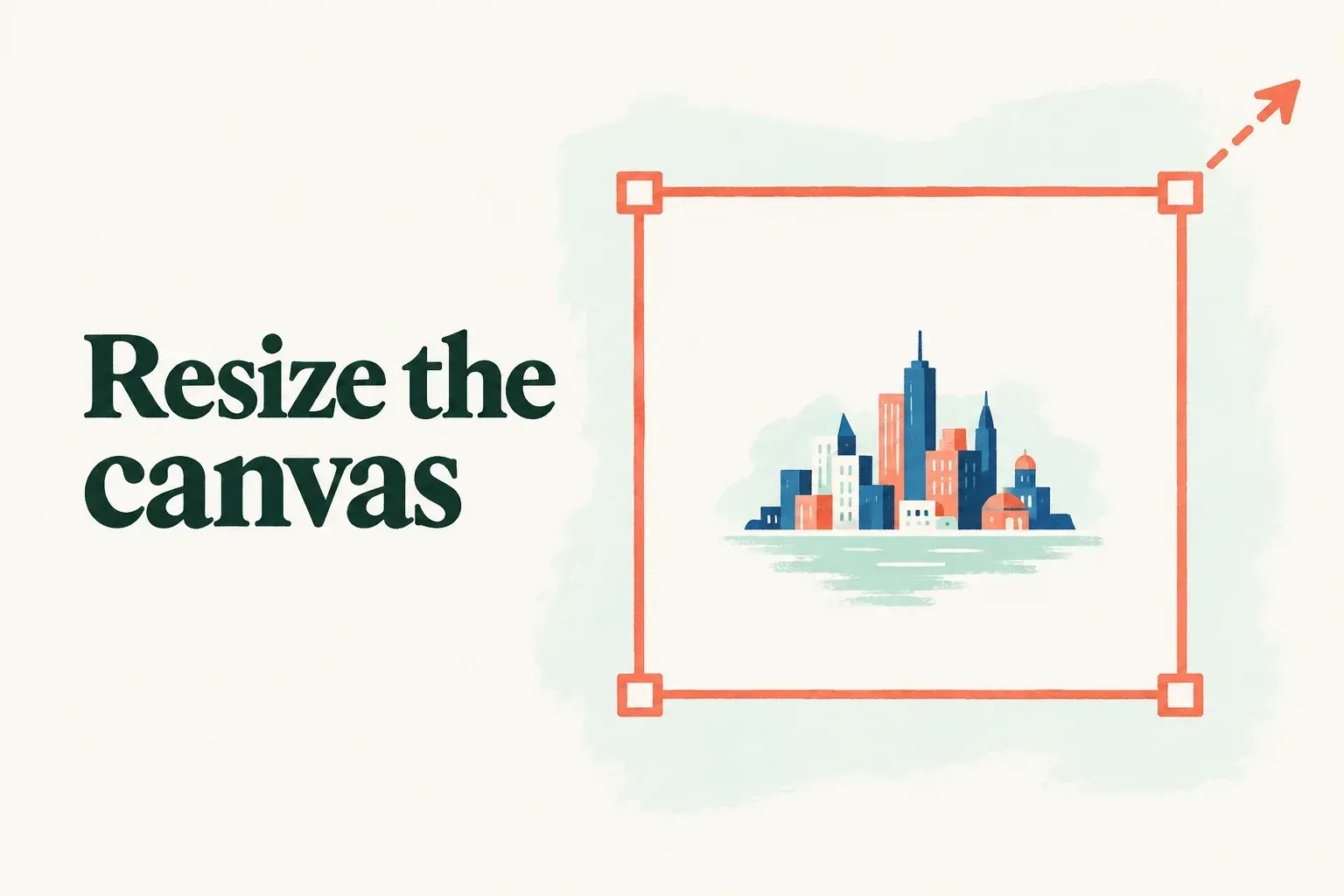
To get more room around a drawing, change the canvas boundary and leave Resample off. To scale the artwork itself to new pixel dimensions, use Resample. Both controls live under Actions > Canvas > Crop and Resize.
Move the frame deliberately
I'd duplicate the artwork in Gallery first, so the change happens on a copy. Swipe the artwork thumbnail left and tap Duplicate, then tap the title beneath each thumbnail so the original and the working copy are clearly named. Leave the original unchanged and open the working copy.
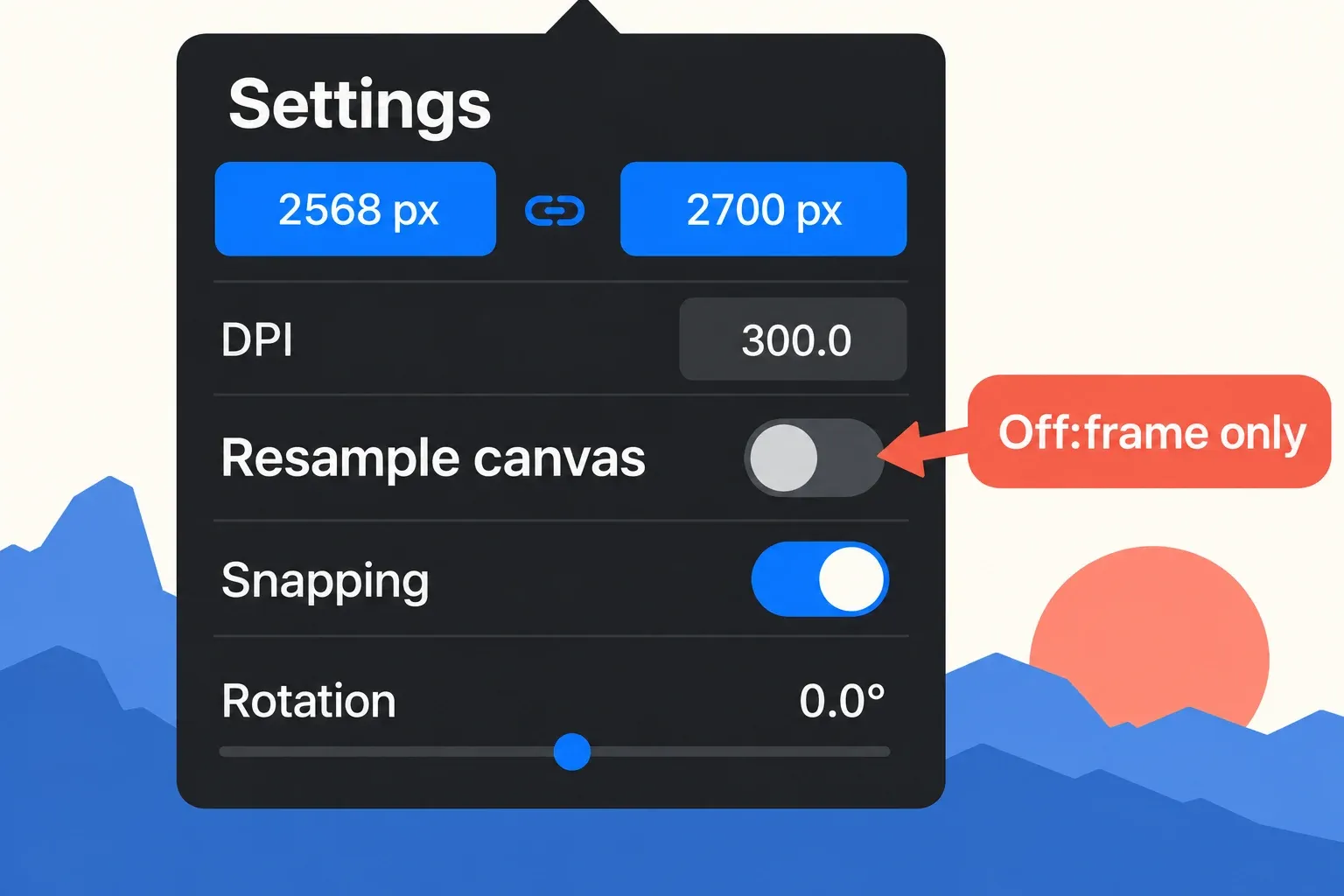
Open Actions > Canvas > Crop and Resize, then tap Settings. Check the unit beside the width and height: the readouts use the measurement unit chosen when the canvas was created. Enter values in that displayed unit. If the fields show inches, do not type a pixel count into them. The pixel example below applies only when both fields show px.
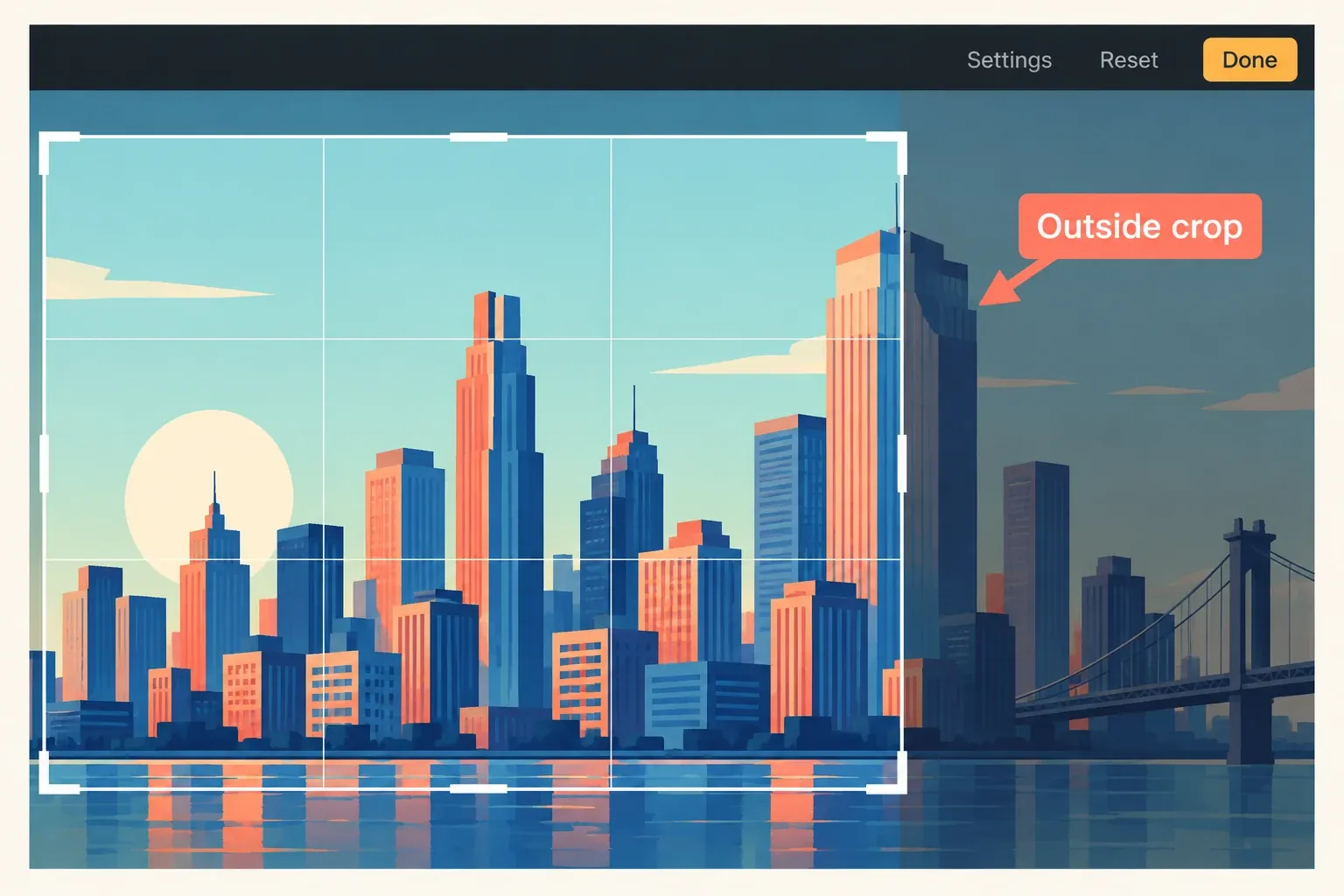
For a frame-only change, keep Resample canvas switched OFF in Settings. Look at the grid overlay: its edges mark the new canvas edges. Drag a side or corner to crop or enlarge, or tap a width or height readout to enter a precise value. Aspect Lock, the chainlink between the readouts, preserves the width-to-height ratio when you change one dimension. With Snapping on in Settings, the crop overlay snaps to canvas and artwork edges and canvas centers to help position the frame.
Before you accept a crop, inspect every edge of the artwork. Cropping trims away content outside the new canvas boundary, so keep the original if you may need those edges later. When the frame and dimensions are right, tap Done in the upper-right corner to finish this operation. Tap Cancel instead to abandon the pending change. Cancel can't reverse a crop that's already been applied.
The interface also shows how many layers the new canvas size can support. Larger canvases allow fewer layers, and Procreate limits the maximum dimensions according to the device.
Switch on Resample only for scaling
For artwork scaling, start from an unchanged working copy and open Actions > Canvas > Crop and Resize. Turning on Resample scales the image to the dimensions you enter and automatically enables Aspect Lock. If the new canvas needs different proportions, set the crop frame first with Resample OFF, then switch on Resample.
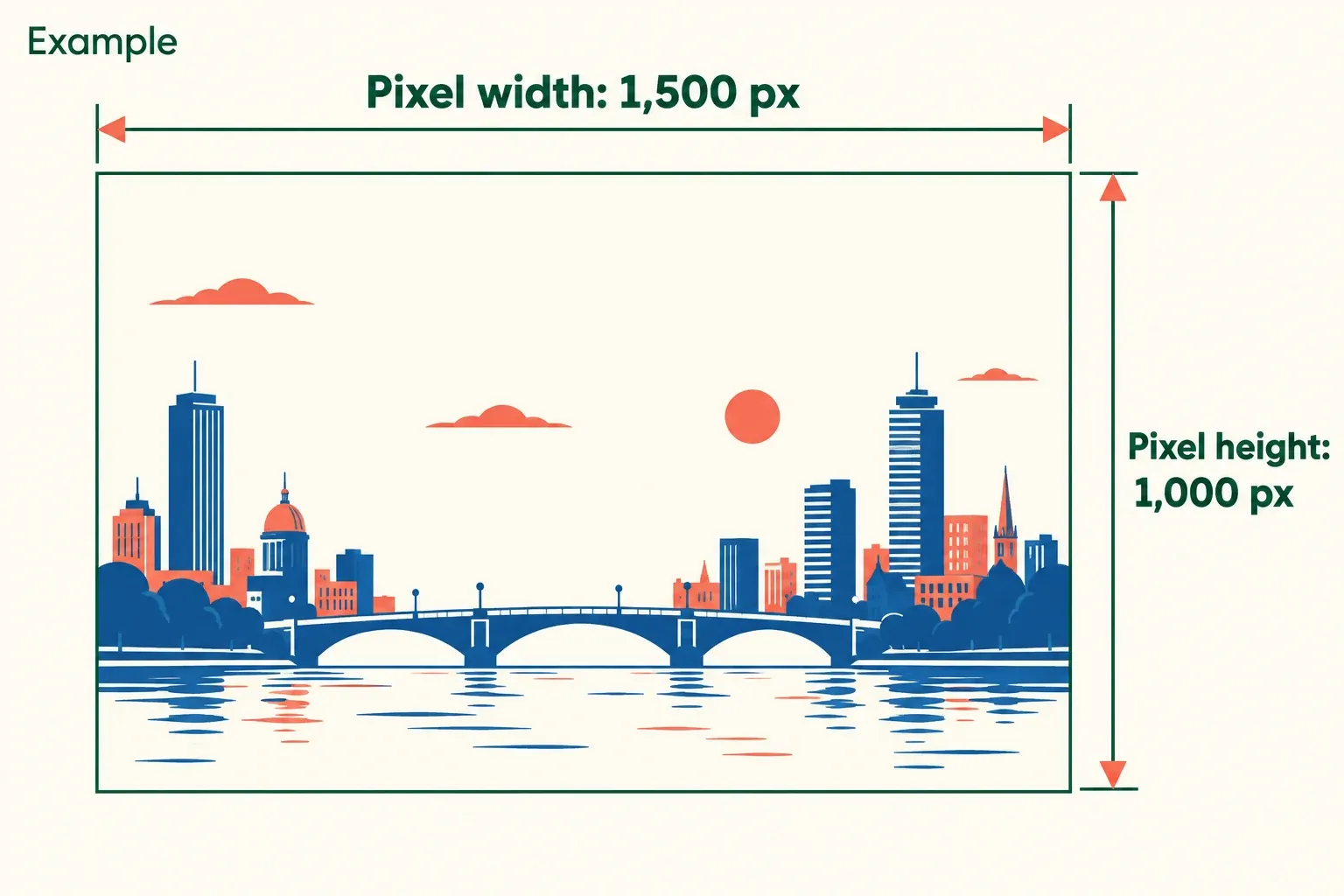
Tap Settings, check the displayed units, and switch Resample canvas ON. Tap the width or height readout and type the target value. With Resample on, dragging the crop overlay does not change the numerical dimension readouts. The values you type set the output canvas dimensions. For example, if the current frame is 3,000 × 2,000 px and both readouts show px, entering 1,500 for width keeps the 3:2 ratio and gives a height of 1,000 px. Check both readouts before you proceed. That's proportional scaling, so it doesn't squeeze the subject's width independently to fit a different ratio.
Inspect the frame and entered dimensions, then tap Done to finish the resample. Use Cancel instead if the pending result isn't the change you intended.
Resample uses bicubic interpolation. Enlarging an image creates data from existing pixels and can produce unexpected results, so inspect fine lines after scaling rather than inferring extra detail from a larger width and height.
Changing DPI alone changes physical measurements such as inches, not the canvas pixel dimensions. This matters when a print specification gives both physical size and resolution. After Done on either route, open Actions > Canvas > Canvas information > Dimensions and compare Pixel width and Pixel height with the requested size. Check the actual canvas edges and inspect an exported file before handoff.
For a pixel-level edge check, use your viewer's actual-pixels view. If you already use Photoshop on a desktop, open the actual exported file and choose View > 100%, where each image pixel displays as one monitor pixel. Compare the same fine lines and edge regions without resizing the file again. A fit-to-window view alone doesn't confirm pixel-level quality.
Match the control to the request
If a drawing needs extra blank space for a caption or border, enlarge the frame with Resample OFF and check where the existing marks sit inside it. If the destination instead requires a different pixel width for the entire image, Resample changes the artwork itself. Those two requests can sound similar in a brief but have different effects on detail and composition, so I'd confirm the required dimensions in pixels before changing either control. Then inspect both the canvas and an exported copy. The canvas size for print guide helps translate a physical-size request into a pixel target, but it doesn't replace the receiving printer's specification.