
Procreate works on iPadOS 27. Procreate says its 5.4.13 update brought full compatibility, and 5.4.14 is the current version. Two problems still catch artists: Apple Pencil strokes that never appear on the canvas, which Procreate's support team clears by turning off Settings → Accessibility → Zoom, and large canvases that crashed on M4 iPads until iPadOS 27.0.1. My advice is to back up your gallery first, update Procreate, then move straight to the newest iPadOS 27 release instead of stopping at 27.0.
Many results for this question are still threads from the iPadOS 27 beta, when Procreate didn't officially support the new system. The fixes below come from Procreate staff replies on its Folio support forum, matched to the symptom you're seeing.
Quick fixes by symptom
| What you see | What to try first |
|---|---|
| Brush cursor shows, but nothing appears on the canvas | Settings → Accessibility → Zoom, switch it off |
| Large canvas crashes on open or says Artwork Unavailable | Update to iPadOS 27.0.1 or later, then reopen it |
| Pencil still won't draw with Zoom off | Settings → Procreate → Tap Assistance - Initial Touch Location Support |
| Another iPad says the artwork exceeds this device's capabilities | Open it on the iPad that made it and reduce the layers there |
Whatever you see, don't delete Procreate and reinstall it to fix this. Procreate staff point out that all Procreate data is stored locally in the app on each device, so deleting the app permanently deletes every artwork that hasn't been exported.
Does Procreate work on iPadOS 27?
Yes. Procreate's App Store version history shows two compatibility updates in a row, 5.4.13 and then 5.4.14, both with the same note about getting the best out of Procreate on every supported device and operating system version. When an artist asked about crashes right after the release, a Procreate support specialist replied in the iPadOS 27 crash thread on Folio that installing 5.4.13 would bring full compatibility with iPadOS 27.
The minimum didn't move. The Procreate FAQ says 5.4.14 needs iPadOS 16.3 or newer, so iPadOS 27 is a choice, not a requirement for the current app. I'd update Procreate before the system, because the compatibility fixes should already be on the iPad the first time iPadOS 27 opens your gallery.
One quote in the search results needs a correction. The top Folio thread about Procreate Dreams shows a line saying Procreate and Procreate Dreams are not fully compatible with iPadOS 27. A forum member wrote that during the beta, and it isn't a statement from Procreate.
Procreate Dreams
During the beta, Procreate staff said in the Procreate Dreams beta thread that Dreams had no known workaround like the one Procreate had. Dreams then got its own compatibility update, version 2.1.2, which the Procreate Dreams App Store listing describes with the same wording as Procreate's. Dreams also needs iPadOS 16.3 or later, so the same order works: update the app, then the system.
Which iPads get iPadOS 27
Apple's security releases list gives the same device range for iPadOS 27, 27.0.1 and 27.2. Find the line your iPad belongs to, then check the generation in Settings → General → About.
| iPad line | Oldest model on iPadOS 27 |
|---|---|
| iPad Pro 12.9-inch | 4th generation and later |
| iPad Pro 11-inch | 2nd generation and later |
| iPad Air | 4th generation and later |
| iPad | 9th generation and later |
| iPad mini | 6th generation and later |
The models one step below, iPad Pro 12.9-inch 3rd generation, iPad Pro 11-inch 1st generation, iPad Air 3rd generation, iPad 8th generation and iPad mini 5th generation, stay on iPadOS 26 and still receive updates such as iPadOS 26.7.2. The iPad 7th generation is on iPadOS 18 and got 18.7.11 the same day. Every one of them is above Procreate's iPadOS 16.3 minimum, so they keep running 5.4.14. If your iPad is on that list, none of the iPadOS 27 bugs below apply, and I wouldn't replace a working iPad just to get the new system.
Apple Pencil strokes don't appear: turn off Zoom
This one looks like a broken Pencil. The brush cursor follows the tip, but no paint lands on the canvas. In the Folio thread about the Pencil not drawing, one artist said everything worked until the iPadOS 27.0.1 update. In a second report from an iPad mini (6th generation), finger painting still worked and the same Pencil drew normally in Sketchbook.
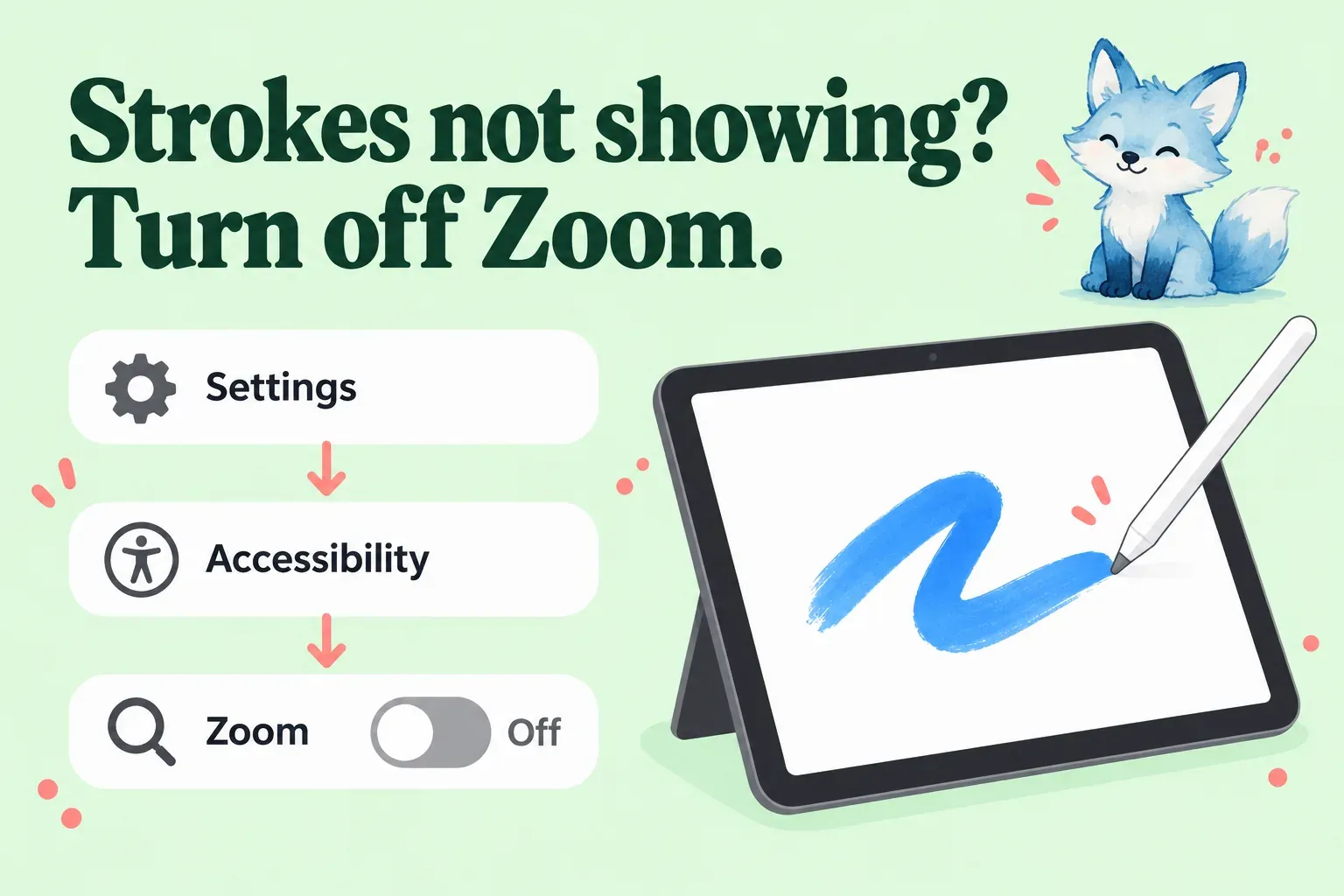
Procreate's support team calls it a bug that can happen with iPadOS 27 and asks you to check one setting:
- Open the iPad Settings app.
- Go to Accessibility → Zoom.
- Switch Zoom off if it's on.
- Return to Procreate and draw a test stroke on a blank layer.
Several artists in those threads confirmed that turning Zoom off brought their strokes back. Procreate says the problem can show up in other apps too, that it's hoping for a fix in a future iPadOS update, and that staff will post in the thread when one is available. Until then, after each iPadOS update I'd switch Zoom back on and draw one test stroke, because that's the quickest way to know whether you can keep it on.
Some artists keep Zoom on for its Low Light filter when they draw at night. Apple lists Reduce White Point among the display accommodations under Accessibility → Display & Text Size, and it reduces the intensity of bright colors without Zoom. It also changes how your colors look, so I'd turn it off before judging a palette.
If Zoom was already off
During the beta, a Pencil Pro that drew in Fresco and Sketchbook but not in Procreate was the subject of the Pencil not working on the iPadOS 27 beta thread. Procreate staff suggested iPad Settings → Procreate → Tap Assistance - Initial Touch Location Support. It's worth one try if Zoom isn't the cause. Two artists with crashing files said it did nothing for them, so I wouldn't expect it to touch a crash.
After that, work through Procreate's checklist for when you can't paint on the canvas: reset Pressure and Smoothing under Actions → Prefs, reset gesture controls, check that AssistiveTouch and Touch Accommodations are off under Accessibility → Touch, forget the Pencil under Settings → Bluetooth and pair it again, force restart the iPad, and take it off charge. If strokes appear but feel light or uneven, the Apple Pencil pressure guide covers the brush and curve settings. Pencil trouble on iPadOS 27 wasn't only a Procreate story either. In the Adobe Fresco thread about the Pencil on iPadOS 27, one artist said the Pencil Pro kept disconnecting in Fresco while it worked perfectly in Procreate, and another said a later iPadOS update set it right.
Large canvases crash or say Artwork Unavailable
Right after iPadOS 27 came out, artists with large, layer-heavy files saw Procreate crash as soon as they opened them. The thumbnail then went blank, and the next attempt showed "Artwork Unavailable. This document is in an unknown state and may be corrupted." Procreate tagged the report Acknowledged, called it a known iPadOS 27 issue with M4 iPad models, and reported it to Apple. A later staff reply in the same thread said the iPadOS issue behind crashes on canvases with large sizes or many layers was resolved in iPadOS 27.0.1.
That message doesn't prove the file is ruined. In one report of files over 1GB, copies restored from an iCloud backup were flagged as corrupted too, which suggests the crash, not the files, was the problem. So I'd never delete an artwork that shows it. Do this instead:
- Update to iPadOS 27.0.1 or later and reopen the artwork.
- If it still crashes, send the file to Procreate through the Procreate Support Form. Staff offered to merge the layers of crashing canvases so you can keep working on them.
- Attach the crash log. Open Settings → Privacy & Security → Analytics & Improvements → Analytics Data or View Analytics Logs, find the newest file named Procreate-year-month-date.ips, tap it, tap the share icon and save a copy.
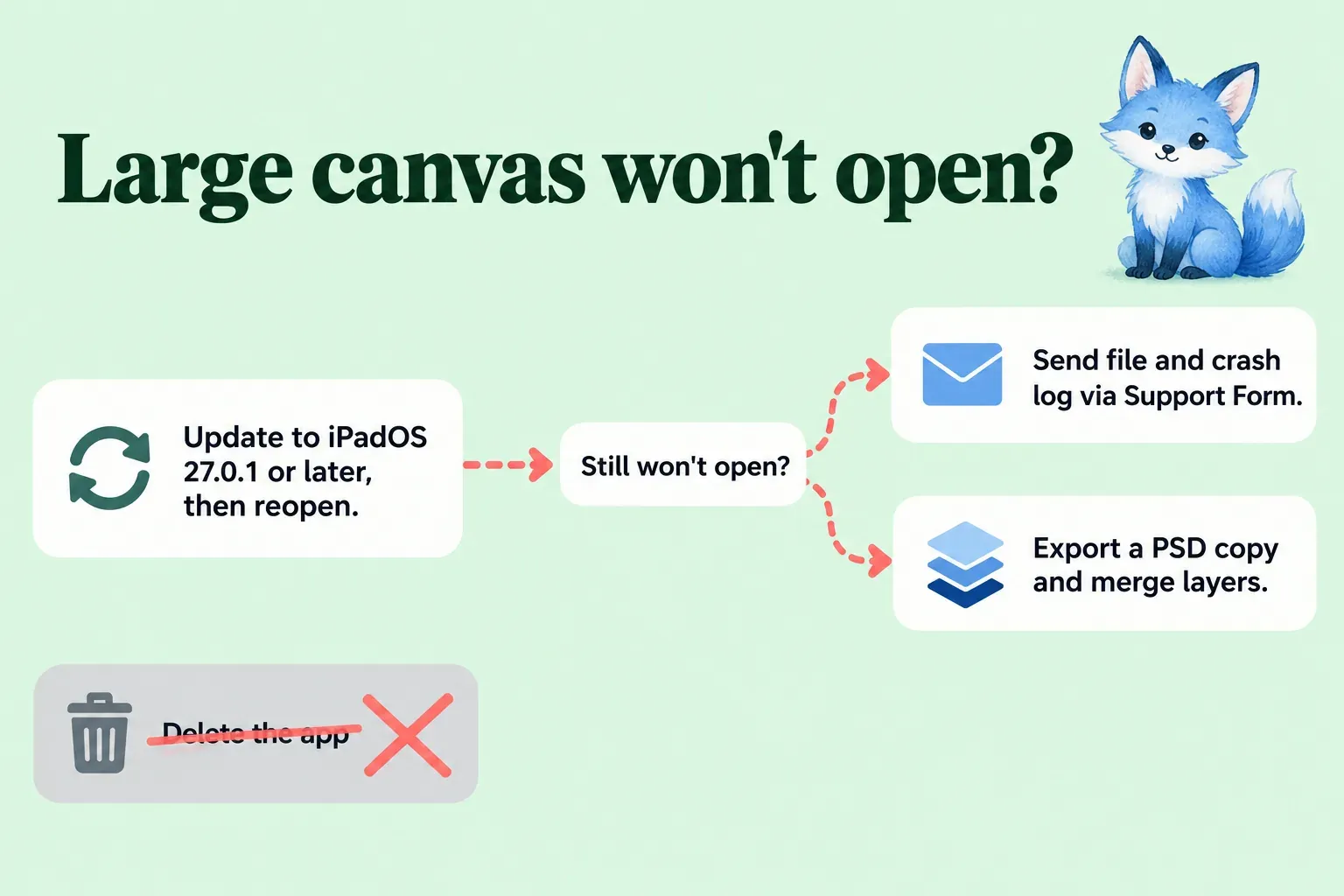
Staff also mentioned a do-it-yourself route: export the artwork from the Gallery as a PSD, merge some layers in other software, and bring it back into Procreate as a PSD. One artist said the re-imported PSD still arrived corrupted, so I'd treat that as a second try and keep the original .procreate file untouched. The Procreate to Photoshop guide covers what survives a PSD round trip.
Not every crash in that thread was iPadOS 27. One artist found that the file was simply over the layer limit at a huge size, and staff noted that iPad models support different maximum canvas sizes and layer limits. That's why a smaller iPad can refuse a file with a message that it exceeds this device's capabilities. The Procreate layer limit guide explains how canvas size sets the count. If a file still won't open after all this, the guide to recovering Procreate artwork walks through what's left to try.
Before you update to iPadOS 27
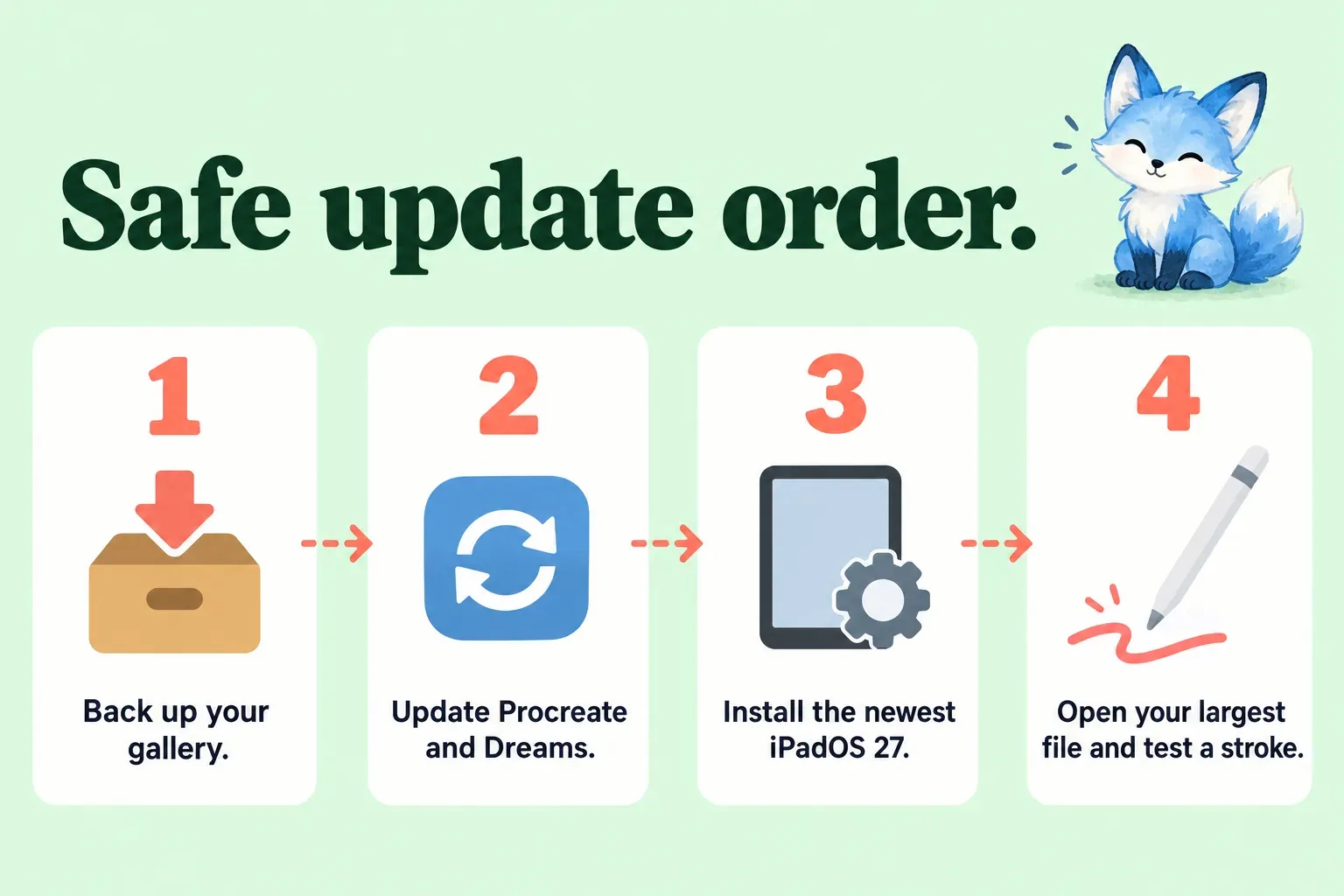
Apple says that once an iPadOS update is installed, it can't be downgraded to the previous version. One artist in the crash thread managed to return to iPadOS 26 only before Apple stopped signing it, so plan as if there's no way back. Here's the order I'd follow:
- Export your gallery and keep the copies off the iPad, following the steps to back up Procreate artwork.
- Update Procreate, and Procreate Dreams if you use it, from the App Store.
- Install the newest iPadOS 27 release, not 27.0. Apple's iPadOS 27 update notes list 27.0.1 and 27.2 after the first release.
- Open your largest artwork and draw a test stroke before you start new work.
If you're in the middle of a deadline with a big file, I'd finish that job first. The large-canvas crash is fixed, but you can't undo the update if something else goes wrong, and a backup is the only safety net you control.
This is an independent guide. It is not affiliated with or endorsed by Procreate.